
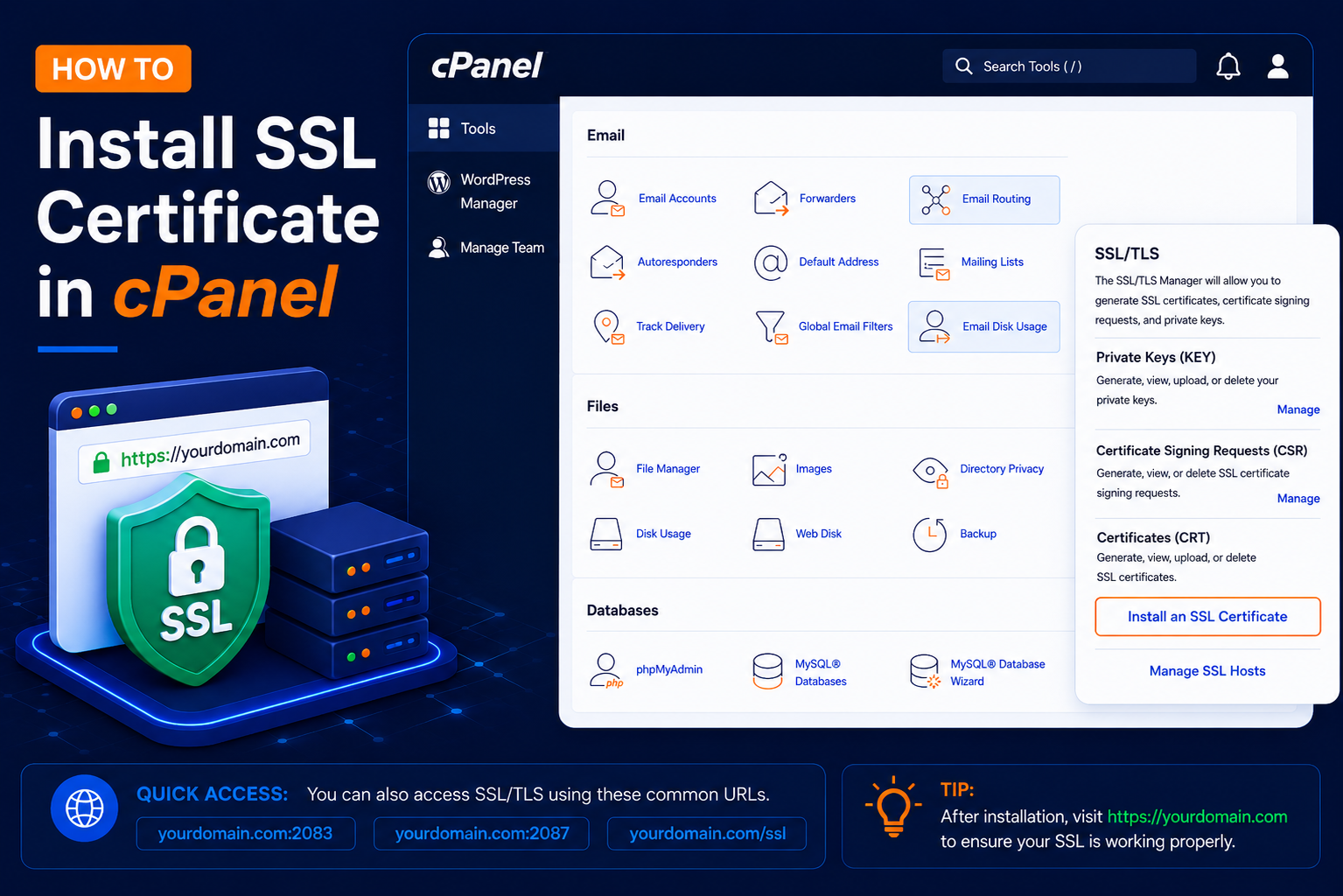
How to Install an SSL Certificate in cPanel
An SSL certificate secures the connection between your website and its visitors. After SSL is installed correctly, your website can use HTTPS instead of HTTP.
- For example: http://yourdomain.com
- becomes: https://yourdomain.com
With HTTPS, data such as login details, contact form messages, and payment information is encrypted while it travels between the browser and your server. Modern browsers also mark sites without HTTPS as “Not secure”, which can make visitors hesitate before filling in a form or placing an order.
In this tutorial, you’ll learn how to install an SSL certificate in cPanel step by step using a free Let’s Encrypt certificate, and how to check that it is working.
Before You Start
- Your domain must point to your hosting server. The A record for yourdomain.com (and www, if you use it) should resolve to your hosting IP address.
- DNS changes must have finished propagating, which can take a few hours after changing nameservers.
- Your website should be reachable over plain HTTP, because free certificate authorities verify domain ownership by loading a small file from your site.
- You need your cPanel username and password.
Many hosts also run AutoSSL, which issues free certificates automatically. The exact tool and button names can vary slightly from host to host, but the overall process is the same.
How to Install an SSL Certificate in cPanel
Step 1: Log In to cPanel
- Open your cPanel login page, usually https://yourdomain.com/cpanel or https://yourdomain.com:2083.
- Enter your cPanel Username and Password, then click Log in.
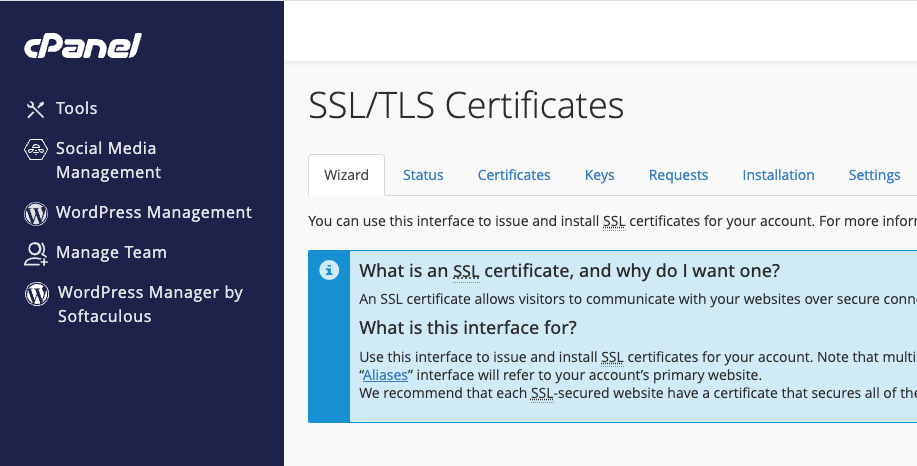
Step 2: Open SSL/TLS
- After logging in, find the Security section.
- Click: SSL/TLS
- You can also search for SSL/TLS using the cPanel search bar.
Step 3: Select Your Domain
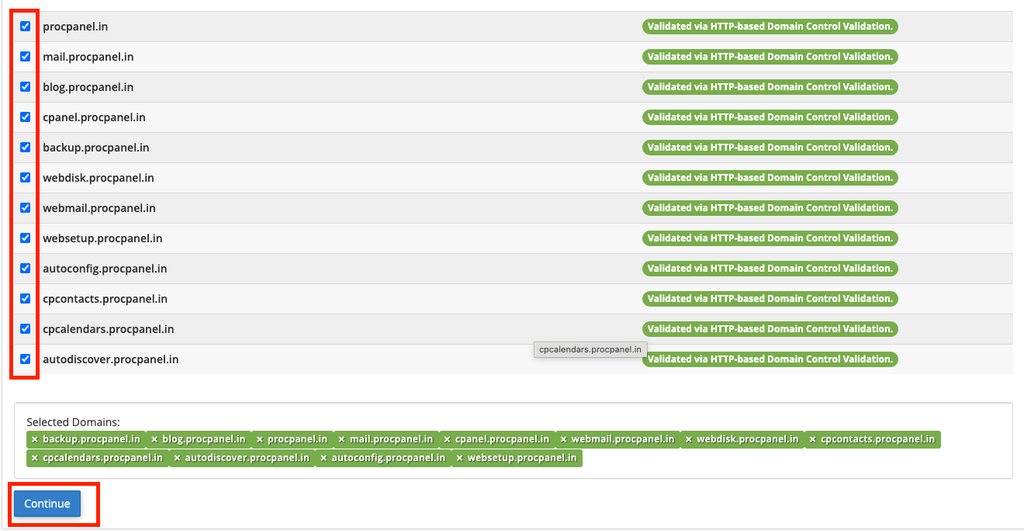
- Choose the domain where you want to install the SSL certificate.
- For example: yourdomain.com
- Make sure you select the correct domain.
- Check the box next to the domain where you want to install the SSL certificate.
Step 4: Install the Let’s Encrypt Certificate
Then, click Continue and select Install Let’s Encrypt Certificate to complete the installation.
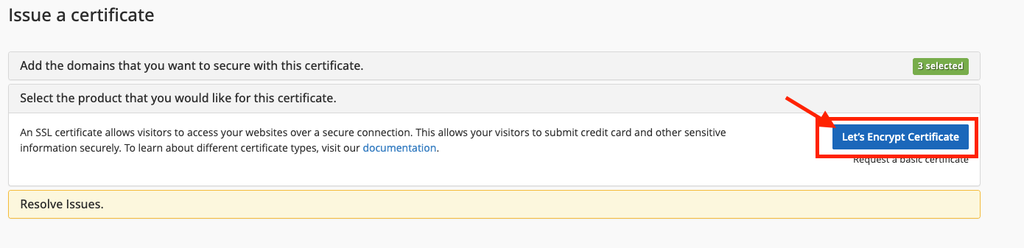
The certificate is usually issued within a minute or two. Free Let’s Encrypt certificates are valid for a limited period and are renewed automatically by the server, so you normally do not need to repeat these steps.
How to Check Whether SSL Is Working
- Open your website using: https://yourdomain.com
- Confirm that the website loads securely without certificate warnings.
- You should also verify that the certificate covers the hostname you are visiting, such as both the root domain and www version when required.
You can click the padlock icon in the browser address bar to see the certificate details, including which domains it covers and its expiry date.
Installing a Paid SSL Certificate Instead
If you bought a certificate from a certificate authority, the process is different. In SSL/TLS, open Manage SSL sites, choose your domain, and paste the three parts you received: the Certificate (CRT), the Private Key (KEY) generated with your CSR, and the Certificate Authority Bundle (CABUNDLE). Then click Install Certificate. Keep the private key safe; the certificate will not work without the key it was generated with.
Common Problems and How to Fix Them
Domain Validation Fails
The certificate authority could not reach your site. Check that the domain’s A record points to your server, that DNS has propagated, and that a .htaccess rule, security plugin, or CDN is not blocking requests to the /.well-known/ folder.
Certificate Covers Only One Version of the Domain
If https://yourdomain.com works but https://www.yourdomain.com shows a warning, the www hostname was not included. Make sure a DNS record exists for www and select it when issuing the certificate.
Mixed Content Warnings
The padlock may show a warning if the page still loads images, scripts, or styles over http://. Update those links to HTTPS. In WordPress, change the WordPress Address and Site Address under Settings → General to use https.
Website Still Opens on HTTP
Installing a certificate does not automatically redirect visitors. Enable Force HTTPS Redirect for the domain in cPanel’s Domains page (if available on your server), or add a redirect rule to your .htaccess file.
Tips and Best Practices
- Include both the root domain and the www version in the certificate.
- Set up an HTTPS redirect so every visitor uses the secure version of your site.
- Check the expiry date occasionally, even with automatic renewal, especially after DNS changes.
- If you use a CDN or proxy, check its SSL settings as well, since they also affect what visitors see.
- Remember to secure subdomains and addon domains too; each hostname needs to be covered.
Frequently Asked Questions
Is a free Let’s Encrypt certificate good enough?
For most blogs, business websites, and small online shops, yes. It provides the same encryption as a paid domain-validated certificate. Paid certificates are mainly chosen for organisation validation, warranties, or specific business requirements.
How long does SSL installation take?
Issuing a free certificate usually takes only a few minutes once DNS is pointing to your server. If you have just changed nameservers, you may need to wait for propagation before validation succeeds.
Do I need to renew the certificate manually?
Free certificates issued through cPanel tools or AutoSSL are normally renewed automatically. Paid certificates must be renewed and reinstalled when they expire.
Will SSL slow down my website?
On modern servers and browsers the impact is negligible, and HTTPS also allows browsers to use newer, faster protocols.
Conclusion
Installing an SSL certificate in cPanel takes just a few clicks: open SSL/TLS, select your domain, and install the certificate. After that, confirm that the padlock appears, cover both www and non-www versions, and redirect HTTP to HTTPS so every visitor gets a secure connection.