How to Export a MySQL Database Using phpMyAdmin
Exporting your MySQL database is an important part of creating a website backup. Using phpMyAdmin in cPanel, you can download a copy of your database to your computer as an SQL file.
Database backups are useful before website migrations, WordPress updates, plugin changes, or other major modifications.
If you run WordPress or any other dynamic website, your files only tell half the story. Posts, pages, user accounts, orders, comments and most settings are stored in a MySQL (or MariaDB) database. An exported .sql file contains the commands needed to rebuild that database, so you can restore it later on the same hosting account or import it on a new server when you move your website.
What Do You Need?
Before starting, make sure you have:
- Access to your cPanel account
- An existing MySQL database
- Access to phpMyAdmin
- Enough storage space on your computer for the database backup
If you are not sure which database belongs to your website, check the Manage My Databases page in cPanel, or open your website’s configuration file. For WordPress, the database name is listed next to DB_NAME in wp-config.php.
How to Export a Database in phpMyAdmin
Step 1: Log in to cPanel
- Enter your cPanel Username and Password, then click Log in.
Step 2: Open phpMyAdmin
- After logging in to cPanel, locate the Databases section.
- Click: phpMyAdmin
- phpMyAdmin will open in a new page or browser tab.
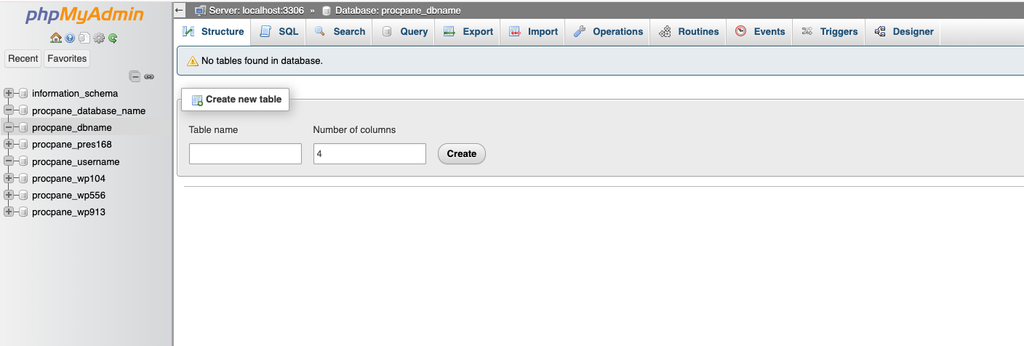
Step 3: Select Your Database
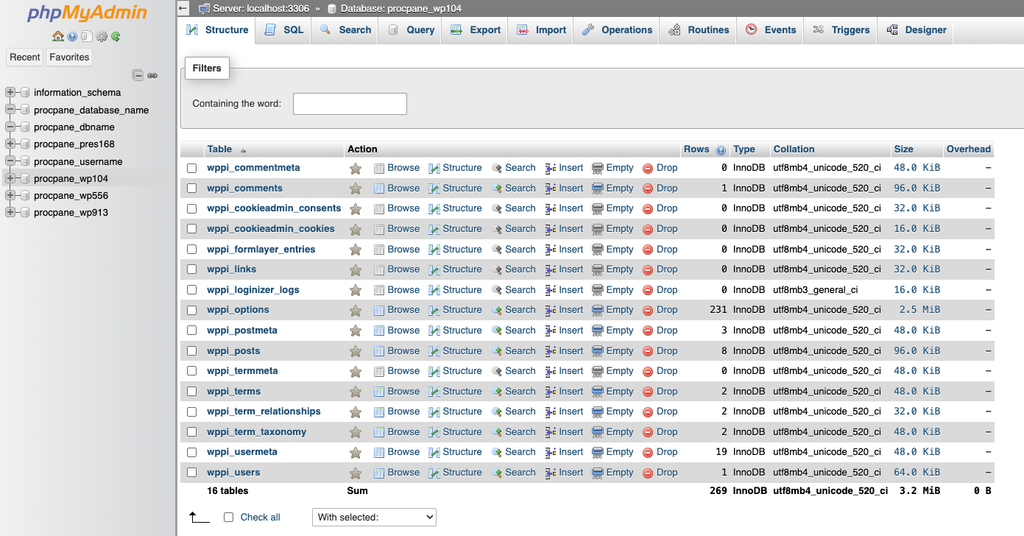
- Inside phpMyAdmin, you will see the available databases on the left side.
- Click the database you want to export.
- For example: cpanel_username
- After selecting the database, its tables should appear.
- Make sure you select the correct database before creating your backup.
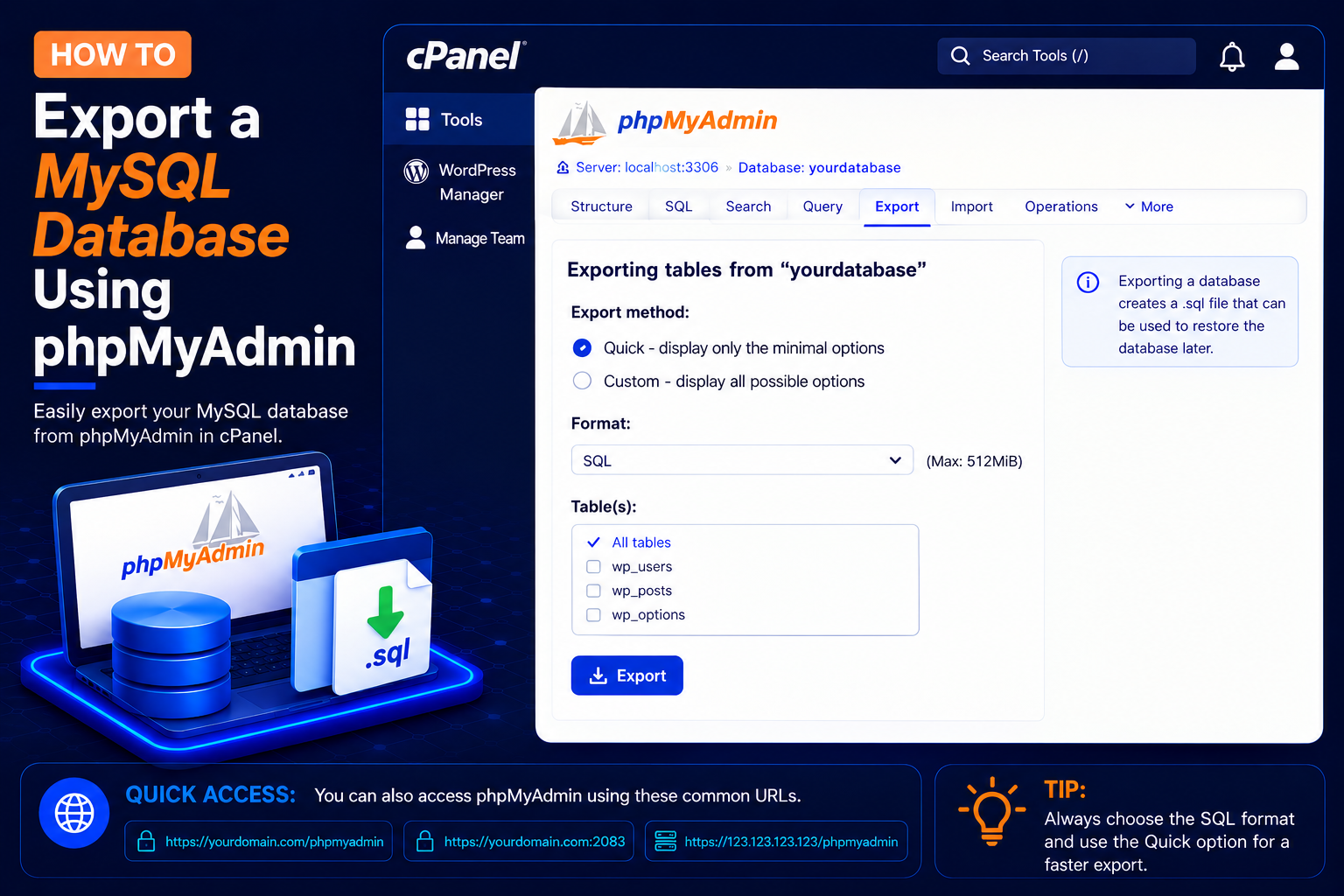
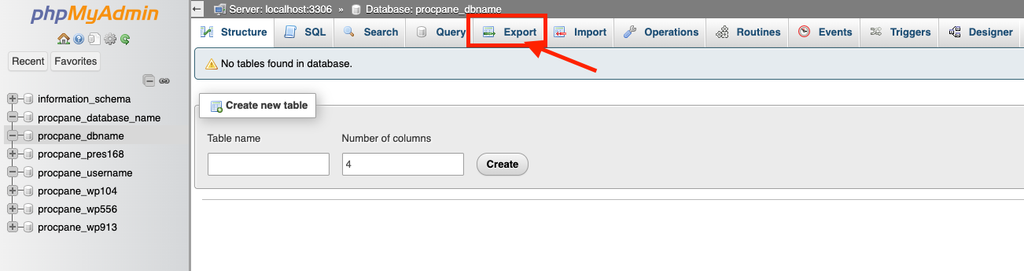
Step 4: Click the Export Tab
- After selecting the database, look at the navigation menu at the top of phpMyAdmin.
- Click: Export
- The database export options will appear.
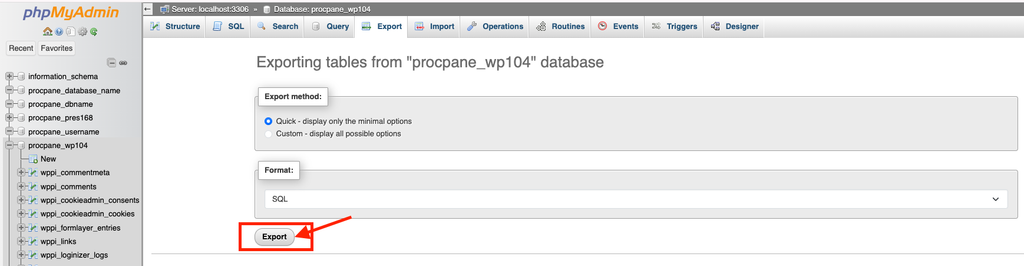
- Under Export method, choose Quick, and under Format, make sure SQL is selected.
Step 5: Click Export
- After selecting Quick and SQL, click: Export
- Depending on your phpMyAdmin version, the button may instead appear as Go.
- Your browser should begin downloading the database backup.
- The downloaded file is usually named after the database, for example: cpanel_user.sql
Once the download finishes, open your Downloads folder and check that the file size looks reasonable. A file of only a few kilobytes for a large website usually means something went wrong during the export.
Quick vs Custom Export: Which Should You Choose?
The Quick method exports every table with sensible default settings and is the right choice for most backups. Choose Custom when you need more control, for example to:
- Export only selected tables instead of the whole database
- Compress the output as zipped or gzipped to make a large file smaller
- Add
DROP TABLEstatements so that importing the file replaces existing tables - Export only the structure (no data) or only the data
Option names and layout can vary slightly between phpMyAdmin versions, but these settings are generally found under the Custom options.
Common Problems and How to Fix Them
The download stops or the page times out
Very large databases can hit the PHP execution time or memory limits set by your host. Try a Custom export with gzip compression, or export the largest tables separately. If it still fails, ask your hosting provider to create the dump for you from the server.
The exported file is empty or very small
You probably exported the wrong database, or the export was interrupted. Go back, click the database name in the left sidebar so its tables are listed, and then open the Export tab again. Clicking Export from the phpMyAdmin home screen exports at server level instead.
I cannot see my database in phpMyAdmin
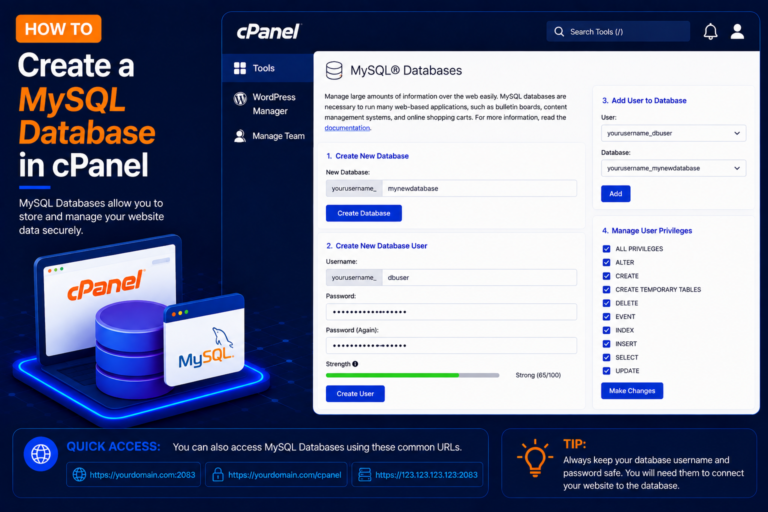
phpMyAdmin opened from cPanel only shows databases owned by that cPanel account. If a database is missing, confirm it exists under MySQL Databases and that you are logged in to the correct cPanel account.
The browser blocks the download
Some browsers warn about or block unfamiliar file types. Allow the download, or right-click the warning and choose to keep the file. Your .sql file is plain text and can be opened in any text editor to confirm it contains CREATE TABLE and INSERT statements.
Tips and Best Practices
- Export the database before every major update, plugin change or migration, not after something breaks.
- Rename the file with the date, for example
mysite-2026-10-15.sql, so you know which backup is the latest. - Keep copies in at least two places, such as your computer and a cloud drive.
- Back up your website files as well; a database export alone does not include images, themes or plugins.
- Treat SQL files as sensitive: they can contain user emails and password hashes, so never share them publicly.
Frequently Asked Questions
Does exporting a database change my website?
No. Exporting only reads the data and creates a copy. Your live website and database are not modified.
How do I restore the exported file?
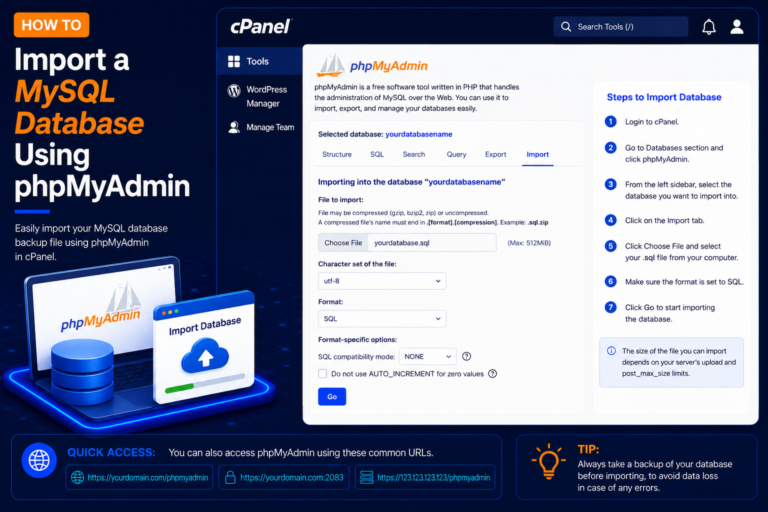
Open phpMyAdmin, select the target database, click the Import tab and upload the .sql file. Our import tutorial linked below explains this step by step.
Can I export only one table?
Yes. Either click the table name and use its Export tab, or choose the Custom method and select only the tables you need.
Is my database included in cPanel full backups?
Usually yes, but restoring a single database from a full account backup is more work. A separate SQL export is quicker to restore when only the database needs to be recovered.
Conclusion
Exporting a MySQL database with phpMyAdmin takes only a few clicks: open phpMyAdmin, select the database, choose Export, keep the Quick and SQL options, and download the file. Make it a habit before any big change, store the file safely, and you will always have a reliable way to recover your website’s content.