
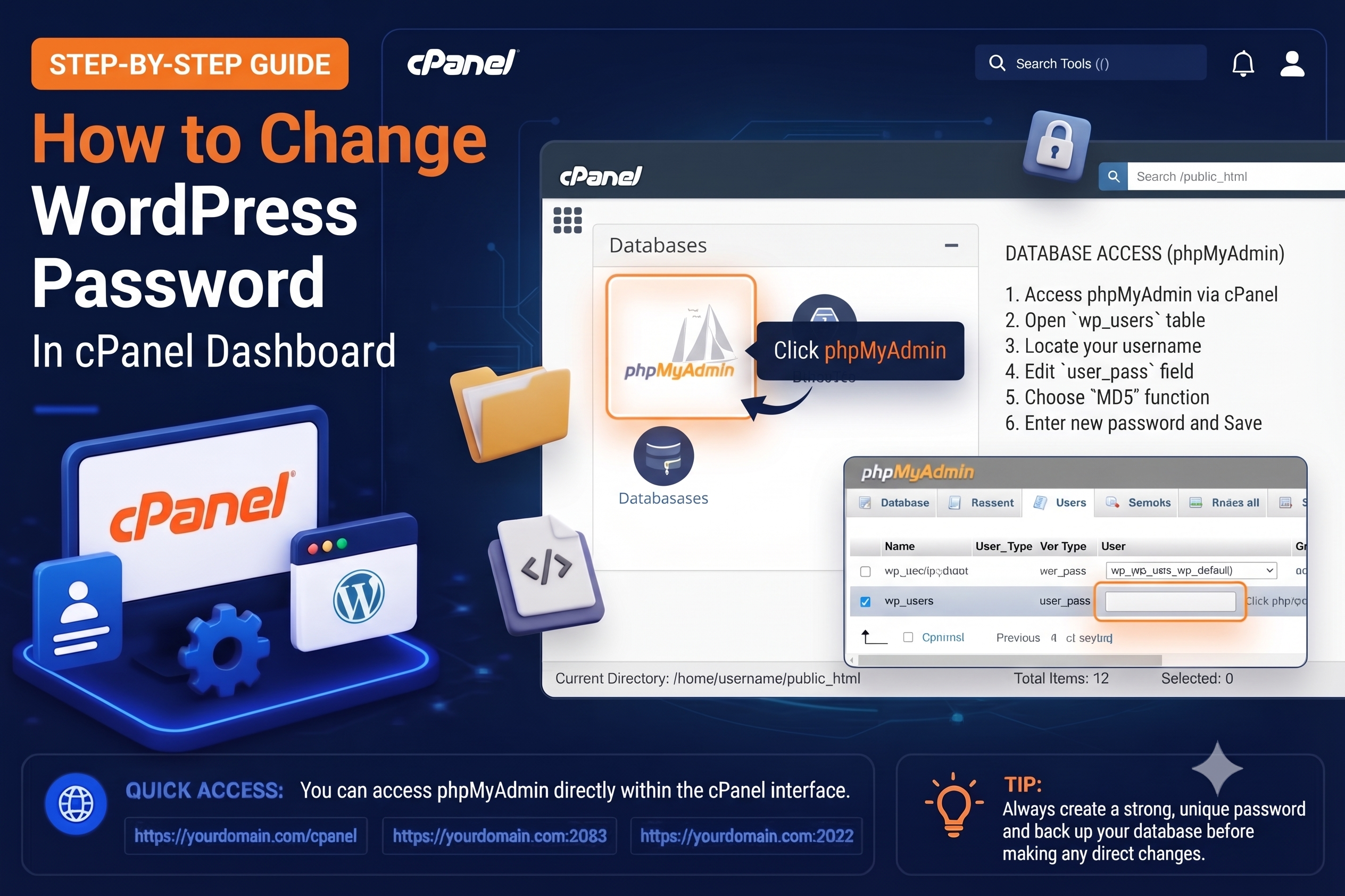
How to Change Your WordPress Password in cPanel
If you have forgotten your WordPress admin password and cannot access the WordPress dashboard, you can reset the password directly from cPanel.
One of the easiest methods is to use phpMyAdmin and update the WordPress user password in the database.
In this guide, you will learn how to change a WordPress admin password in cPanel step by step.
When Do You Need to Reset a WordPress Password from cPanel?
Normally, you can reset your WordPress password using the Lost your password? option on the WordPress login page.
However, you may need to use cPanel if:
- You cannot access your registered email address
- The password reset email is not arriving
- Your WordPress dashboard is inaccessible
- You forgot your administrator password
- You need to reset a user’s password directly from the database
Before making any database changes, it is recommended to create a backup of your website and database.
How WordPress Stores Passwords
WordPress never stores your password as plain text. The user_pass column holds a one-way hash. When you choose the MD5 function in phpMyAdmin, your new password is saved as an MD5 hash. WordPress still recognises this older format, lets you log in, and then automatically replaces it with its own stronger hash. That is why this method works, and why you should log in soon after making the change.
Steps to Change a WordPress Password in phpMyAdmin
Step 1: Log in to cPanel
- First, log in to your cPanel account.
- Your hosting provider normally gives you the cPanel login URL, username, and password.
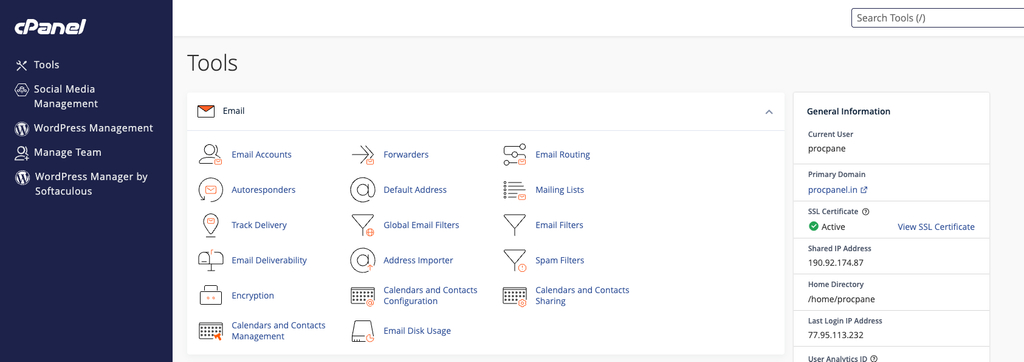
- After logging in, you will see the cPanel dashboard.
Step 2: Open phpMyAdmin
From the cPanel dashboard:
- Find the Databases section.
- Click phpMyAdmin.
phpMyAdmin allows you to view and manage the databases associated with your hosting account.
Step 3: Find Your WordPress Database
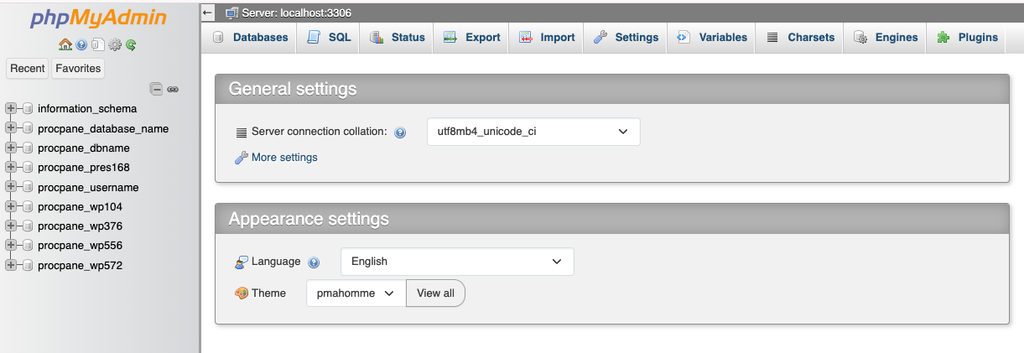
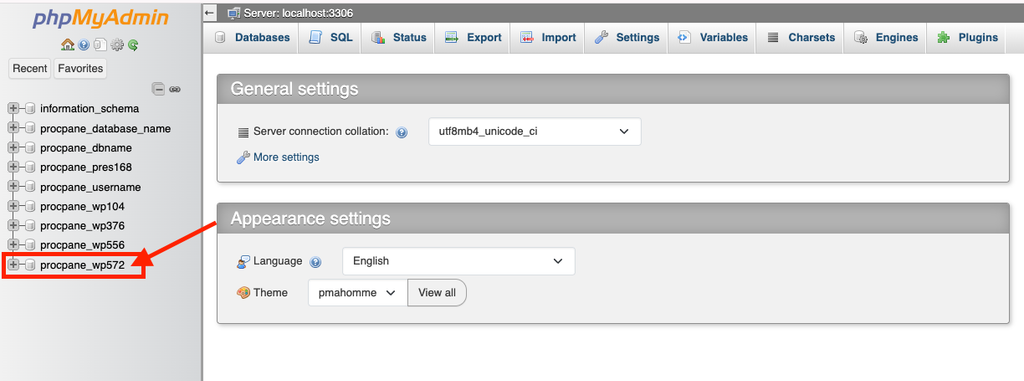
- After opening phpMyAdmin, you will see a list of databases on the left side.
- Select the database used by your WordPress website.
- If you are not sure which database your WordPress installation uses, you can check the wp-config.php file.
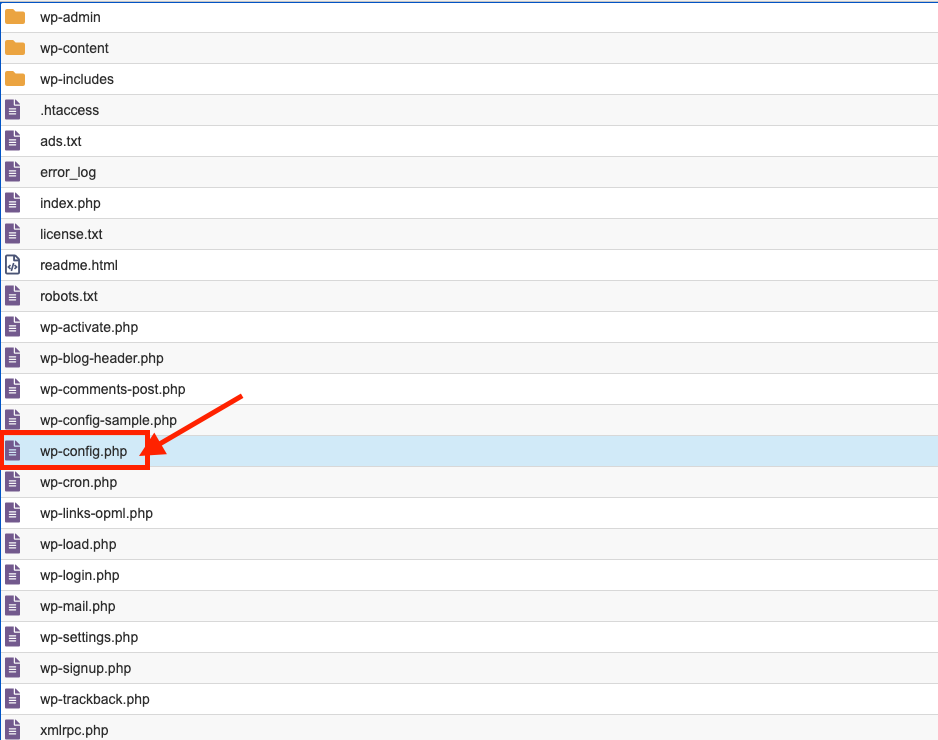
- Open: File Manager → public_html → wp-config.php
- Look for a line similar to: define( ‘DB_NAME’, ‘database_name’ );
- The value shown next to DB_NAME is your WordPress database name.
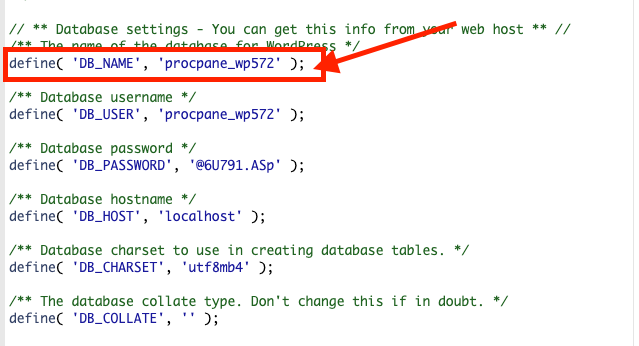
While you have wp-config.php open, also look for the line beginning with $table_prefix. It shows the prefix used by your tables, such as wp_, which helps you find the correct users table in the next step.
Step 4: Open the WordPress Users Table
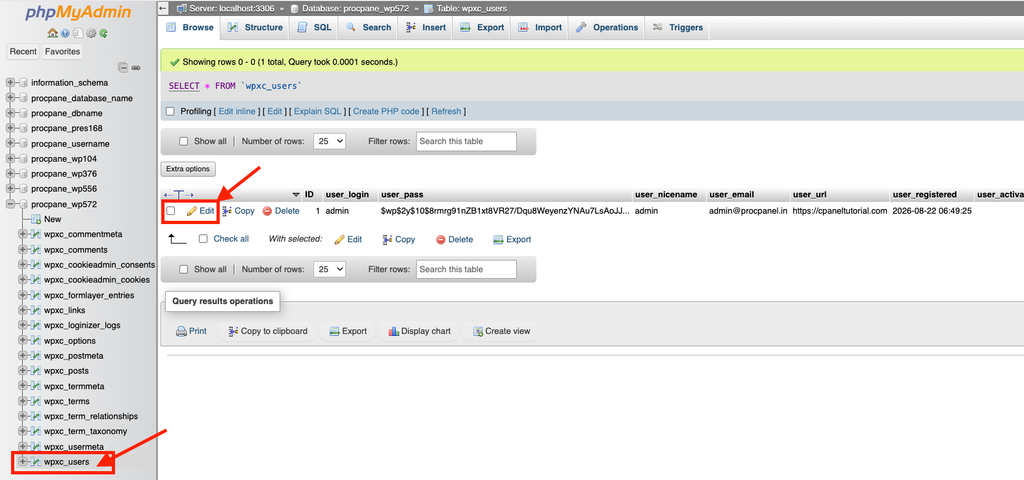
- After selecting the correct database, you will see several WordPress database tables.
- Find the users table.
- By default, it is usually named: wp_users
- However, your website may use a different table prefix for security reasons.
- For example: abc_users or xyz_users
- Look for the table ending with: _users
- Click the users table to open it.
Once you find the correct user, click Edit.
Step 5: Find the WordPress Administrator Account
- Inside the users table, you will see information about the users registered on your WordPress website.
- Look for the account whose password you want to change.
- You can identify the account using fields such as:
- user_login
- user_email
- display_name
Step 6: Change the WordPress Password
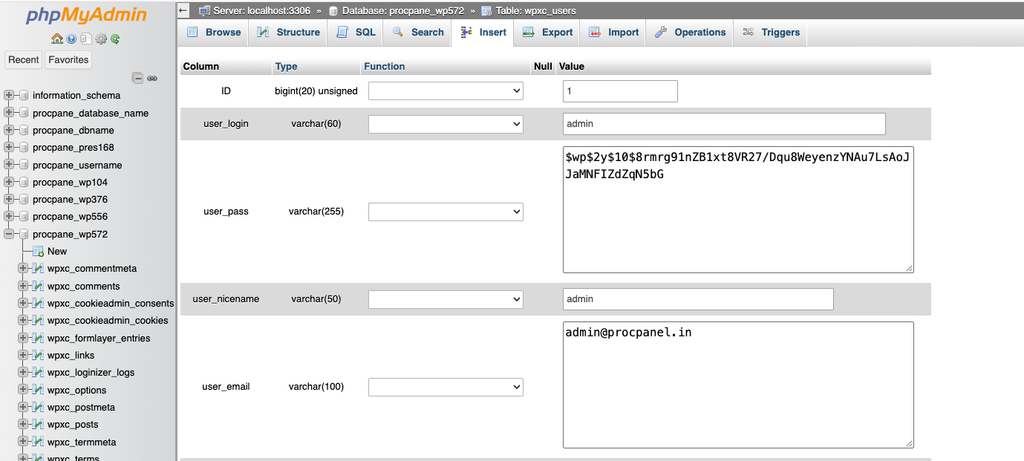
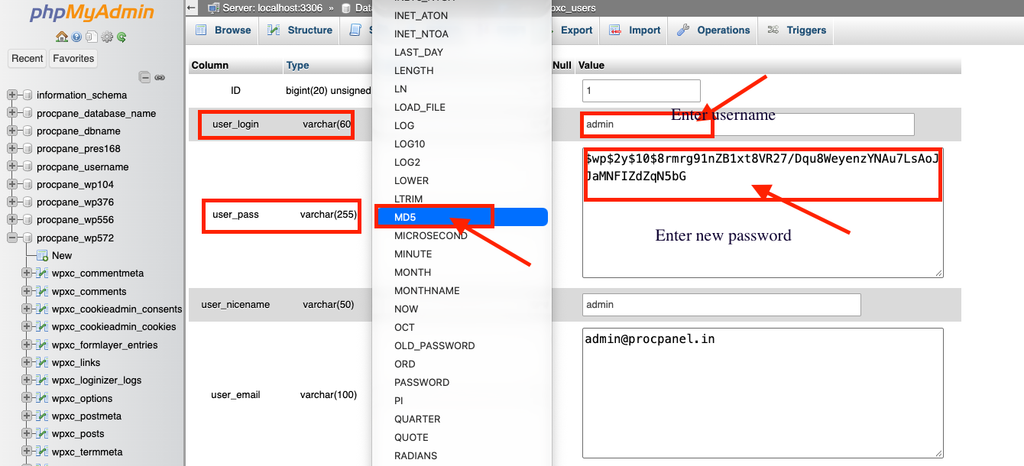
- After clicking Edit, you will see several database fields.
- Find: user_pass
- This field contains the WordPress user’s password hash.
- In the Function column next to user_pass, select: MD5
- Then replace the existing value in the Value field with your new password.
- For example: MyNewStrongPassword123! (choose your own unique password; do not copy this example)
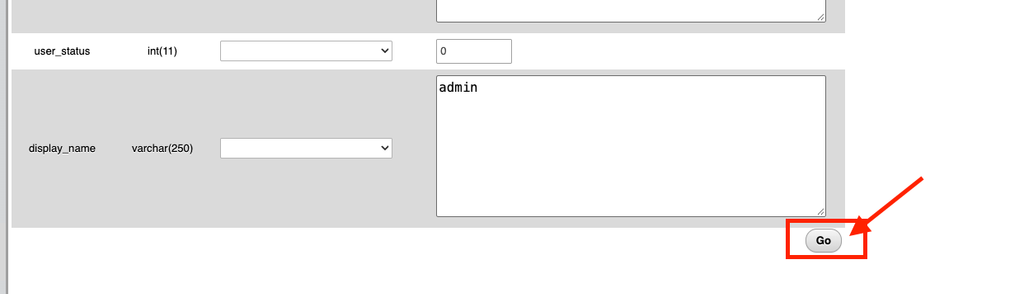
- After entering the new password, scroll down and click Go or Save.
Step 7: Log in to WordPress
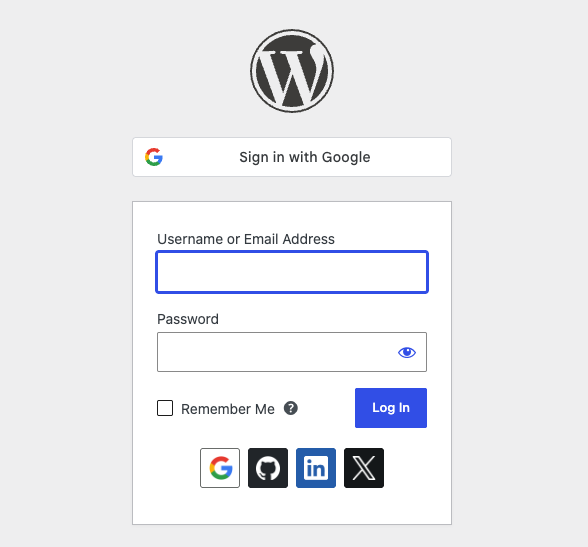
- After saving the new password, open your WordPress login page.
- The login URL is usually: https://yourdomain.com/wp-admin/
- or https://yourdomain.com/wp-login.php
- Enter your WordPress username and the new password.
- If everything was updated correctly, you should now be able to log in to your WordPress dashboard.
Once you are logged in, it is a good idea to go to Users → Profile and set the password again from inside WordPress. This confirms everything is working and stores it using WordPress’s current hashing method.
Common Problems and How to Fix Them
“The password you entered is incorrect”
The most common cause is forgetting to select MD5 in the Function column, which saves the password as plain text that WordPress cannot match. Edit the row again, choose MD5, retype the password and save. Also check for extra spaces before or after the password.
I edited the wrong user or the wrong database
If you host several WordPress sites, each has its own database or table prefix. Confirm the DB_NAME and $table_prefix values in that site’s wp-config.php, then repeat the steps on the correct table.
The users table is not listed
Click the database name in the left sidebar to expand its tables. If you still cannot find a table ending in _users, you may have selected a database that does not belong to WordPress.
I can log in but have no admin rights
Changing the password does not change the user’s role. Make sure you edited an account that already has the Administrator role, or ask another administrator to update your role.
Tips and Best Practices
- Back up the database before editing it, for example by exporting it with phpMyAdmin.
- Use a long, unique password and store it in a password manager.
- Fix the reason the reset email did not arrive, such as an outdated admin email address or mail delivery problems.
- Avoid using “admin” as a username, and remove old accounts you no longer use.
- If your host provides a WordPress manager (for example, in Softaculous), you may also be able to reset the admin password from there.
Frequently Asked Questions
Is it safe to use MD5 for the password?
Yes for this purpose. MD5 is only used to get you back in; WordPress upgrades the stored hash after you log in. Changing the password again from your profile is a sensible extra step.
Will this log out other users?
No. Only the account you edited is affected. Other users keep their existing passwords.
Can I change the username the same way?
Technically the user_login field can be edited, but it is safer to create a new administrator with the desired username and delete the old account from within WordPress.
Conclusion
When the normal reset email is not an option, phpMyAdmin gives you a reliable way back into WordPress. Find the database in wp-config.php, open the users table, edit user_pass with the MD5 function, and log in with your new password. Remember to take a backup first and update the password again from your profile afterwards.