
How to Take a WordPress Backup Using UpdraftPlus Plugin
Taking regular backups of your WordPress website is one of the most important steps for protecting your website data. If your website gets hacked, a plugin causes an error, or files are accidentally deleted, a recent backup can help you restore the website quickly.
UpdraftPlus is a widely used free WordPress backup plugin. It backs up your database and your files (plugins, themes, uploads, and other content) as separate archives, lets you schedule automatic backups, and can store copies in remote locations such as Google Drive or Dropbox.
In this guide, you will learn how to take a complete WordPress backup using the UpdraftPlus plugin on a WordPress website hosted with cPanel.
Before You Start
- You need an administrator account on your WordPress website.
- Check that your hosting account has enough free disk space, because the backup archives are first created on the server. You can see disk usage in the cPanel sidebar.
- Very large sites take longer to back up, so choose a quiet time of day if possible.
- Menu names and button labels can vary slightly between UpdraftPlus versions.
How to Back Up WordPress With UpdraftPlus
Step 1: Log In to Your WordPress Dashboard
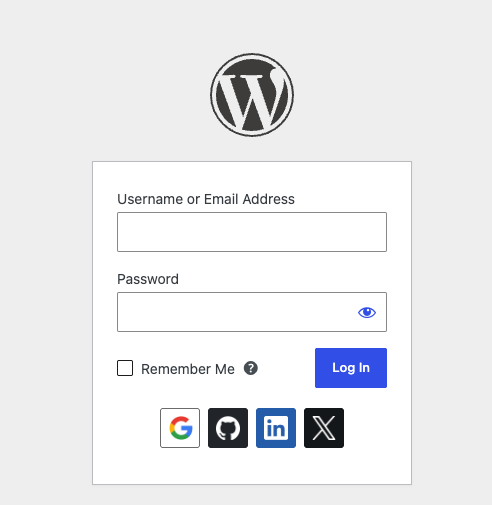
- First, log in to your WordPress admin dashboard.
- Usually, you can access it using: https://yourdomain.com/wp-admin
- Enter your WordPress username and password and click Log In.
Step 2: Install the UpdraftPlus Plugin
After logging in to WordPress:
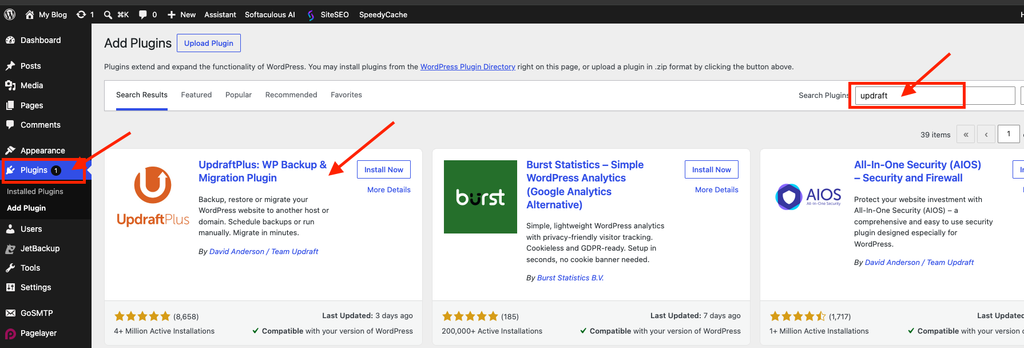
- Go to Plugins > Add New Plugin.
- In the search box, type UpdraftPlus.
- Find UpdraftPlus WordPress Backup Plugin.
- Click Install Now.
- After installation, click Activate.
Once the plugin is activated, you can start creating your website backup.
Step 3: Open UpdraftPlus Backup Settings
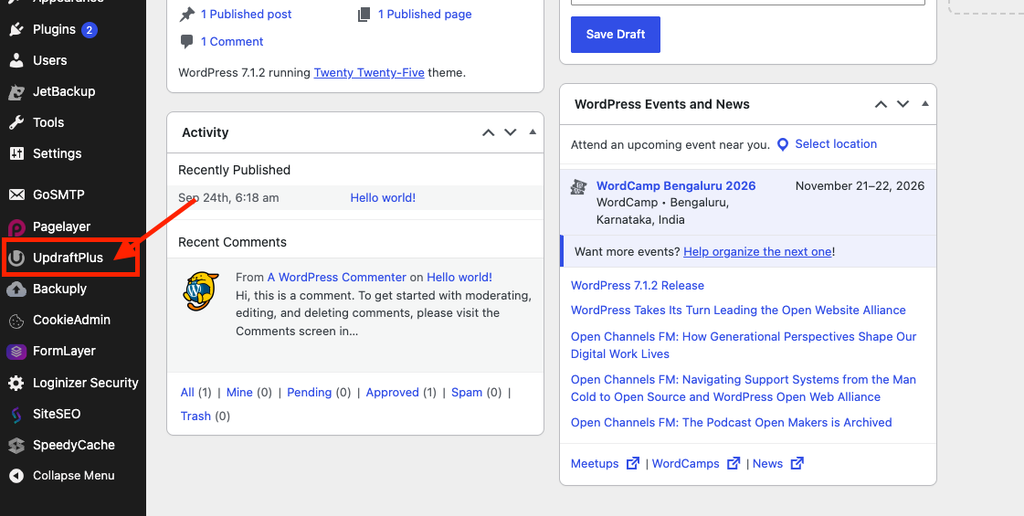
- From your WordPress dashboard, go to Settings > UpdraftPlus Backups.
- Depending on the plugin version, you may also see UpdraftPlus under a separate menu in your WordPress dashboard.
- The UpdraftPlus dashboard displays information about your existing backups, scheduled backups, and remote storage configuration.
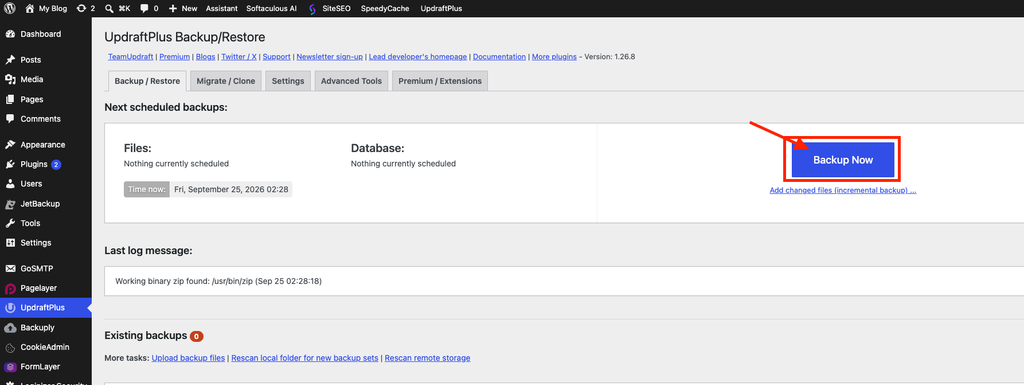
Step 4: Click Backup Now
- On the UpdraftPlus dashboard, click the Backup Now button.
- A new popup window will appear with backup options.
Step 5: Choose the Backup Options
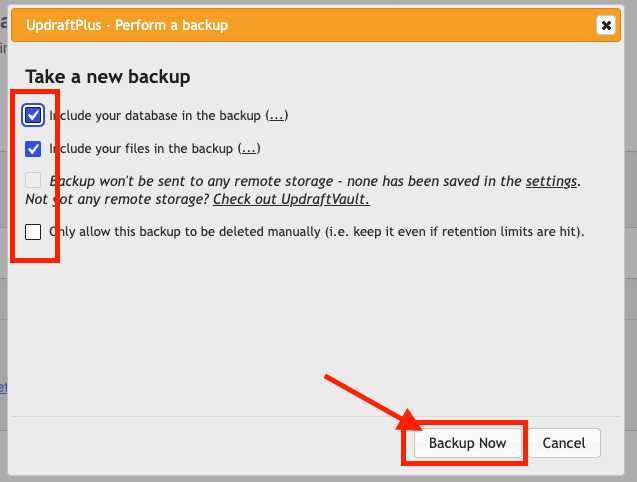
- Keep Include your database in the backup ticked.
- Keep Include your files in the backup ticked for a complete backup.
- If you have connected remote storage, you can also choose to send this backup there.
- Click Backup Now in the popup to start.
Step 6: Wait for the Backup to Complete
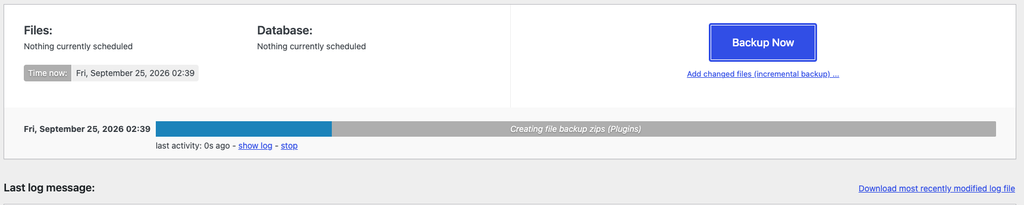
- UpdraftPlus will now start creating the backup.
- The time required depends on the size of your WordPress website.
- Small websites may complete the backup quickly, while larger websites containing many images, plugins, and files may require more time.
- Do not close the page while the backup is being generated.
After the backup completes successfully, you should see it under the Existing Backups section.
Step 7: Check the Existing Backup
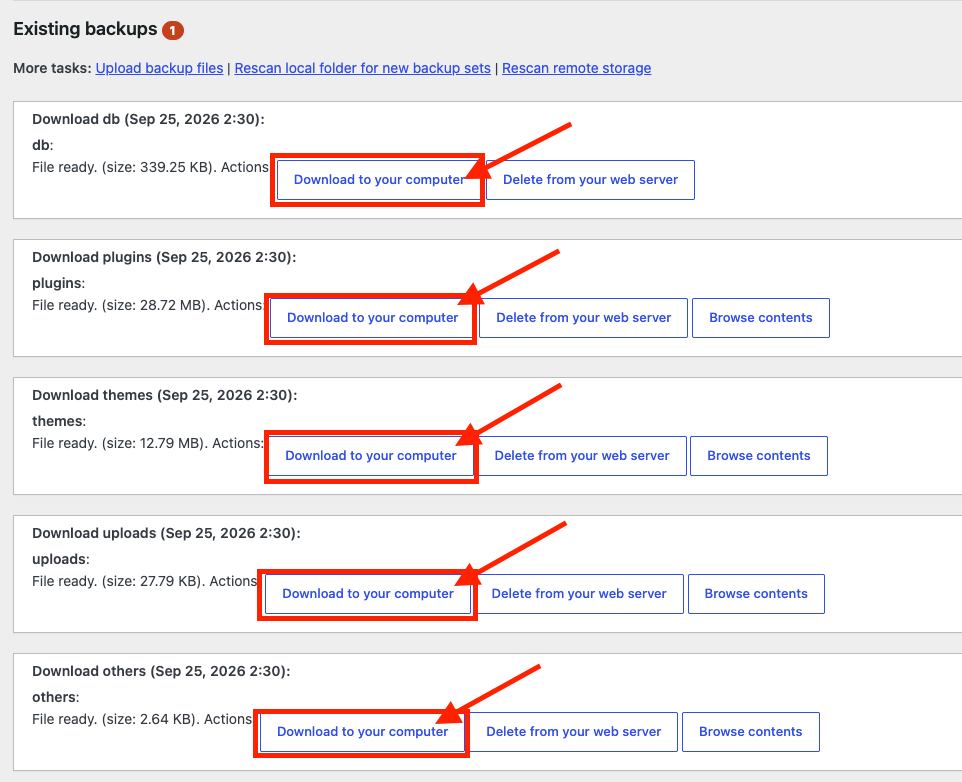
- Scroll down to the Existing Backups section.
- You should see your newly created backup along with different backup components such as:
- Database
- Plugins
- Themes
- Uploads
- Others
This confirms that UpdraftPlus has successfully created the WordPress backup.

Step 8: Download the Backup to Your Computer
- It is recommended not to keep your only backup on the same hosting server.
- From the Existing Backups section, click each backup component, for example:
- Database
- Plugins
- Themes
- Uploads
- Others
- Then click Download to your computer when the download option appears.
- Save all backup files in a safe location on your computer or cloud storage.
On the server, UpdraftPlus stores these archives in the wp-content/updraft folder. Keep all the files from one backup set together, because you need every part to restore the full website.
Common Problems and How to Fix Them
Backup Gets Stuck or Never Finishes
This is often caused by PHP time or memory limits on the server, or by WordPress scheduled tasks (WP-Cron) not running. Check the backup log from the UpdraftPlus dashboard, and if it stops at the same point every time, ask your host to check the limits and cron.
Not Enough Disk Space
The backup is first written to your hosting account. If disk space is low, delete old backups from Existing Backups, remove unused files, or send backups to remote storage and allow UpdraftPlus to delete the local copies.
Backup Is Much Larger Than Expected
Large media libraries, cache folders, or old backup files from other plugins can make archives huge. In the UpdraftPlus Settings tab you can exclude specific folders, such as cache directories, from the file backup.
Download Fails in the Browser
Very large archives can time out when downloaded through WordPress. Try again on a stable connection, or download the files directly from wp-content/updraft using cPanel File Manager or FTP.
Tips and Best Practices
- Set up automatic schedules in the Settings tab, for example daily database backups and weekly file backups for an active site.
- Connect a remote storage destination so backups survive even if the server has a problem.
- Always take a manual backup before updating WordPress, themes, or plugins.
- Keep several older backups, not just the latest one, in case a problem went unnoticed for a few days.
- Test a restore on a staging site occasionally to make sure your backups actually work.
Frequently Asked Questions
Is the free version of UpdraftPlus enough?
For most small websites, yes. The free version includes manual and scheduled backups, restoration, and several remote storage options. The premium version adds extra features such as incremental backups and migration tools.
Does UpdraftPlus back up my emails?
No. UpdraftPlus backs up WordPress files and the WordPress database only. Email accounts and other cPanel data need a separate cPanel or hosting backup.
How do I restore a backup?
In the Existing Backups section, click Restore next to the backup and choose the components you want to restore. If you are restoring on a new site, upload the backup files first and then restore them.
Conclusion
With UpdraftPlus, taking a full WordPress backup is just a few clicks: install the plugin, click Backup Now, and download the archives. Schedule regular backups and keep copies off the server so you can recover your website quickly whenever something goes wrong.