How to Import a MySQL Database Using phpMyAdmin
phpMyAdmin is a web-based database management tool available with many cPanel hosting accounts. It allows you to create tables, manage database data, run SQL queries, and import or export MySQL databases directly from your browser.
If you have a database backup such as a .sql file, you can use phpMyAdmin to restore it to an existing MySQL database.
You will usually need to import a database when you move a website from one hosting provider to another, restore a site after a failed update, copy a live website to a staging subdomain, or set up a script that ships with a ready-made .sql file. The import simply reads the SQL statements in your file and recreates the tables and data inside the database you select.
What Do You Need?
Before starting, make sure you have:
- Access to your cPanel account
- A MySQL database
- A database backup file
- Your
.sql,.sql.gz, or other format supported by your phpMyAdmin installation - Enough available database and hosting resources for the import
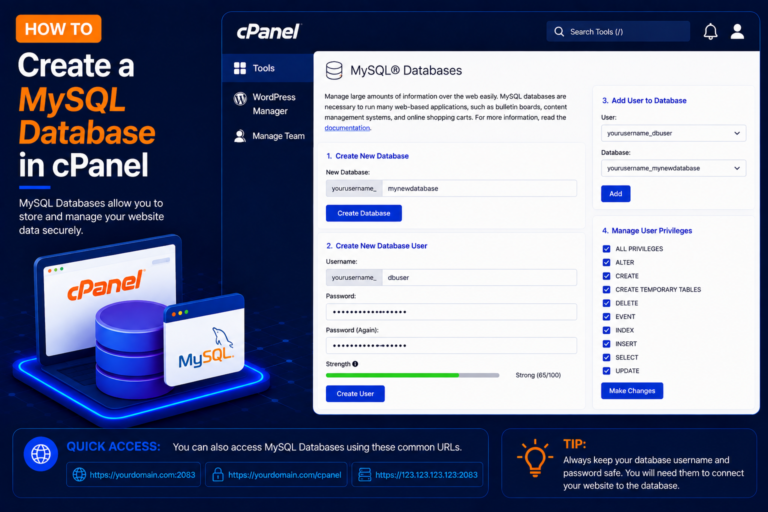
If you haven’t created a database yet, first create one through:
cPanel → MySQL Databases / Manage My Databases
It is also a good idea to export a copy of the current database before you import anything into it. If the target database already contains tables with the same names, the import can overwrite or conflict with them, and a fresh export gives you a safe way back.
How to Import a Database Using phpMyAdmin
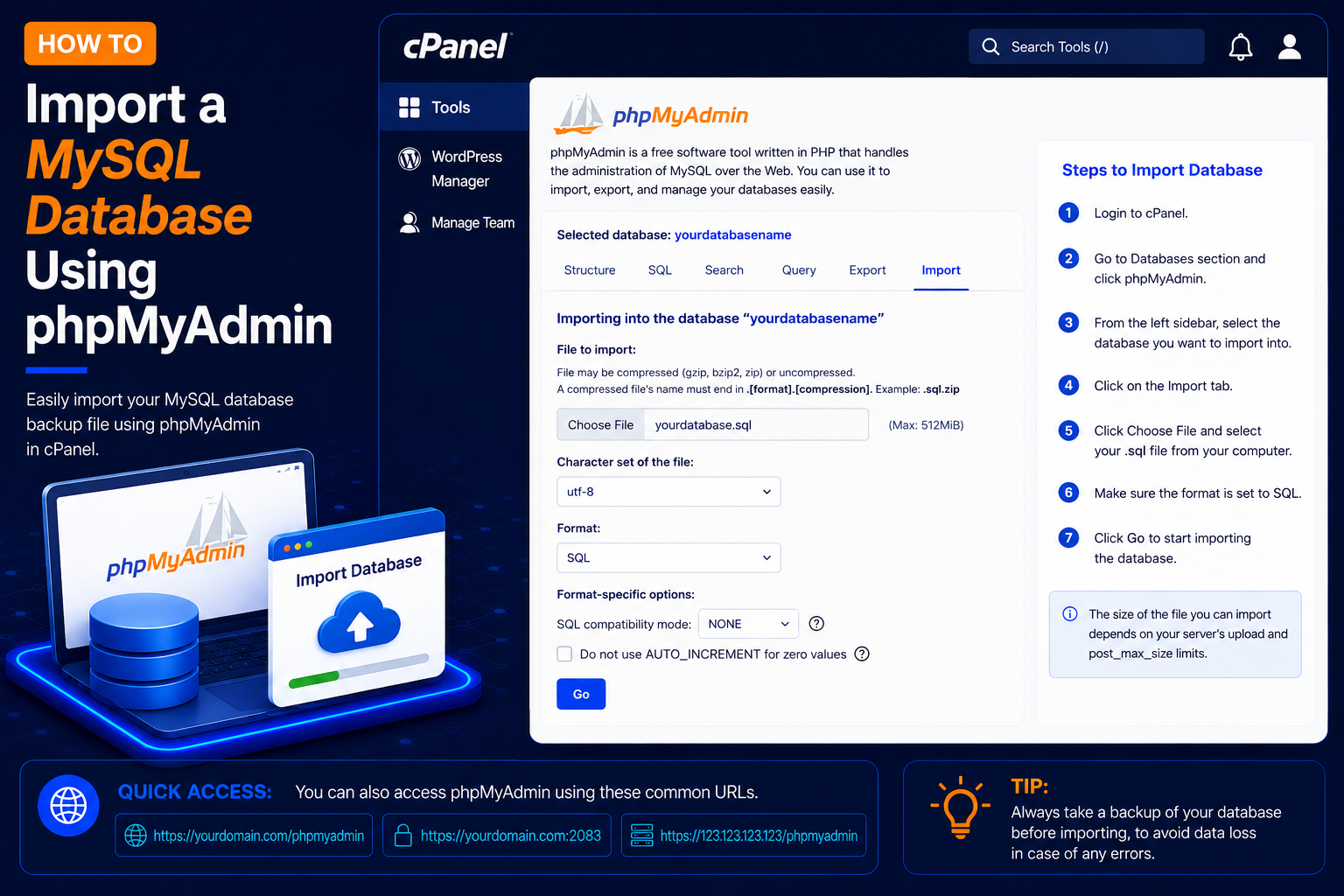
Step 1: Log In to cPanel
- Open your cPanel login page, usually https://yourdomain.com/cpanel or the link provided by your hosting company.
- Enter your cPanel username and password, then click Log in.
Step 2: Open phpMyAdmin
- After logging in to cPanel, scroll to the Databases section.
- Click: phpMyAdmin
- phpMyAdmin will open in a new page or browser tab.
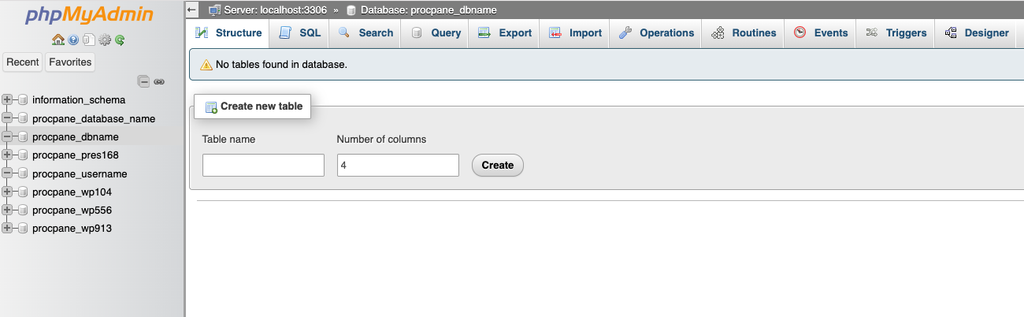
Step 3: Select Your Database
- In the left sidebar of phpMyAdmin, expand your cPanel username if needed.
- Click the name of the database you want to import into, for example cpuser_wpdb.
- Make sure the database name is highlighted before you continue, otherwise the import may fail with a “No database selected” error.
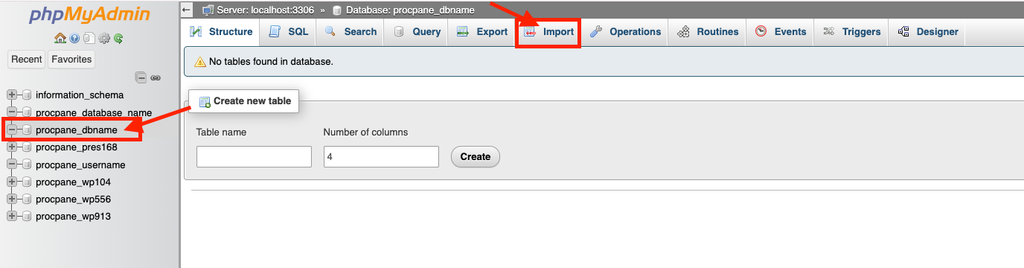
Step 4: Click the Import Tab
- After selecting your database, look at the top navigation menu.
- Click: Import
- The database import page will open.
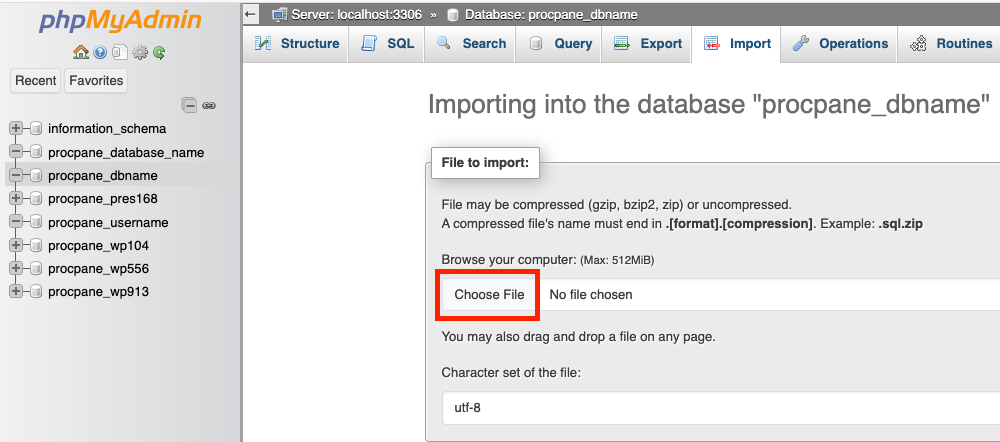
Step 5: Choose Your SQL File
- Under the File to import section, click Choose File.
- Select the database backup from your computer, for example: website-backup.sql
- Depending on your phpMyAdmin configuration, compressed database files such as website-backup.sql.gz may also be supported.
Below the file selector, phpMyAdmin shows the maximum upload size allowed by your server. In most cases you can leave the character set as utf-8 and the format as SQL.
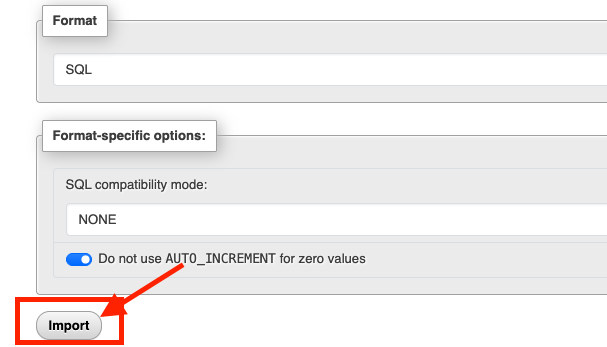
Step 6: Start the Database Import
- After selecting your database backup file and checking the import options, scroll to the bottom of the page.
- Click Import or Go, depending on your phpMyAdmin version.
- phpMyAdmin will begin importing the database.
- Do not close the browser window while the import is running.
Step 7: Check the Import Success Message
- After the import finishes successfully, phpMyAdmin should display a success notification.
- Your database tables should also appear under the selected database.
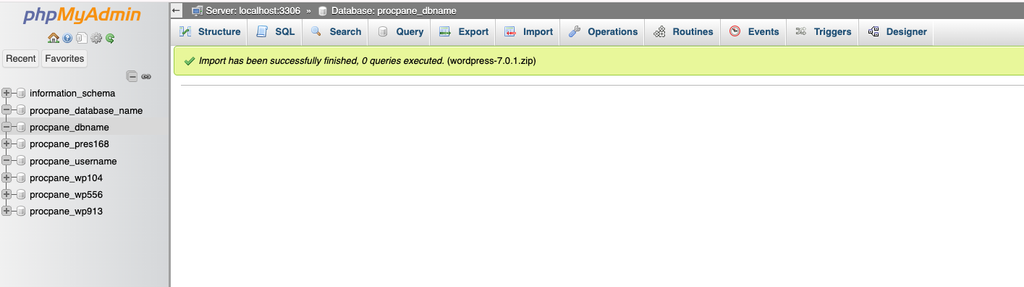
If your website uses this database, check that the database name, username, and password in its configuration file (for WordPress, wp-config.php) match the database you just imported into. Then open the website in your browser to confirm that it loads correctly.
Common Problems and How to Fix Them
File Is Larger Than the Maximum Upload Size
phpMyAdmin can only accept files up to the limit shown on the Import page, which depends on the PHP upload_max_filesize and post_max_size settings. Try compressing the file to .sql.gz, raising the limits in MultiPHP INI Editor or Select PHP Version → Options (if your host allows it), or ask your hosting support to import a very large file for you.
#1044 or #1227 Access Denied Errors
These errors usually appear when the SQL file contains statements that shared hosting users are not allowed to run, such as CREATE DATABASE, DEFINER clauses on views or triggers, or a USE statement pointing to a different database name. Open the file in a plain text editor, remove or correct those lines, and import again into the selected database.
#1050 Table Already Exists
The target database already contains a table with the same name. Either import into an empty database, or select the existing tables, use Drop to remove them (after taking a backup), and then run the import again.
Import Stops Halfway or Times Out
Large imports can hit the server’s execution time limit. phpMyAdmin has an option on the Import page to allow the import to be interrupted and resumed; keep it enabled and re-upload the same file if needed. Splitting a big dump into smaller files or asking your host to import it from the command line are also reliable options.
Strange Characters After Import
If accented letters or non-English text look broken, the file was probably exported with a different character set. Re-export the database using utf8mb4 and make sure the same character set is selected when importing.
Tips and Best Practices
- Always export the current database before importing a new one, so you can roll back if something goes wrong.
- Import into an empty database when moving a website, to avoid table conflicts.
- Keep a compressed copy of your
.sqlfile; it uploads faster and is easier to store. - Note down the table prefix used in the file (for example
wp_) and make sure your website configuration uses the same prefix. - After importing, test the website and log in to the admin area before deleting any old copies of the database.
Frequently Asked Questions
Can I import a database without phpMyAdmin?
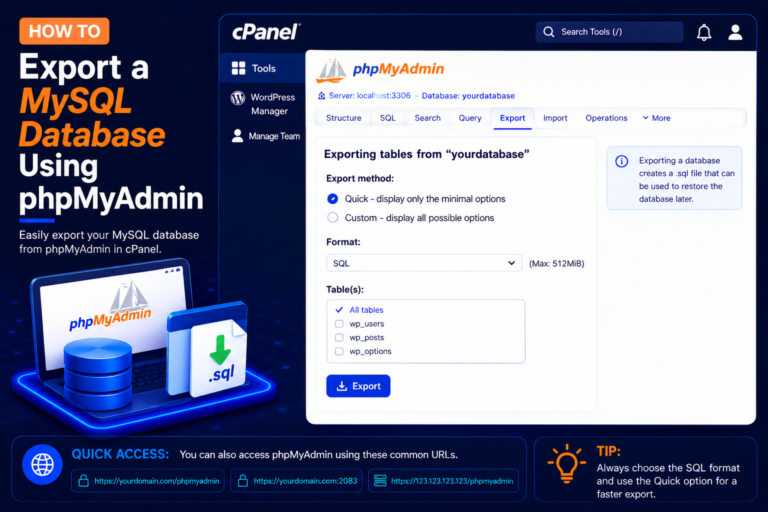
Yes. If your hosting plan includes SSH access, you can import a file with the mysql command-line tool, which handles large files better. Some backup tools in cPanel can also restore databases. For most beginners, phpMyAdmin is the simplest option.
Will importing delete my existing data?
Importing only runs the statements inside your file. If the file contains DROP TABLE statements, matching tables will be replaced. Tables that are not mentioned in the file stay as they are. That is why taking a backup first is important.
Which file formats can I import?
Plain .sql files are the most common. Many phpMyAdmin installations also accept compressed .gz, .bz2, or .zip files, but support depends on the server configuration.
Why does my website still show an error after the import?
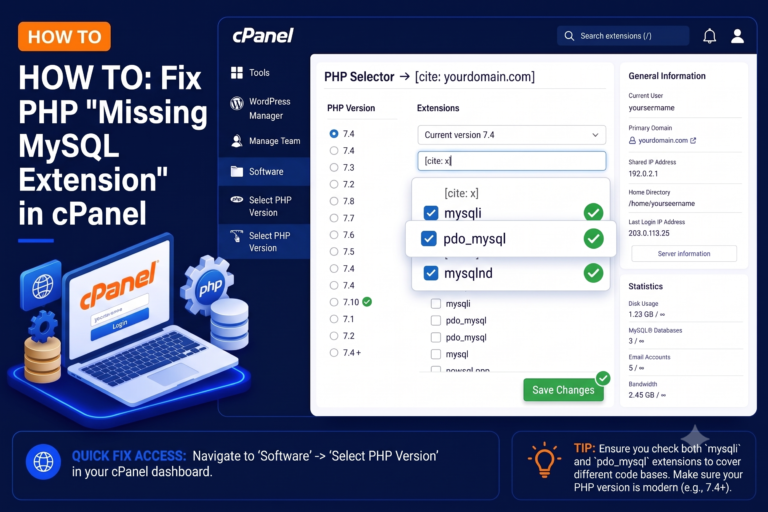
The most common reason is that the website configuration file still points to the old database name, username, or password. Update those details, and make sure the database user has been added to the database with all privileges in MySQL Databases.
Conclusion
Importing a MySQL database with phpMyAdmin takes only a few clicks once you have a database, a backup file, and access to cPanel. Select the correct database, upload your SQL file from the Import tab, and check for the success message. If you run into size limits or permission errors, the fixes above solve most problems, and your hosting provider can help with very large databases.