How to Use cPanel: A Complete Beginner’s Guide
If you are new to web hosting, cPanel may look complicated at first. However, once you understand the main tools, managing your website, domains, emails, databases, backups, and security becomes much easier.
In this beginner-friendly guide, we’ll explain how to use cPanel step by step and introduce the most important features you need to manage your website.
You do not need any technical background to follow along. By the end, you will know how to log in, find your way around the dashboard, and which tool to open for everyday jobs such as uploading files, creating an email address or taking a backup.
What Is cPanel?
cPanel is a web hosting control panel that provides a graphical interface for managing your hosting account.
Instead of using command-line commands, you can perform most common hosting tasks directly from your browser.
cPanel is installed on the server by your hosting company, and it is included with most Linux shared hosting and reseller plans. Each hosting account gets its own cPanel, so you only see and manage your own websites, files and mailboxes. Resellers and server administrators use a separate panel called WHM (WebHost Manager) to create and manage multiple cPanel accounts.
With cPanel, You Can:
- Manage website files
- Add and manage domains
- Create email accounts
- Create MySQL databases
- Install WordPress
- Manage SSL certificates
- Change PHP settings
- Create backups
- Check website statistics
- Manage security settings
Before You Start
- A hosting plan that includes cPanel
- Your cPanel username and password (usually sent in your hosting welcome email)
- A modern web browser such as Chrome, Firefox, Edge or Safari
- Your domain name, ideally already pointed to your hosting server
Step 1: Log In to cPanel
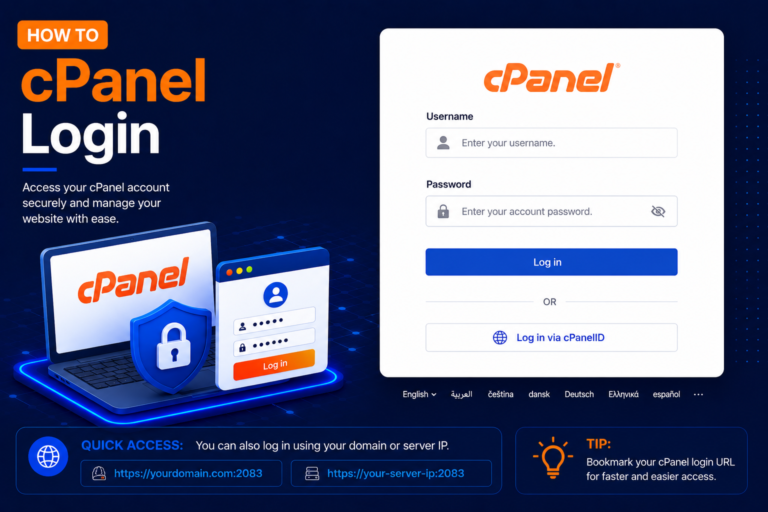
The most common way to open cPanel is to type https://yourdomain.com/cpanel or https://yourdomain.com:2083 in your browser, replacing yourdomain.com with your own domain. Many hosting companies also provide a one-click Login to cPanel button inside their client area. For all the available methods, see our guide on How to Log In to cPanel Manually Using Your Domain.
Step 2: Understand the cPanel Dashboard
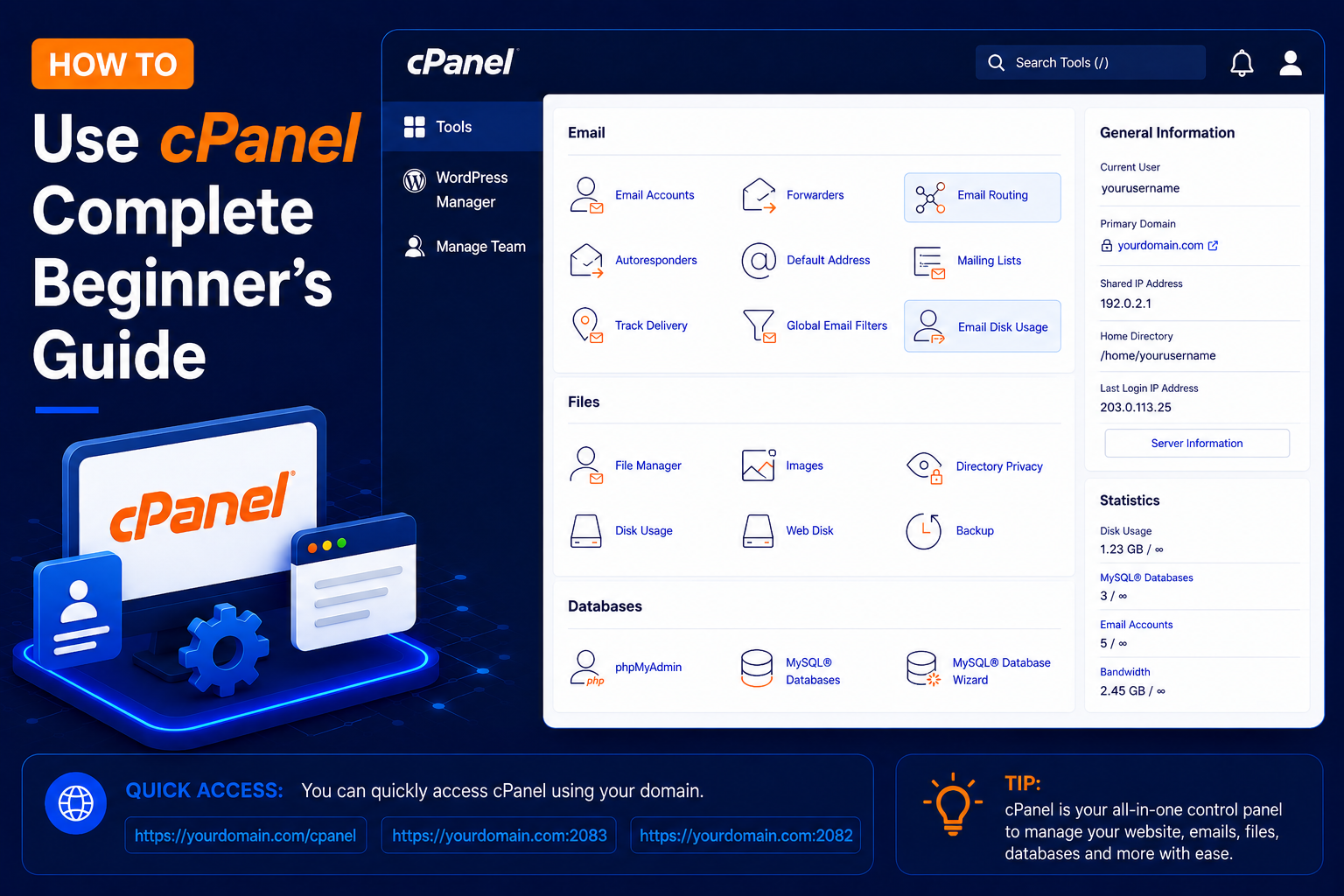
After logging in you will see the main dashboard. The exact look depends on your hosting provider and cPanel theme, but most accounts use the default Jupiter theme, which has three main areas:
- Search Tools box at the top – type a word such as “email” or “backup” to jump straight to the right tool. This is the quickest way to find anything.
- Tool sections in the centre – icons grouped under headings such as Files, Databases, Domains, Email, Metrics, Security and Software.
- General Information and Statistics panel – shows your current user, primary domain, shared IP address, home directory, and how much disk space, bandwidth, databases and email accounts you are using compared with your plan limits.
Keep an eye on the Statistics panel. If disk usage reaches 100%, uploads can fail and new emails may stop arriving until you free up space.
Step 3: Learn the Main cPanel Sections
Files
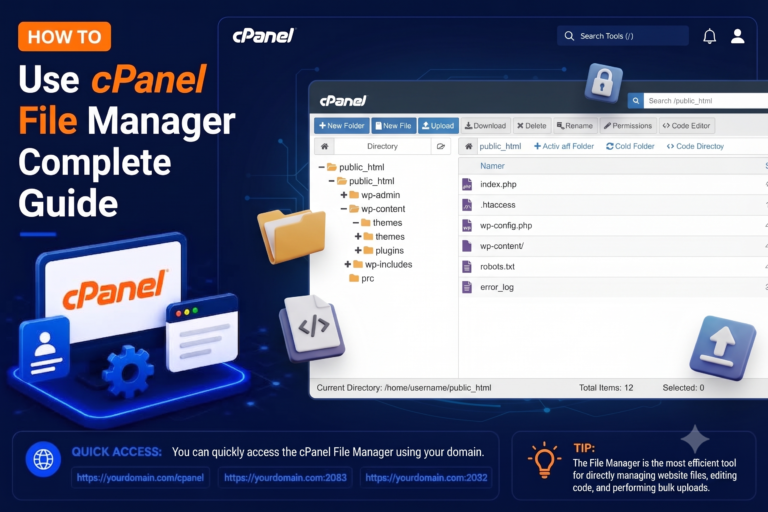
File Manager lets you upload, edit, move and delete website files directly in the browser. Your main website lives in the public_html folder. This section also contains FTP Accounts, Disk Usage and backup tools. Learn more in How to Use cPanel File Manager.
Databases
Here you will find MySQL® Databases (or the Database Wizard) to create databases and users, and phpMyAdmin to browse, import or export them. Read How to Create a MySQL Database in cPanel for a full walkthrough.
Domains
Use Domains to add extra websites or subdomains, and Zone Editor to manage DNS records such as A, CNAME, MX and TXT records.
Create mailboxes like info@yourdomain.com, set up forwarders and autoresponders, and open Webmail. See How to Create an Email Account in cPanel.
Software
Choose your PHP version and extensions, and, if your host provides an installer such as Softaculous, install applications like WordPress in a few clicks.
Security and Metrics
SSL/TLS Status shows whether your domains have valid certificates, and Two-Factor Authentication adds an extra layer of protection to your login. Under Metrics, tools such as Visitors, Errors and Awstats help you check traffic and troubleshoot problems.
Menu names and the tools available can vary slightly by hosting provider, plan and cPanel version, so if you cannot see an option, use the search box or ask your host.
Common Beginner Mistakes and How to Avoid Them
Editing or deleting files without a backup
Before changing important files such as .htaccess or wp-config.php, download a copy or use the File Manager’s copy option. One wrong character can take a site offline, and a backup lets you undo the change in seconds.
Uploading the website to the wrong folder
Files for your primary domain must go inside public_html, not the home directory above it. Addon domains and subdomains usually have their own document root, which you can check in the Domains section.
Running out of disk space
Old backups, large log files and full mailboxes slowly use up your quota. Use Disk Usage to find large folders and delete what you no longer need.
Using weak or shared passwords
Your cPanel password controls everything in your account. Use a long, unique password, never share it in plain-text chats, and enable two-factor authentication if your host offers it.
Tips and Best Practices
- Take a full backup before installing, updating or migrating anything.
- Use the search box instead of scrolling through every icon.
- Create separate FTP and email accounts for developers rather than sharing your main cPanel login.
- Keep WordPress, themes and plugins updated, and remove those you do not use.
- Install an SSL certificate so your website loads over
https://. - Check the Statistics panel once a month to avoid hitting plan limits unexpectedly.
Frequently Asked Questions
Is cPanel free to use?
cPanel is licensed by your hosting provider, and access is normally included in your hosting plan. You do not need to buy or install it yourself when you use shared hosting.
What is the difference between cPanel and WHM?
cPanel manages a single hosting account. WHM is used by resellers and server administrators to create, suspend and manage many cPanel accounts on a server.
Can I damage my website from cPanel?
Yes, deleting files, databases or DNS records can break a website, which is why taking backups before making changes is so important. Simply browsing the dashboard does not change anything.
Can I use cPanel on my mobile phone?
Yes. The cPanel interface works in mobile browsers, although large tasks such as editing code or uploading many files are easier on a computer.
Conclusion
cPanel puts all the important parts of your hosting account in one place. Start by logging in, exploring the dashboard and using the search box, then try simple tasks such as creating an email account or a database. With a little practice and regular backups, you will be able to manage your website confidently on your own.