How to Use cPanel File Manager
cPanel File Manager is one of the easiest ways to manage your website files without using FTP software. With File Manager, you can upload files, create folders, edit files, extract ZIP archives, download files, delete files, and manage file permissions directly from your browser.
In this beginner-friendly guide, you will learn how to use cPanel File Manager step by step.
What Is cPanel File Manager?
cPanel File Manager is a built-in file management tool available inside cPanel.
It works similarly to File Explorer on Windows. Instead of using an FTP client such as FileZilla, you can manage your website files directly from your hosting control panel.
Using File Manager, you can:
- Upload website files
- Download files
- Create new files and folders
- Edit website files
- Rename files and folders
- Delete unwanted files
- Compress files into ZIP archives
- Extract ZIP files
- Change file permissions
- View hidden files such as
.htaccess
How to Open File Manager in cPanel
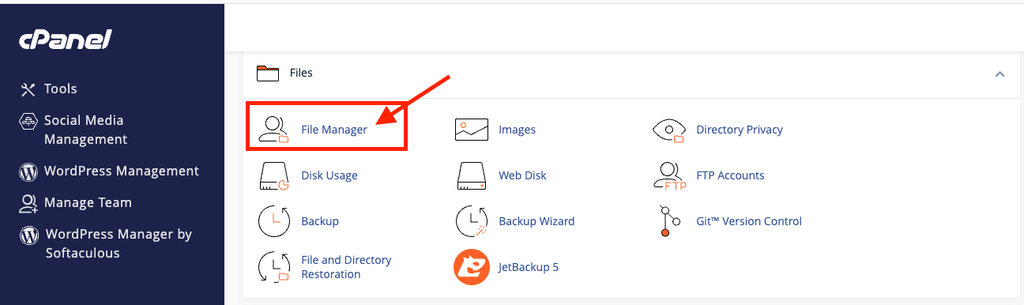
- Log in to your cPanel account.
- Scroll down to the Files section.
- Find the File Manager option.
- Click File Manager.
The File Manager interface will open.
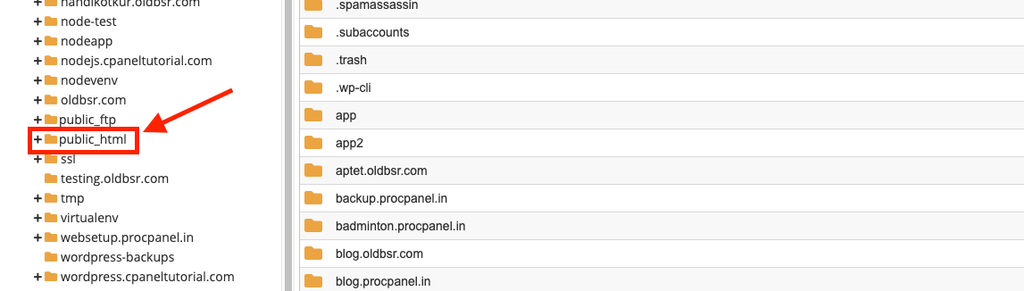
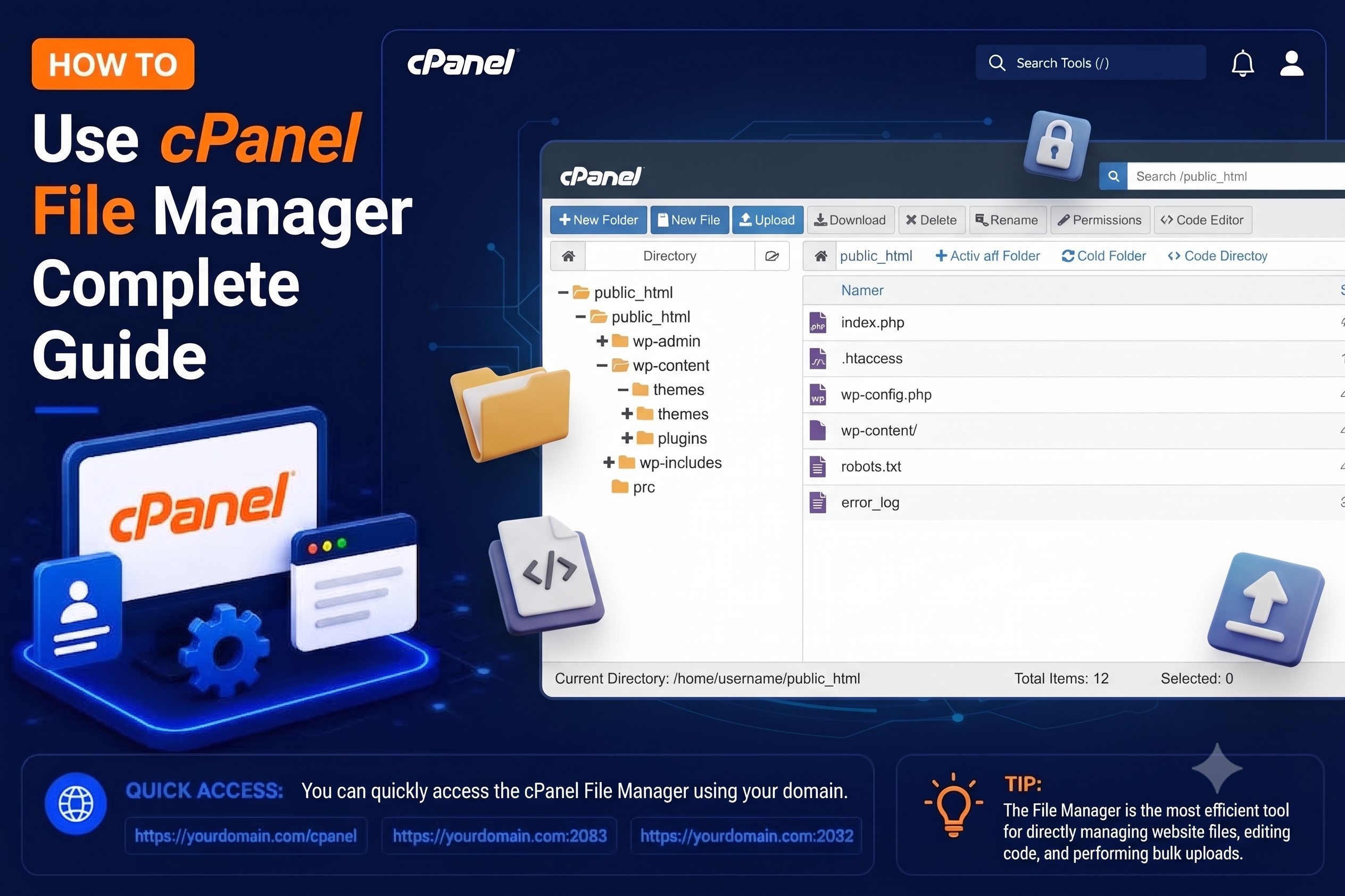
The screen has two main parts: a folder tree on the left and the contents of the selected folder on the right. The toolbar at the top holds the main actions, such as + File, + Folder, Upload, Download, Delete, Extract, Compress and Permissions. You can also right-click any file or folder to see the same options. Button names and positions can vary slightly by cPanel version and theme.
What Is the public_html Folder?
- The
public_htmlfolder is commonly used as the document root for the primary domain of a cPanel account. - This means that files stored inside this folder can usually be accessed through your website.
- For example, if you create:
public_html/about.html - it may be available at: https://example.com/about.html
If WordPress is installed in public_html, you may see files and folders such as:
- wp-admin
- wp-content
- wp-includes
- wp-config.php
- index.php
Be careful when modifying WordPress files because incorrect changes can affect your website.
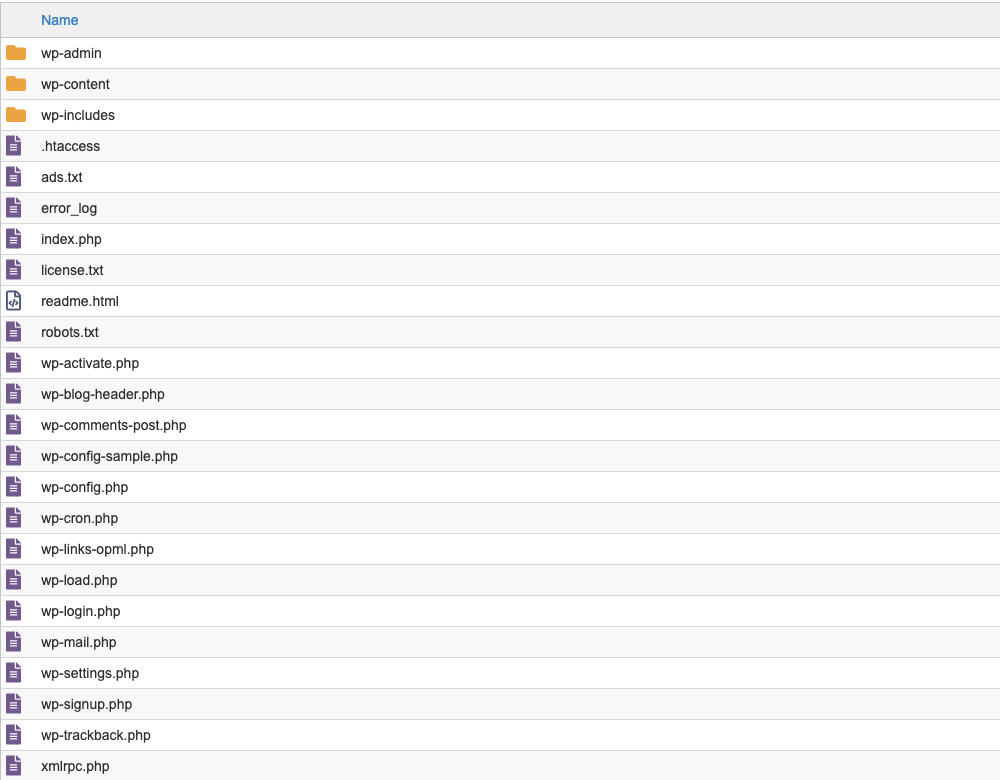
Files outside public_html, such as those in your home directory, are not normally reachable from a browser. This makes the home directory a safer place for private files like backups.
Common File Manager Tasks
Upload Files
Open the destination folder, click Upload, and then drag files into the upload page or click Select File. To upload a whole website, compress it into a single ZIP file on your computer first; it is faster and keeps the folder structure intact. The maximum upload size depends on your host.
Extract a ZIP File
Select the uploaded ZIP file, click Extract, confirm the destination folder and click Extract Files. Afterwards, check that the files did not end up inside an extra subfolder; if they did, move them up one level with Move.
Create and Edit Files
Click + File or + Folder, enter a name and confirm. To change a file, select it and click Edit. A code editor opens in a new tab; make your changes and click Save Changes. Download a copy of important files before editing them.
Show Hidden Files
Files that start with a dot, such as .htaccess, are hidden by default. Click Settings in the top-right corner, tick Show Hidden Files (dotfiles) and save.
Change File Permissions
Select a file or folder and click Permissions. On most hosting servers, folders use 755 and files use 644. Avoid 777, as it lets anyone on the server write to the file and is a security risk.
Delete and Restore Files
When you delete a file, cPanel normally moves it to the Trash unless you tick Skip the trash and permanently delete the files. Use View Trash to restore items or Empty Trash to free space. Trashed files still count towards your disk usage.
Common Problems and How to Fix Them
Upload fails or stops partway
Large files may exceed your host’s upload limit or time out on a slow connection. Split the upload into smaller ZIP files, or use an FTP client such as FileZilla for very large transfers.
“403 Forbidden” after uploading files
This usually means incorrect permissions or a missing index file. Set folders to 755 and files to 644, and make sure the folder contains an index.php or index.html.
My website broke after editing a file
A small typo in a PHP file or .htaccess can cause an error page. Restore the copy you downloaded before editing, or undo your change in the editor and save again.
I cannot find .htaccess
Enable Show Hidden Files (dotfiles) in Settings. If it still does not appear, the file may not exist yet; WordPress creates it when you save your permalink settings.
Tips and Best Practices
- Download a backup copy before editing or deleting any important file.
- Keep sensitive files, such as database backups, outside
public_html. - Empty the Trash regularly to recover disk space.
- Use ZIP archives to upload or download many files at once.
- Double-check the current folder path, shown at the top, before uploading or extracting.
Frequently Asked Questions
Is File Manager better than FTP?
For quick edits and small uploads, File Manager is often more convenient because it needs no extra software. FTP clients are better for large transfers and syncing many files.
Can I recover permanently deleted files?
Not from File Manager. You would need to restore them from a backup, such as a cPanel or Backuply backup provided by your host.
Why can I not see my addon domain’s files?
Addon domains and subdomains usually have their own document root folder. Check the Domains page in cPanel to see where each domain’s files are stored.
Conclusion
cPanel File Manager lets you handle almost every file task from your browser: uploading, extracting, editing, setting permissions and cleaning up. Work carefully inside public_html, keep backups of files before changing them, and you can manage your website confidently without any extra software.