

How to Create a Subdomain and Addon Domain in cPanel
cPanel allows you to host and manage multiple websites and subdomains from a single hosting account. You can create a subdomain for a separate section of your existing website or add an addon domain to host a completely different website.
In newer versions of cPanel, both subdomains and addon domains are generally managed through the Domains interface.
In this guide, we’ll explain how to create a subdomain and addon domain in cPanel step by step.
What Is a Subdomain?
A subdomain is an extension of your main domain.
For example, if your main domain is: example.com
You can create subdomains such as:
- blog.example.com
- shop.example.com
- support.example.com
Subdomains are useful when you want to create separate sections or applications under your main domain.
A subdomain does not need to be registered separately; it is part of the domain you already own. Common uses include a staging copy of your website, a help desk, a separate online store, or a web application that should not mix with your main site files.
What Is an Addon Domain?
An addon domain is a completely separate domain name, such as yournewdomain.com, that is hosted in the same cPanel account as your main domain. Visitors see it as an independent website with its own content. It is a convenient way to run several websites from one hosting plan, as long as your plan allows more than one domain.
Unlike a subdomain, an addon domain must be registered first, and its nameservers (or DNS records) must point to your hosting server before the website will load.
Before You Start
- Check how many addon domains and subdomains your hosting plan allows.
- For an addon domain, register the domain and point its nameservers to your hosting provider. DNS changes can take a few hours to update everywhere.
- Decide which folder the new site’s files should live in (its document root).
How to Create a Subdomain or Addon Domain in cPanel
In the Domains interface, the steps are the same for both. The only difference is what you type in the domain field: a subdomain such as blog.example.com, or a different domain such as yournewdomain.com.
Step 1: Log in to cPanel and Open Domains
- Open your cPanel login page: https://yourdomain.com/cpanel or https://yourdomain.com:2083
- Enter your username and password, then click Log in.
- Go to “Domains”.
- Select “Create A New Domain”.
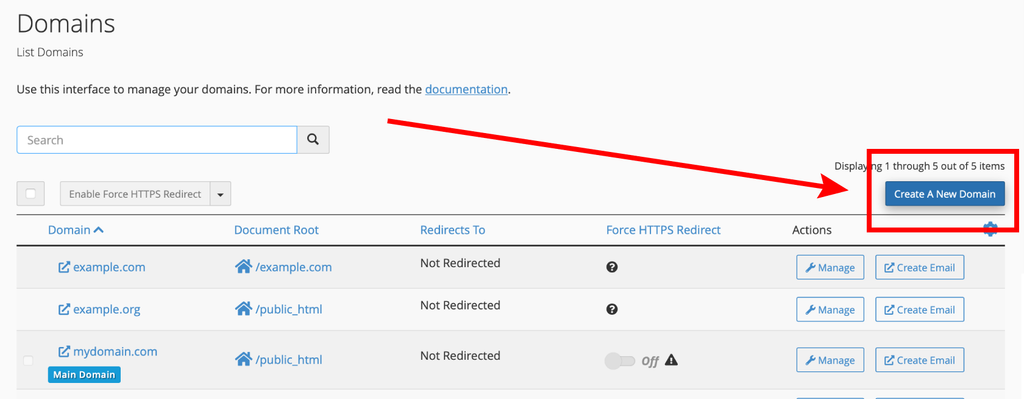
Step 2: Enter the Domain Name
Enter your domain name (e.g., yournewdomain.com). To create a subdomain instead, enter the full subdomain, for example blog.example.com.
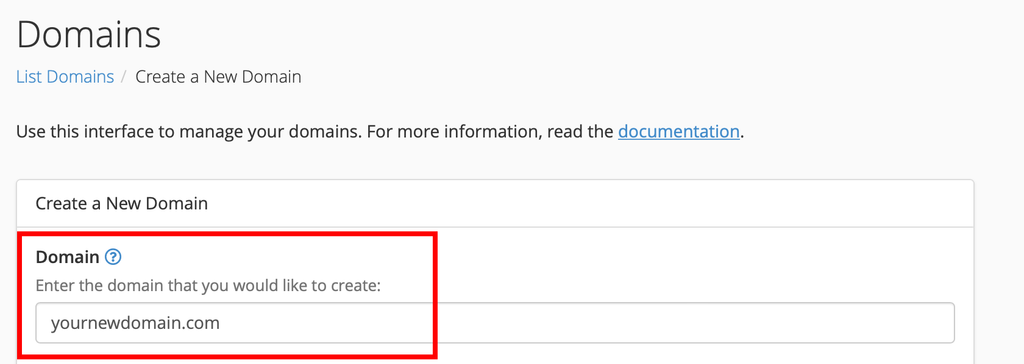
Step 3: Set the Document Root
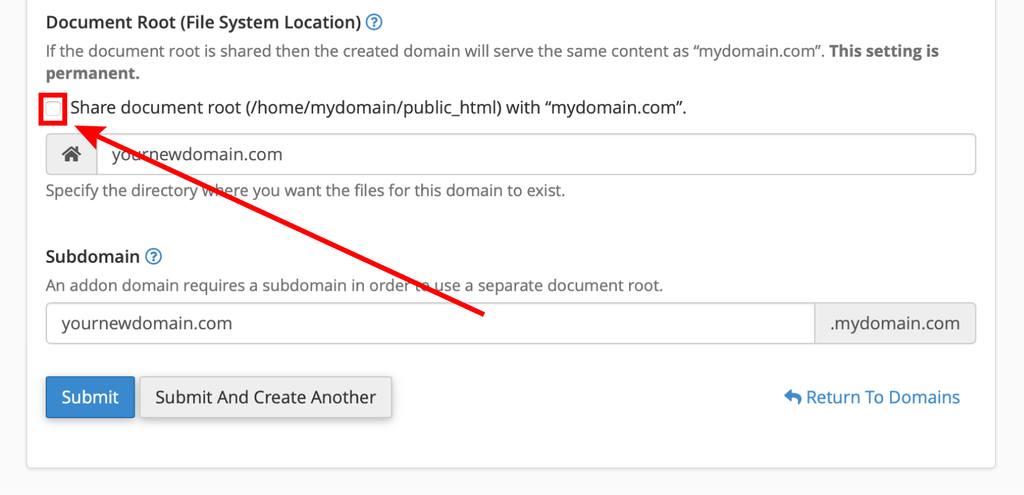
Remove the tick from “Share document root”.
If you leave it ticked, the new domain will show the same files as your main website. Unticking it lets the new domain or subdomain use its own folder. cPanel suggests a folder name automatically, and you can change it if you prefer.
Step 4: Submit
Click on “Submit”.
Your addon domain is now created with its own folder, named after the domain (for example, yournewdomain.com). The exact location of this folder can vary by cPanel version and host, so check the Document Root column in the Domains list.
Upload your website files to that folder, or install an application such as WordPress on the new domain.
Common Problems and How to Fix Them
“The domain already exists” error
The domain may already be added to this or another cPanel account on the same server, or exist as a parked domain or alias. Remove it from the other location first, or ask your hosting provider to check.
The new domain shows my main website
“Share document root” was left ticked. Use Manage in the Domains list to change the document root to a separate folder, if your cPanel version allows it, or remove and re-create the domain.
The addon domain does not open at all
This is usually DNS. Confirm the domain’s nameservers or A record point to your hosting server and allow time for the change to update. A subdomain normally works quickly because its DNS record is added to your existing zone automatically when your DNS is hosted on the same server.
SSL warning on the new domain
A certificate is not always issued instantly. Wait for AutoSSL to run, or run it manually from the SSL/TLS Status page once the DNS is pointing correctly.
Tips and Best Practices
- Always use a separate document root for each website so files do not get mixed up.
- Use subdomains such as staging.example.com to test changes before applying them to the live site.
- Keep a list of your domains and their folders, especially if you host several websites.
- Remember that all domains share the same account resources, such as disk space and processing limits.
- Older cPanel versions have separate Subdomains and Addon Domains icons; the idea is the same if your host still uses them.
Frequently Asked Questions
Do I need to buy a subdomain?
No. You can create subdomains of any domain already in your account without paying for a new registration, within your plan’s limits.
Can an addon domain have its own email accounts?
Yes. Once added, the domain appears in the domain selector when you create email accounts in cPanel.
Can I use a different PHP version on a subdomain?
On many hosts, yes. Our related tutorial below explains how to run a different PHP version for a subdomain or addon domain.
Conclusion
Creating a subdomain or addon domain in cPanel takes only a few steps: open Domains, click Create A New Domain, enter the name, untick Share document root and submit. Point the DNS correctly, upload your files, and your new site or section is ready to use.