
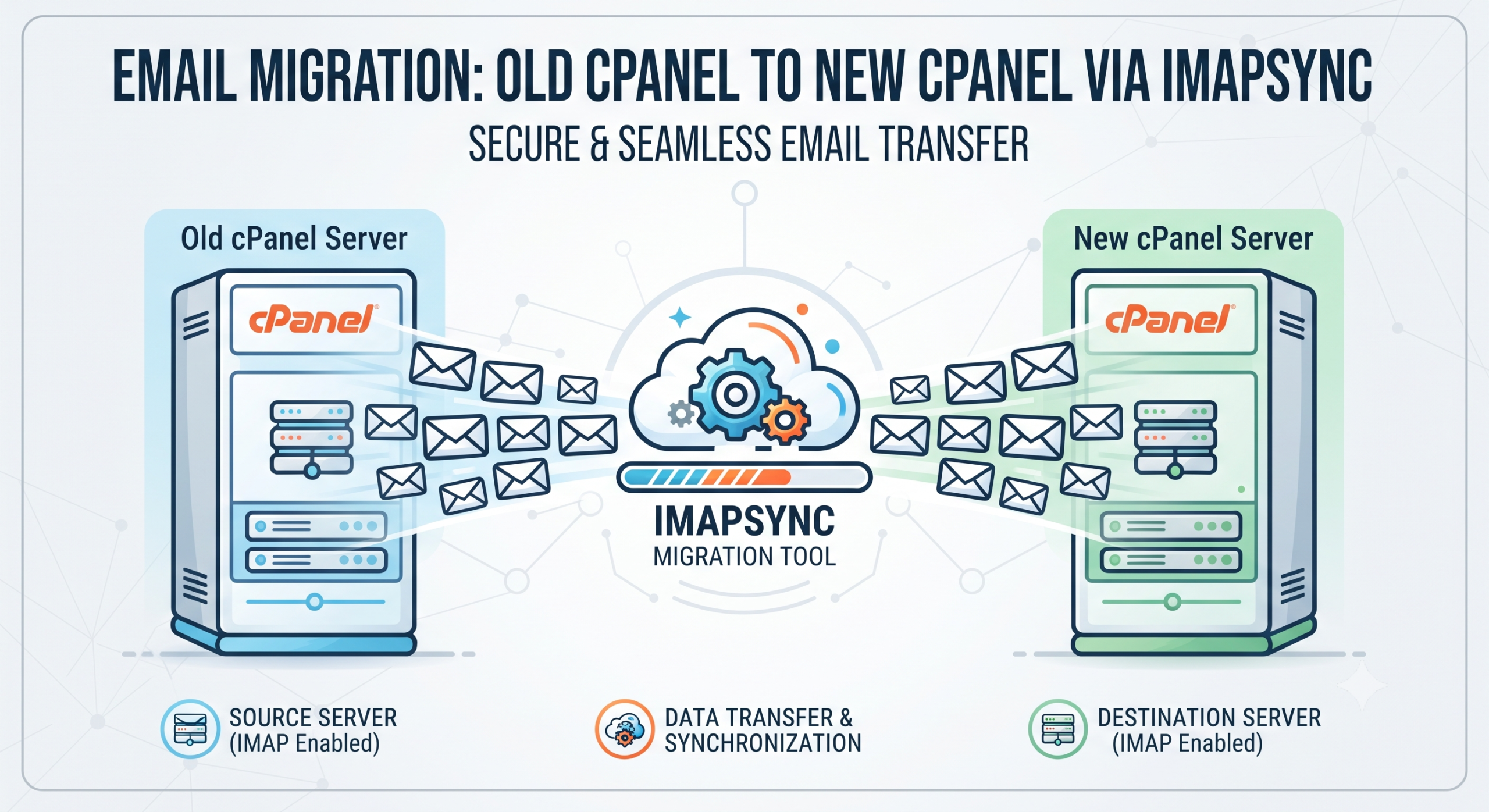
How to Migrate Emails from Old cPanel to New cPanel Using Imapsync
When you move a website to a new hosting account, the website files and databases are only part of the job. Your mailboxes – with years of emails, sent items and folders – also need to be moved. Imapsync is a widely used open-source tool that copies emails from one IMAP server to another. It logs in to both mailboxes, copies every folder and message, and can be run again later to pick up only the new emails.
This guide explains how to migrate an email account from an old cPanel server to a new cPanel server using Imapsync, without losing messages and with minimal downtime.
Requirements Before Starting the Email Migration
Before starting, make sure you have the following information.
Old cPanel Server
- Old cPanel login details
- Old email address – example: support@example.com
- Old email password – you need the password of the existing mailbox.
- Old IMAP server hostname – example: server-old.examplehost.com or mail.example.com
New cPanel Server
- New cPanel login details
- New email address – example: support@example.com
- New email password
- New IMAP server hostname / IP address – example: server-new.examplehost.com
The same email account should normally be created on the new cPanel server before starting the migration.
You will also need a computer or server where Imapsync can run. Imapsync is a command-line program for Linux, macOS and Windows; many people run it from a Linux VPS or terminal. If your hosting provider offers an email migration service, they may run Imapsync for you.
Step 1: Create the Email Account on the New cPanel Server
- First, log in to your new cPanel account.
- Go to: cPanel → Email → Email Accounts
- Click: Create
- Enter the same email address that exists on your old hosting account.
- For example, if the old server contains: support@example.com
- Create: support@example.com on the new server as well.
- Set a password for the new email account and make sure the mailbox has enough storage quota for the emails you are going to migrate.
Step 2: Find the Old cPanel IMAP Details
- Log in to your old cPanel account.
- Navigate to: Email Accounts → Connect Devices / Set Up Mail Client
- You should see the manual email configuration information.
- For secure cPanel email connections, IMAP commonly uses: IMAP Port: 993 and Security: SSL/TLS
- cPanel recommends using SSL/TLS settings where possible.
- Take note of the incoming mail server hostname. For example: oldserver.examplehost.com
- You will use this as the source IMAP server in Imapsync.
Step 3: Find the New cPanel IMAP Details
- Now log in to your new cPanel account.
- Navigate to: Email Accounts → Connect Devices / Set Up Mail Client
- Find the secure IMAP hostname. For example: newserver.examplehost.com
- You will use this hostname as the destination IMAP server.
Important Note About mail.example.com
- Sometimes both your old and new hosting accounts may show mail.example.com as the mail server.
- However, after changing DNS,
mail.example.commay point only to the new server. - For this reason, during migration it is usually better to use the actual old and new server hostnames so that Imapsync can connect to each server separately.
- Example: Old server: server123.oldhost.com
- New server: server456.newhost.com
Step 4: Test the Connection with a Dry Run
Imapsync uses host1, user1 and password1 for the source (old) mailbox and host2, user2 and password2 for the destination (new) mailbox. Start with the --dry option, which connects to both servers and shows what would be copied without actually transferring anything:
imapsync --host1 server123.oldhost.com --user1 support@example.com --password1 'OLD_PASSWORD' --ssl1 --host2 server456.newhost.com --user2 support@example.com --password2 'NEW_PASSWORD' --ssl2 --dry
The --ssl1 and --ssl2 options make Imapsync connect over SSL on port 993. Wrap passwords in single quotes so special characters are not interpreted by the shell. If the dry run finishes without login or connection errors, you are ready for the real migration.
Step 5: Run the Email Migration
Run the same command again without --dry:
imapsync --host1 server123.oldhost.com --user1 support@example.com --password1 'OLD_PASSWORD' --ssl1 --host2 server456.newhost.com --user2 support@example.com --password2 'NEW_PASSWORD' --ssl2
Imapsync will create the folders on the new server and copy the messages folder by folder. Large mailboxes can take a long time, so keep the terminal open (or use a tool such as screen on a Linux server). At the end, Imapsync prints a summary with the number of messages transferred, skipped and any errors.
Step 6: Update DNS and Run a Final Sync
- Once the first sync is complete, point your domain’s DNS (nameservers or MX record) to the new server.
- Wait for DNS propagation. During this time some emails may still arrive on the old server.
- Run the same Imapsync command again. Messages that were already copied are skipped, so only new emails are transferred.
- Log in to Webmail on the new server and check that your folders and recent messages are present.
- Update the server settings in Outlook, Thunderbird or your phone if they used the old server hostname.
Common Problems and How to Fix Them
Login failed / authentication error
Check that you used the full email address as the username and the correct mailbox password. If the password contains special characters, make sure it is wrapped in single quotes. Too many failed attempts can trigger the server firewall, so pause and verify the details before retrying.
SSL certificate or connection errors
Use the server hostname shown in Connect Devices, which normally has a valid certificate, rather than an IP address. Also make sure port 993 is not blocked by the firewall on the machine running Imapsync.
Mailbox quota exceeded on the new server
If the copy stops with quota errors, increase the mailbox quota in Email Accounts → Manage on the new cPanel, then run the command again. Imapsync continues where it left off.
Emails missing after the migration
Emails that arrived on the old server after DNS changed are not copied automatically. Run the sync one more time after DNS has fully propagated and before closing the old hosting account.
Tips and Best Practices
- Migrate one small mailbox first to confirm the settings work.
- Keep the old hosting account active until the final sync has been completed and checked.
- Use the same passwords temporarily during migration, then change them once the move is complete.
- Do not paste real passwords into shared documents or chat; consider Imapsync’s
--passfile1and--passfile2options to read passwords from files.
Frequently Asked Questions
Will Imapsync delete emails from the old server?
No. By default Imapsync only copies messages; the old mailbox stays unchanged. Options that delete messages exist, but you must add them deliberately.
Can I run Imapsync more than once?
Yes. Running it again is safe – messages that already exist on the destination are detected and skipped, so you will not get duplicates in normal use.
Are folders and read/unread status copied?
Yes. Imapsync recreates the folder structure and keeps message flags such as read, unread and flagged.
Conclusion
Imapsync makes cPanel-to-cPanel email migration reliable: create the mailbox on the new server, collect both IMAP hostnames, test with a dry run, run the full sync, then switch DNS and sync once more. Following this order keeps every message safe and lets your team continue using email with almost no interruption.