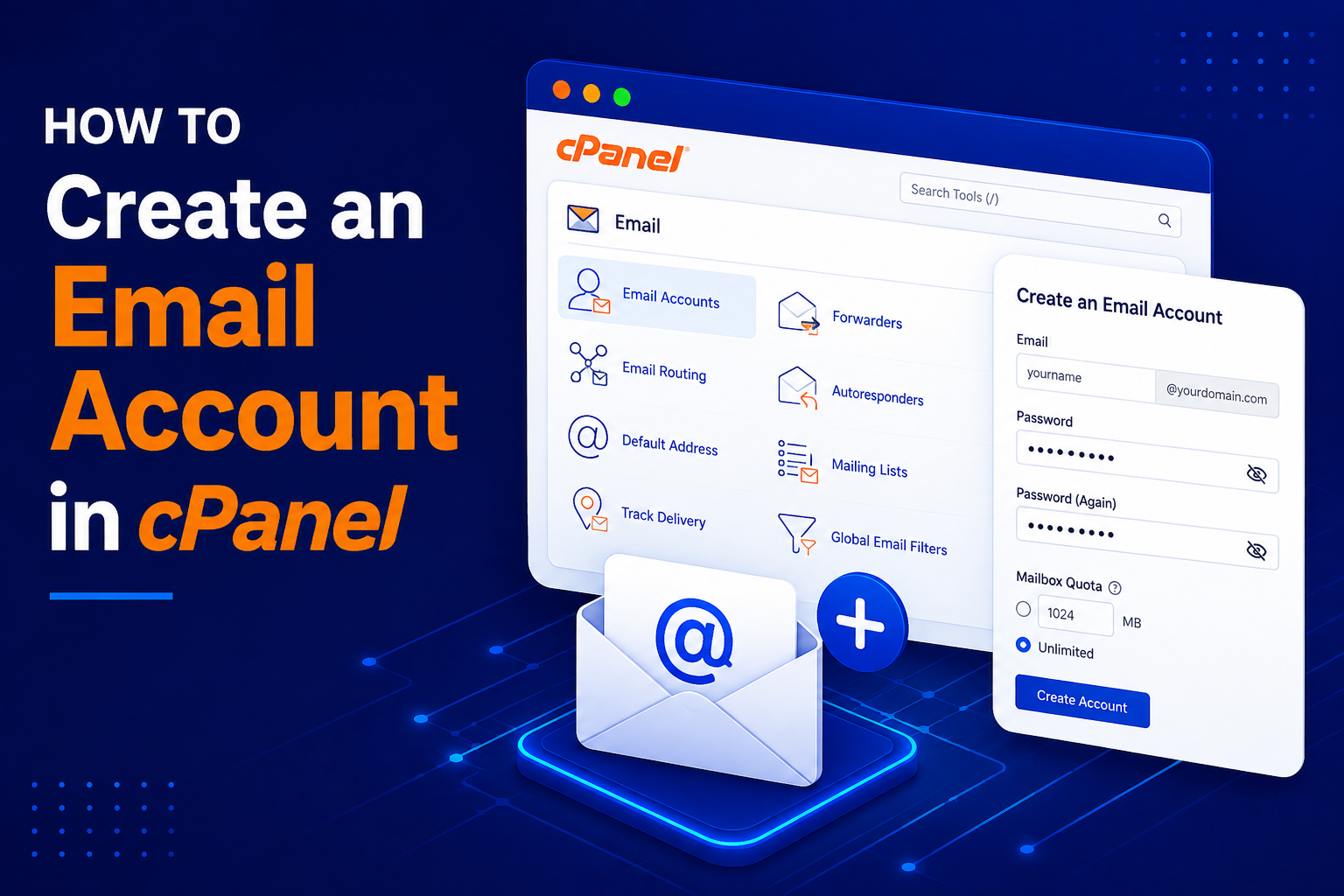
How to Create an Email Account in cPanel
Creating a professional email account with your domain name helps make your business look more professional.
- For example, instead of using: yourbusiness@gmail.com
- you can create:
- info@yourdomain.com
- support@yourdomain.com
- sales@yourdomain.com
An address on your own domain tells customers that the message really comes from your business, and it stays under your control even if you change staff or email software. With cPanel hosting you can usually create these mailboxes yourself in a minute or two, and then read them in Webmail, Outlook, or a mail app on your phone.
In this tutorial, you’ll learn how to create an email account in cPanel step by step.
Before You Start
- Your domain must be added to your cPanel account (as the main domain or an addon domain).
- For email to arrive, the domain’s MX records must point to your hosting server. If your DNS is managed elsewhere, such as at your domain registrar, make sure the MX record is set correctly.
- Check how many email accounts and how much disk space your hosting plan allows.
How to Create an Email Account in cPanel
Step 1: Log in to cPanel and Open Email Accounts
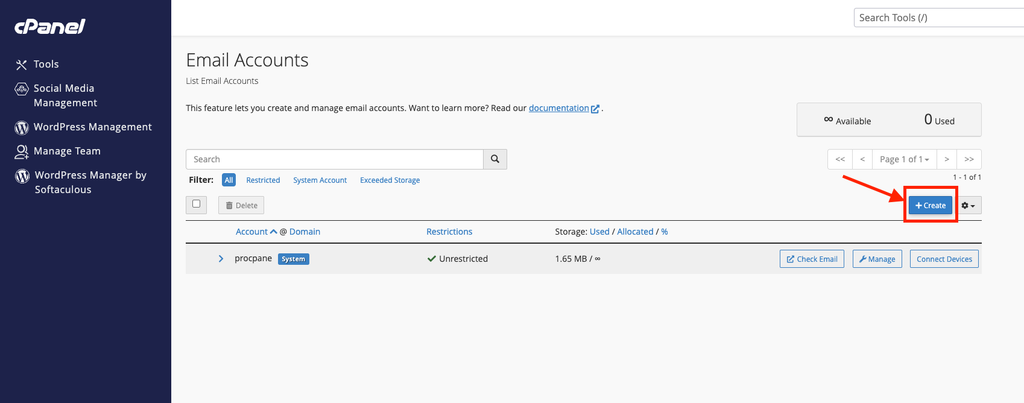
- After logging in to cPanel, scroll down to the Email section.
- Find and click: Email Accounts
- You can also use the cPanel search bar and search for Email Accounts.
- Click the Create button to create a new email address.
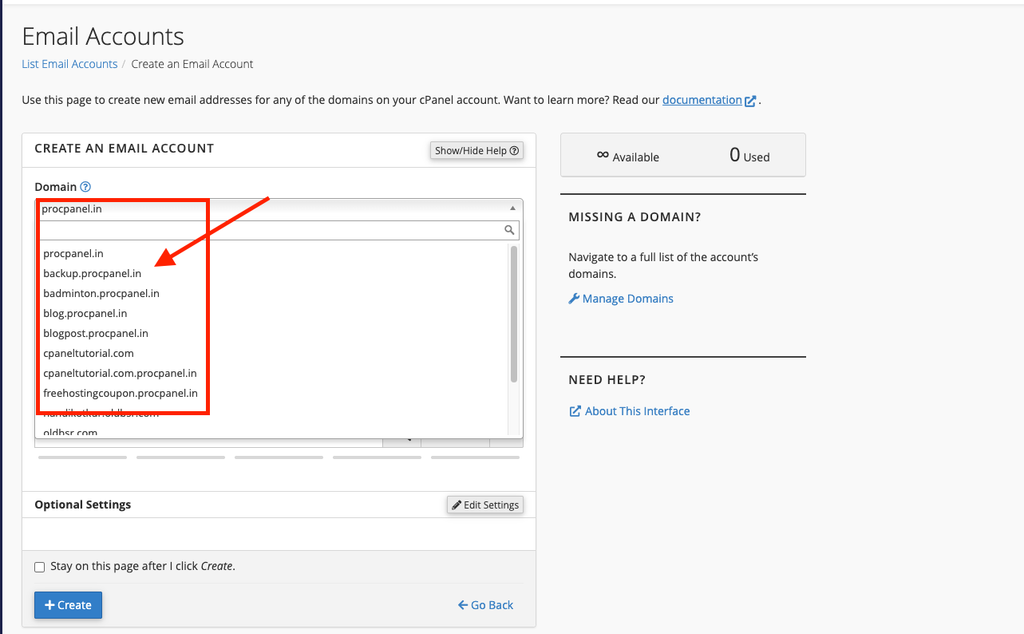
If you have multiple domains in your cPanel account, select the domain for which you want to create the email address.
Step 2: Enter the Username
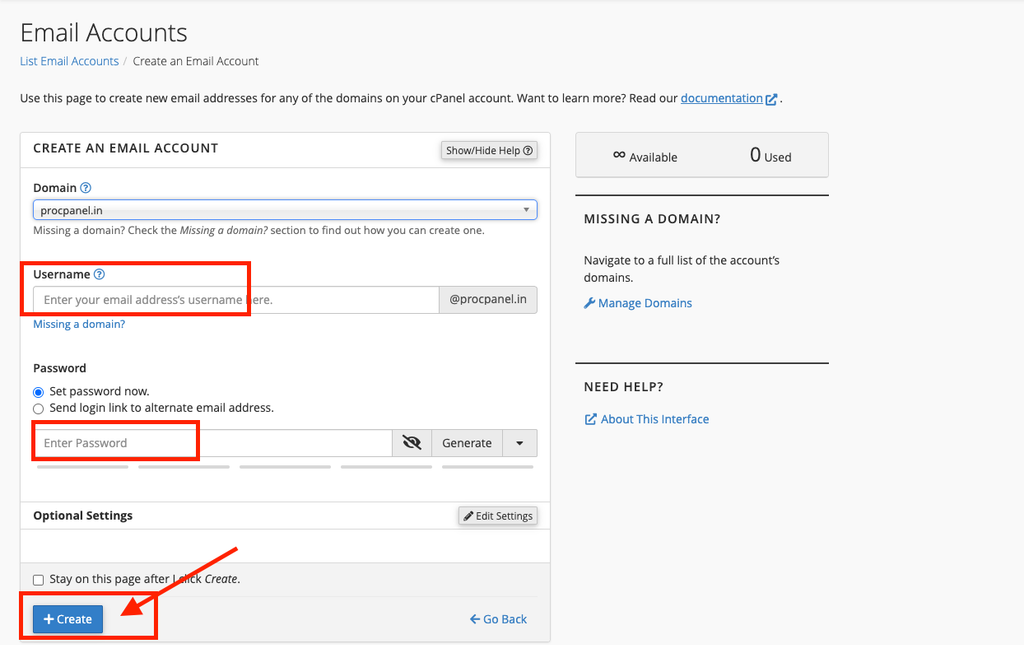
Enter the username you want to use for your email account.
- For example, enter: support
- Your complete email address will become: support@yourdomain.com
- You can create email addresses such as:
- info@yourdomain.com
- support@yourdomain.com
- sales@yourdomain.com
- contact@yourdomain.com
Step 3: Create a Strong Password
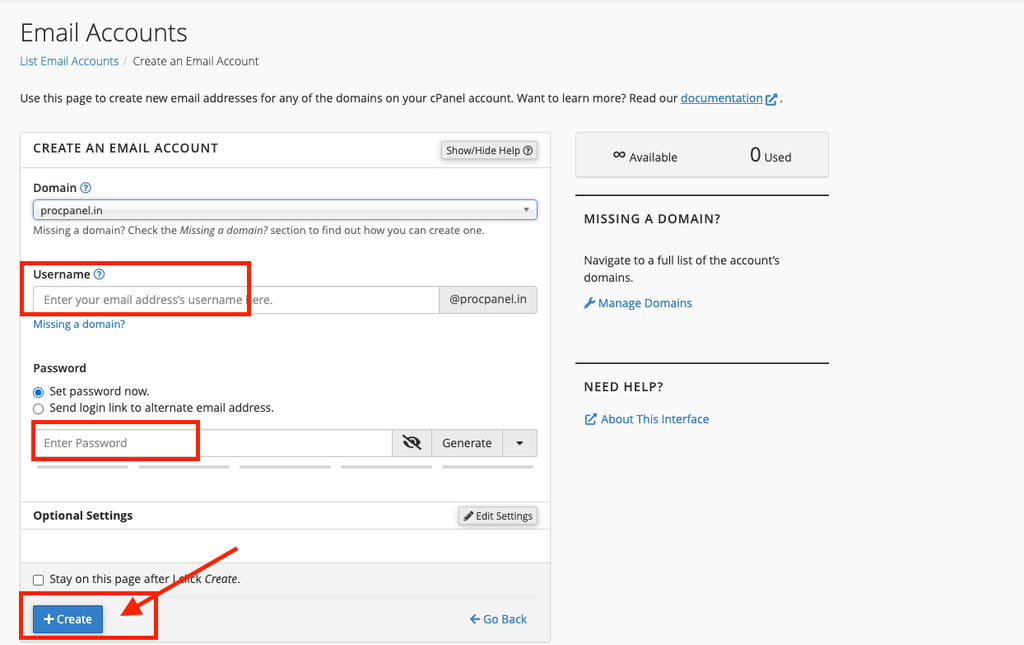
Enter a strong password for your new email account.
Use a combination of:
- Uppercase letters
- Lowercase letters
- Numbers
- Special characters
cPanel also offers a Generate button that creates a random strong password for you. If you use it, copy the password and store it in a password manager before continuing. Some versions also let you send a password setup link to another address instead of typing a password yourself.
Step 4: Set the Storage Space (Optional)
Below the password, you will usually see an Optional Settings or Storage Space option. Here you can set a mailbox quota in MB or choose Unlimited (limited by your hosting plan’s disk space). A sensible quota stops one busy mailbox from using all of your account’s storage. The exact options can vary slightly by host and cPanel theme.
Step 5: Click Create
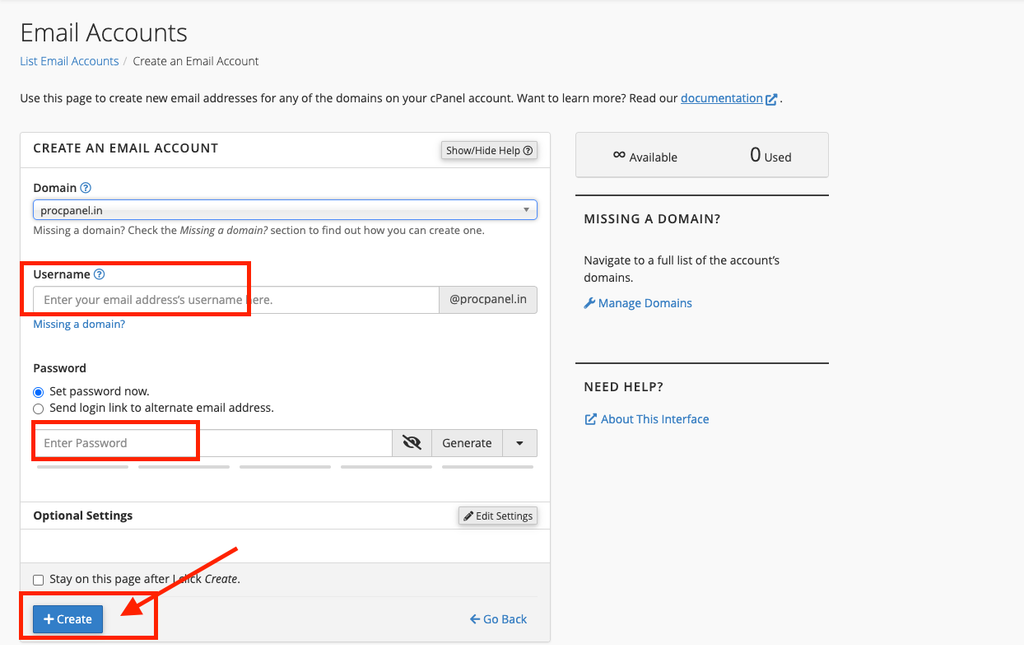
Click the Create button.
cPanel will create your new professional email account.
You will return to the Email Accounts list, where the new address appears. From here you can click Check Email to open Webmail, or Connect Devices to see the incoming and outgoing server settings for Outlook, Thunderbird or your phone.
Common Problems and How to Fix Them
“The password does not meet the strength requirements”
Your host sets a minimum password strength. Make the password longer and mix in numbers and symbols, or use the Generate button.
The email account already exists
Each address can only be created once per domain. Check the Email Accounts list and the Forwarders page, as an existing forwarder with the same name can also cause confusion.
I can send emails but not receive them
This is almost always a DNS issue. Check the domain’s MX record in Zone Editor or at your DNS provider and make sure it points to your hosting server. Also check that the mailbox quota is not full.
Emails I send are landing in spam
Open Email Deliverability in cPanel (where available) and fix any SPF or DKIM problems it reports. Avoid sending bulk marketing emails from a shared hosting mailbox.
Tips and Best Practices
- Use role-based addresses such as support@ or sales@ for shared tasks, so the address keeps working when staff change.
- Never reuse your cPanel password for an email account.
- Set a mailbox quota and clean out large old attachments regularly.
- Use forwarders instead of extra mailboxes if you only need mail delivered to another address.
- Set up the account on your phone or computer using secure SSL/TLS ports shown under Connect Devices.
Frequently Asked Questions
How many email accounts can I create?
It depends on your hosting plan. Some plans allow unlimited accounts, while others set a fixed number. The limit is usually shown on the cPanel dashboard or in your plan details.
How do I check my new email?
Log in to Webmail at https://yourdomain.com/webmail using the full email address and password, or configure the account in an email client such as Outlook.
Can I change the email password later?
Yes. Go to Email Accounts, click Manage next to the address, enter a new password and save the changes.
Will deleting an email account delete its emails?
Yes. Deleting the account removes the mailbox and the messages stored on the server, so download or back up anything important first.
Conclusion
Creating an email account in cPanel is simple: open Email Accounts, click Create, choose the domain and username, set a strong password and save. With your MX records pointing to the server, your new professional address is ready to send and receive emails right away.