How to Create a MySQL Database in cPanel
A MySQL database is used to store and manage website data. Applications such as WordPress, Joomla, and many PHP-based websites use MySQL databases to store posts, users, settings, and other information.
If you install an application with a one-click installer such as Softaculous, the database is usually created for you automatically. You need to create one manually when you upload a website yourself, move a site from another host, or install software that asks for database details during setup. In this tutorial you will create the database, create a database user, connect the two and note down the details your website needs.
Before You Start
- Your cPanel login details
- A short, meaningful name for the database (for example, the name of the website or application)
- A password manager or a safe place to store the database password
- Enough free databases in your hosting plan – you can check this in the Statistics panel on the cPanel home page
How to Create a MySQL Database in cPanel
Step 1: Log In to cPanel
- Open your cPanel login page.
- Enter your cPanel Username and Password, then click Log in.
Step 2: Open MySQL Databases
- After logging in to cPanel, locate the Databases section.
- Depending on your cPanel version, look for:
MySQL® Databases
or:
Manage My Databases - Click the available database management option.
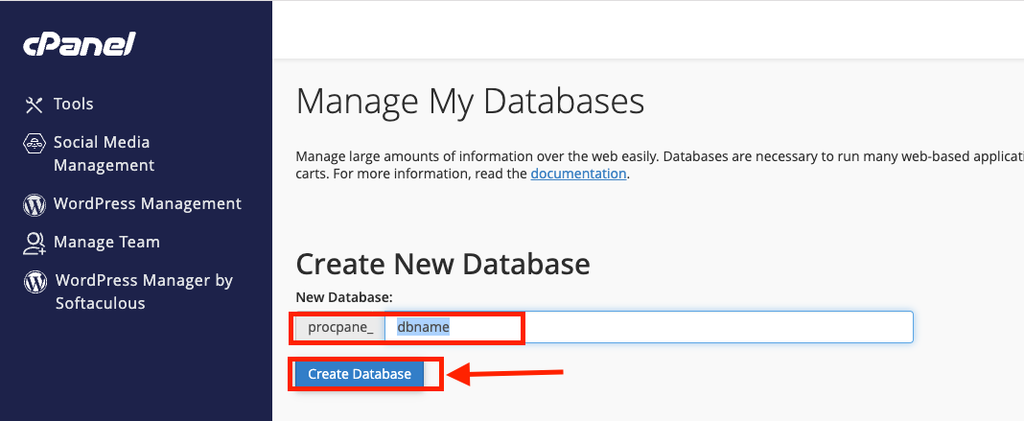
Step 3: Create a New Database
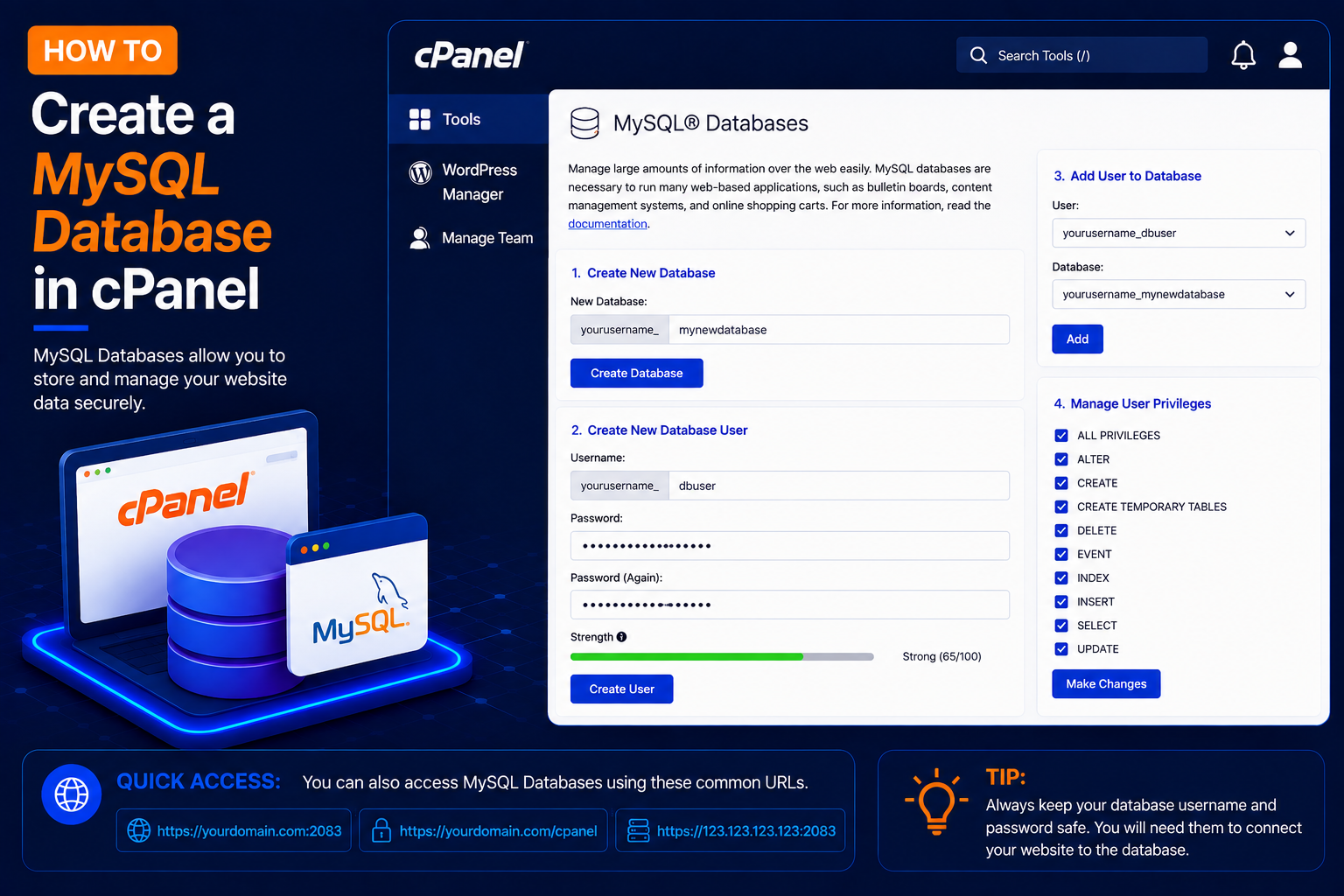
- Find the Create New Database section.
- Enter a name for your database.
For example:
dbname - Your complete database name may include your cPanel account username as a prefix.
For example:
cpaneluser_dbname - Click Create Database.
Step 4: Confirm the Database Was Created
- After clicking Create Database, cPanel should display a success message.
- Return to the database management page.
- Your newly created database should now appear in the list of existing databases.
How to Create a MySQL Database User
Creating the database alone isn’t enough for most websites. You normally also need a database user with permission to access it.
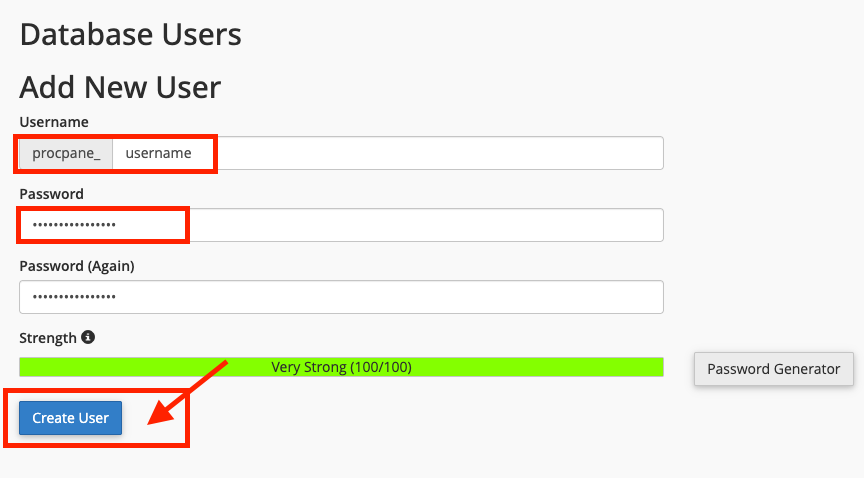
Step 5: Create a New Database User
- Find the MySQL Users or Add New User section.
- Enter a username. For example: username
- Your complete database username may look like: cpaneluser_username
Create a strong password that includes:
- Uppercase letters
- Lowercase letters
- Numbers
- Special characters
The built-in Password Generator button can create a strong password for you. Copy it somewhere safe before continuing, because cPanel will not show it to you again.
Then click: Create User
How to Add the User to the Database
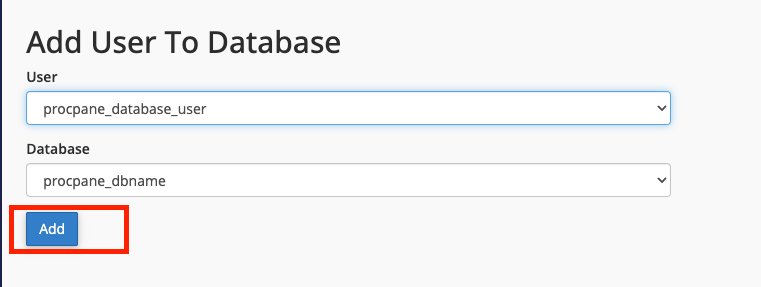
Step 6: Select the User and Database
- Find the section: Add User To Database
- Select your user. For example: cpaneluser_wpuser
- Then select your database: cpaneluser_wordpress
- Click: Add
Step 7: Assign Database Privileges
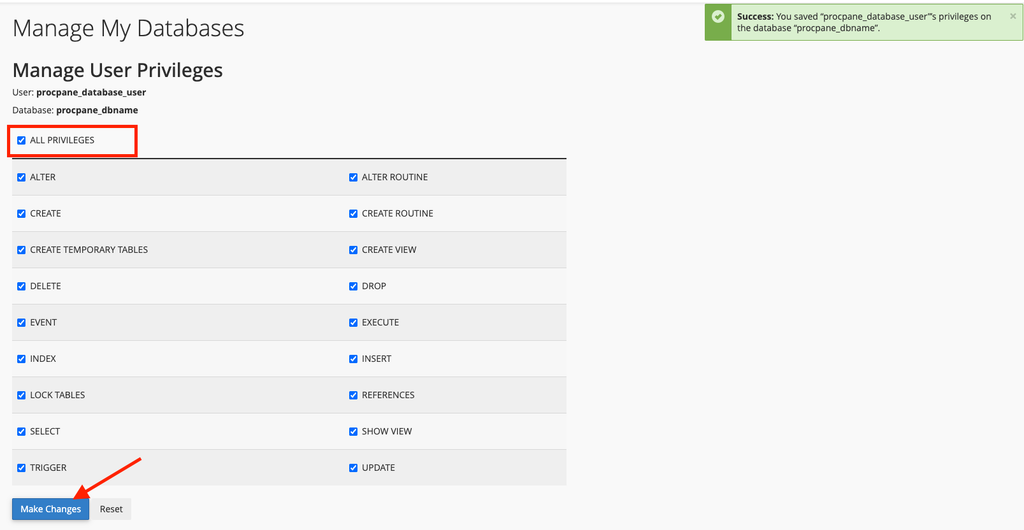
- After adding the user, cPanel will display the available database privileges.
- For a website that requires full database access, you may need to select ALL PRIVILEGES.
- Then click: Make Changes
- Only grant the privileges required by the application you’re configuring.
Step 8: Note Your Database Details
Your website or application will normally require four database details:
- Database Name: cpaneluser_dbname
- Database Username: cpaneluser_username
- Database Password: The password you created
- Database Host: localhost
On many standard cPanel hosting environments, the database host is localhost, but you should use the hostname specified by your hosting provider if it is different.
For WordPress, these values go into the DB_NAME, DB_USER, DB_PASSWORD and DB_HOST lines of the wp-config.php file, or into the database screen of the WordPress installer. Always use the full names, including the prefix.
Common Problems and How to Fix Them
“Error establishing a database connection”
This WordPress error usually means one of the four details is wrong. Check that you used the full database name and username with the cPanel prefix, that the password has no extra spaces, and that the host is correct. If you are not sure about the password, use Change Password next to the user in MySQL Databases and update your configuration file with the new one.
“Access denied for user”
The user exists but has not been linked to the database, or has no privileges. Scroll to Current Databases and check the Privileged Users column. If your user is missing, repeat Steps 6 and 7.
The password is rejected as too weak
Your host sets a minimum password strength. Make the password longer and mix character types, or use the Password Generator until the strength meter shows an acceptable value.
The name is too long or not accepted
MySQL limits the length of database and user names, and the cPanel prefix counts toward that limit. Use short names with only letters, numbers and underscores.
You cannot connect from your computer or another server
By default cPanel databases only accept connections from the server itself. To connect from an external tool, add your IP address in Databases → Remote MySQL®, if your host allows remote access, and use your server’s hostname instead of localhost.
Tips and Best Practices
- Create a separate database and user for each website or application.
- Use names that make it obvious which site the database belongs to.
- Never reuse your cPanel password as a database password.
- Delete databases and users you no longer need to keep the account tidy and secure.
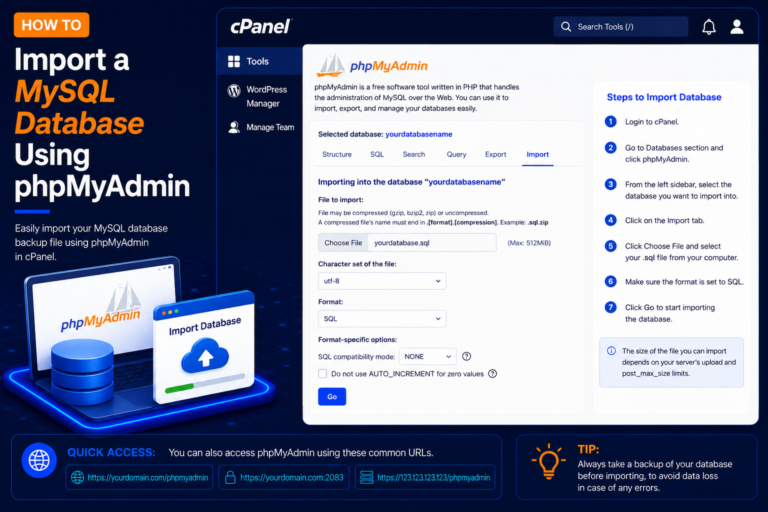
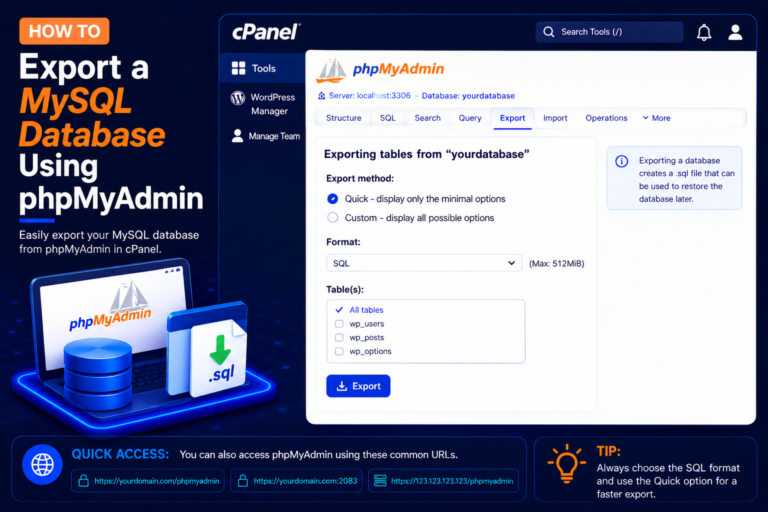
- Export a copy of the database with phpMyAdmin before major updates or migrations.
Frequently Asked Questions
How many databases can I create?
It depends on your hosting plan. The Statistics panel on the cPanel home page shows how many MySQL databases you have used and your limit.
What is the MySQL Database Wizard?
The MySQL® Database Wizard performs the same steps – database, user and privileges – in one guided flow. It is handy for beginners, and the end result is identical.
Can I rename a database later?
Many cPanel versions offer a Rename action in the Current Databases list. After renaming, you must update the database name in your website’s configuration file, otherwise the site will stop connecting.
Does deleting a database user delete the database?
No. Deleting a user only removes the login. The database and its data remain until you delete the database itself, which cannot be undone without a backup.
Conclusion
Creating a MySQL database in cPanel takes only a few minutes: create the database, create a user with a strong password, add the user to the database with the right privileges and save the four connection details. Once that is done, you can install WordPress or connect any PHP application to its new database.