How to Fix “PHP Installation Appears to Be Missing the MySQL Extension” in cPanel
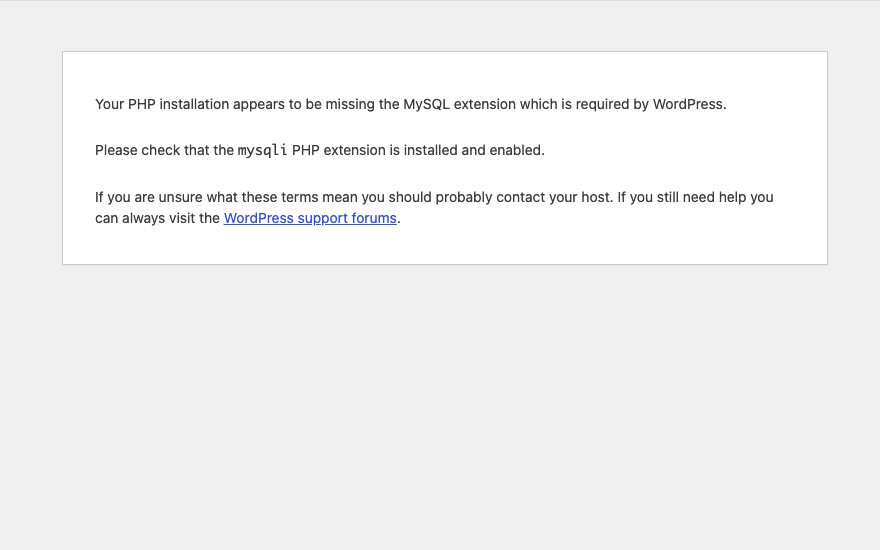
If your WordPress website suddenly shows the message “Your PHP installation appears to be missing the MySQL extension which is required by WordPress”, PHP on your hosting account cannot talk to the MySQL database. WordPress uses the PHP mysqli extension for this, so when that extension is disabled or unavailable, the site cannot load at all.
This error often appears after the PHP version has been changed, after moving a website to a new host, or when a custom PHP configuration overrides the server defaults. The good news is that on most cPanel servers you can fix it yourself in a few minutes.
Before You Start
- Your cPanel login details
- Access to Select PHP Version in cPanel (available on servers running CloudLinux; on other servers you may see MultiPHP Manager instead)
- Ideally, a recent backup of your website files and database
Step 1: Log In to cPanel
- Log in to your cPanel account.
- Normally, you can access cPanel using https://yourdomain.com:2083 or through your hosting provider’s client area.
Step 2: Open Select PHP Version
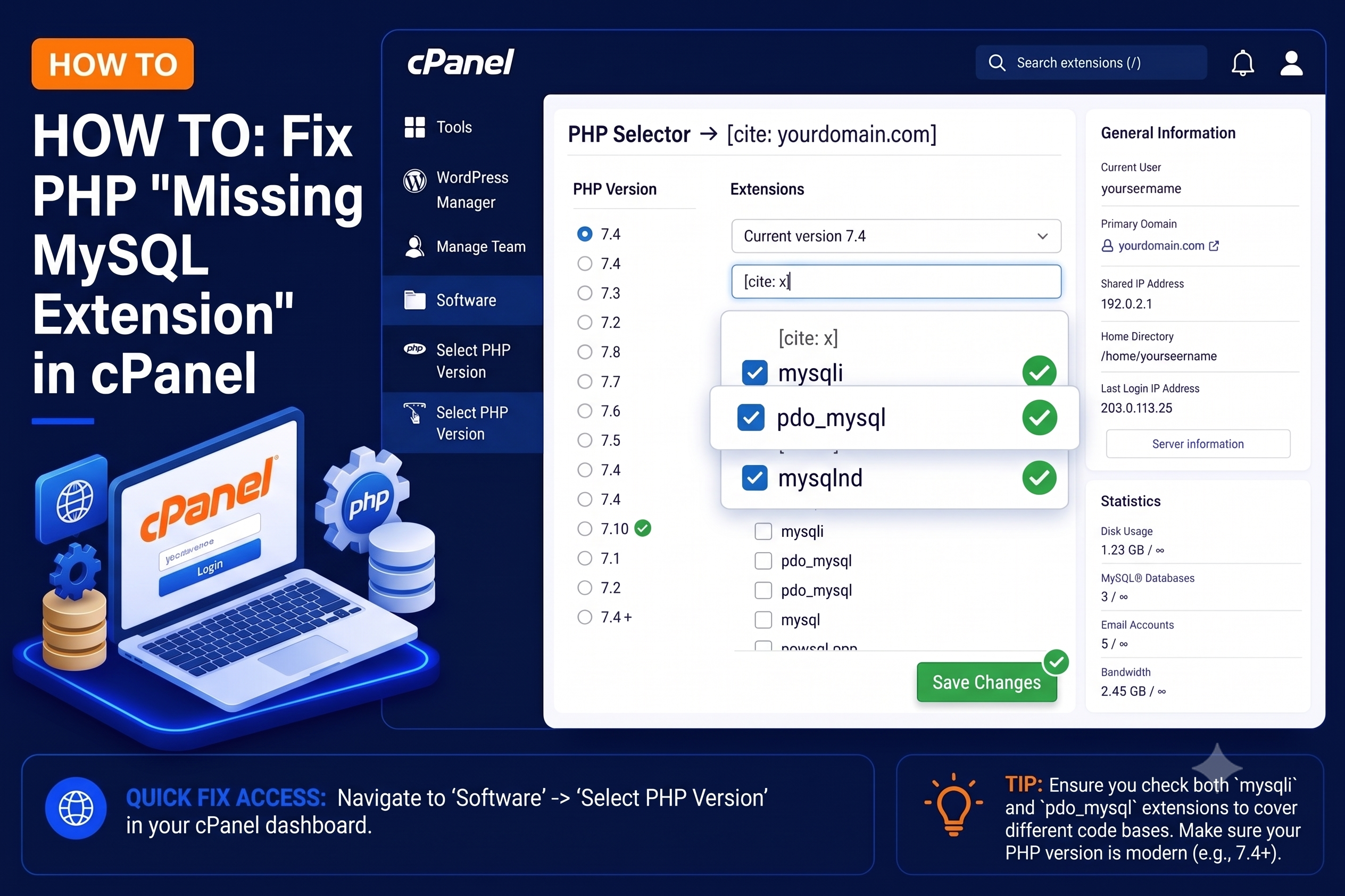
- Go to: cPanel → Software → Select PHP Version
- You will see the PHP version currently being used by your account.
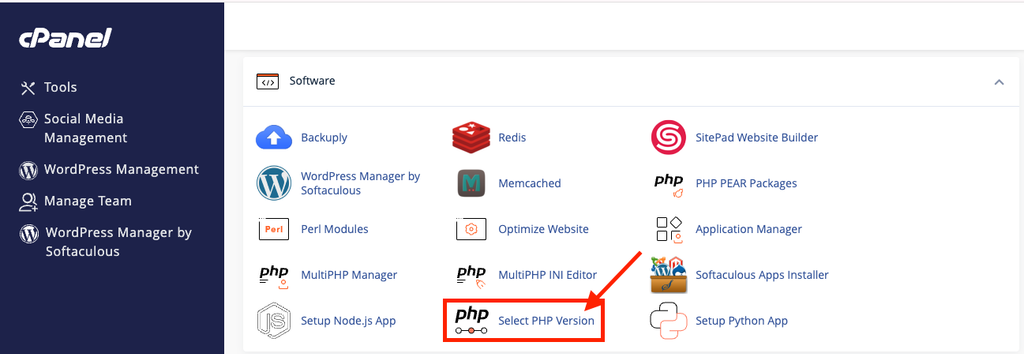
If the current version is shown as native, the extension list usually cannot be edited. Choose a specific PHP version from the dropdown (one supported by your WordPress version, themes and plugins) and click Set as current before moving on.
Step 3: Check the mysqli Extension
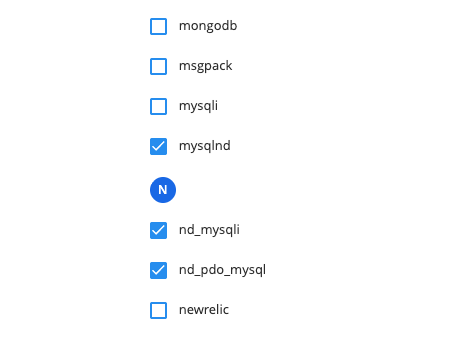
- Click the Extensions tab or check the available PHP extensions.
- Find: mysqli
- Make sure the checkbox next to mysqli is enabled.
- You may also want to make sure the following extensions are enabled:
- mysqli
- mysqlnd
- pdo
- pdo_mysql
Changes are normally saved automatically.
Step 4: Check Your Website
- Open your WordPress website again.
- You can also clear your browser cache before checking.
- If mysqli was the problem, your website should now load normally.
Why Does This Error Happen?
- The mysqli extension is disabled for the selected PHP version.
- The PHP version was changed and the new version has a different set of enabled extensions.
- A very old WordPress version is running on a modern PHP version. The old
mysqlextension was removed in PHP 7, and outdated WordPress releases or plugins that relied on it no longer work. - A leftover PHP handler in
.htaccessfrom a previous host forces a PHP version that is not configured correctly on the new server.
Common Problems and How to Fix Them
The error is still shown after enabling mysqli
Wait a minute and reload the page with a hard refresh. If you use a caching plugin or a CDN, purge its cache too. Then confirm that the PHP version you edited is the one actually serving the site – create a temporary info.php file containing <?php phpinfo();, open it in the browser, search for “mysqli”, and delete the file afterwards.
The PHP version shown in phpinfo is different
Open public_html/.htaccess in File Manager and look for lines starting with AddHandler or SetHandler that mention a PHP version, often added by a previous host or by MultiPHP Manager. Take a backup of the file, remove or update those lines, and test again.
You cannot find Select PHP Version
Your server may not use CloudLinux. Check MultiPHP Manager to see the PHP version for your domain. On these servers the available extensions are managed by the hosting provider, so ask support to enable mysqli for your PHP version.
The site loads but shows other errors
After a PHP version change, an old theme or plugin may be incompatible. Rename the plugin’s folder in wp-content/plugins to disable it temporarily, then update or replace it.
Tips and Best Practices
- Keep WordPress core, themes and plugins updated so they support current PHP versions.
- Take a backup before changing PHP versions or extensions.
- Change one setting at a time and test the site after each change.
- Remove test files such as
info.phpas soon as you have finished. - Write down your working PHP version and extensions so you can restore them quickly after a migration.
Frequently Asked Questions
Is mysqli the same as MySQL?
No. MySQL (or MariaDB) is the database server, while mysqli is the PHP extension that lets PHP code connect to it. The database can be running perfectly and the site will still fail if the extension is missing.
Will enabling mysqli affect my other websites?
In Select PHP Version, the setting usually applies to all domains using that PHP version in your account. Enabling mysqli is safe and is required by most PHP applications.
Do I need to restart anything?
No. On shared cPanel hosting the change is applied automatically, though it can take a short moment to take effect.
Conclusion
The “missing the MySQL extension” error looks serious, but it is usually just a disabled PHP extension. Open Select PHP Version, enable mysqli (along with mysqlnd and pdo_mysql), and check that the correct PHP version is actually being used. If the option is not available on your server, your hosting provider can enable it for you.