
How to Create an FTP Account in cPanel
FTP (File Transfer Protocol) allows you to transfer files between your computer and your web hosting server. With cPanel, you can create an FTP account and connect it to FileZilla to upload, download, and manage website files.
Separate FTP accounts are useful when you want to give a developer or designer access to just one folder of your hosting, upload large numbers of files faster than through the browser, or keep each website in its own restricted area. Each account has its own username and password, so you can remove access at any time without changing your main cPanel password.
In this tutorial, you’ll learn how to create an FTP account in cPanel and upload files using FileZilla step by step.
Before You Start
- Your cPanel login details.
- The FileZilla Client installed on your computer (it is free and available for Windows, macOS, and Linux).
- A clear idea of which folder the new FTP user should be able to access.
- A strong password for the FTP account. cPanel includes a Password Generator if you need one.
Step 1: Log In to cPanel
- Enter your cPanel Username and Password, then click Log in.
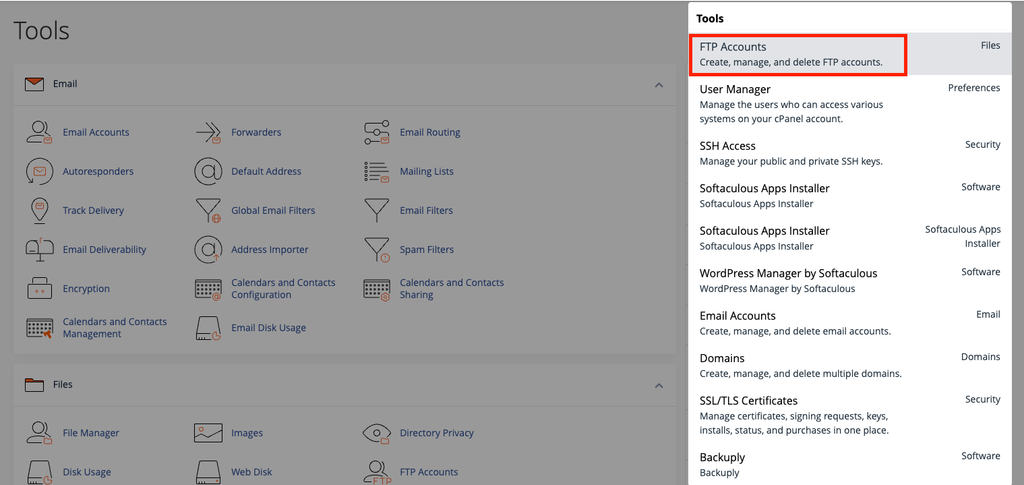
- After logging in to cPanel, locate the Files section.
- Click: FTP Accounts
- You can also search for FTP Accounts using the cPanel search bar.
Step 2: Create a New FTP Account
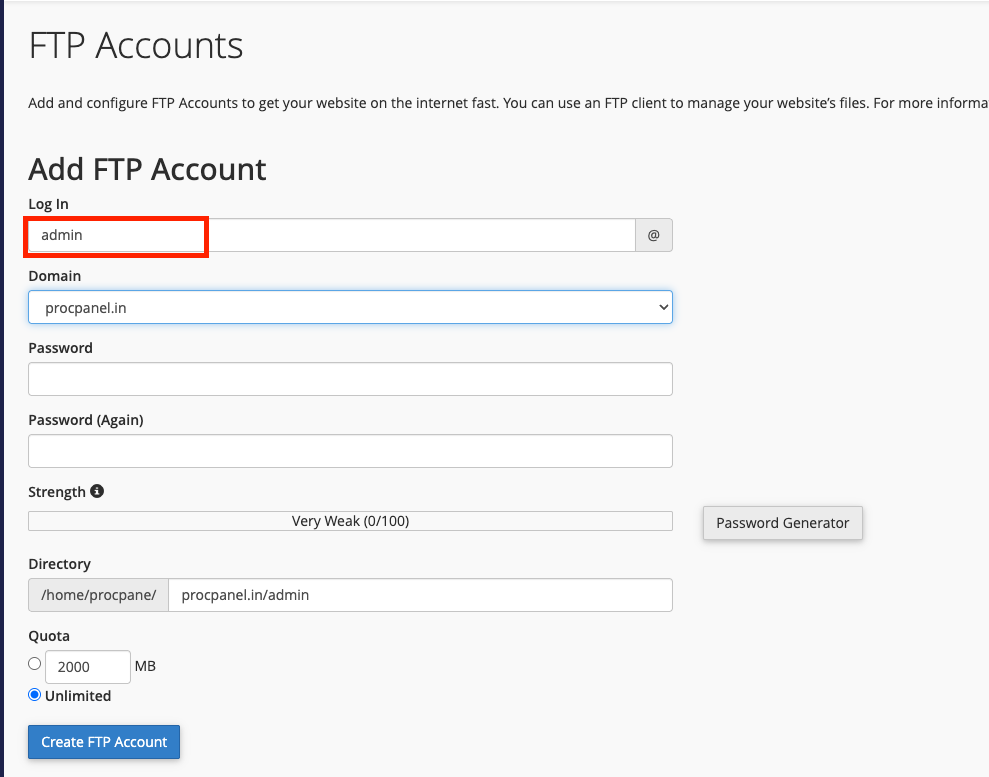
- Under Add FTP Account, enter the required information.
- Log In: enter a username for your FTP account.
- For example: admin
Domain
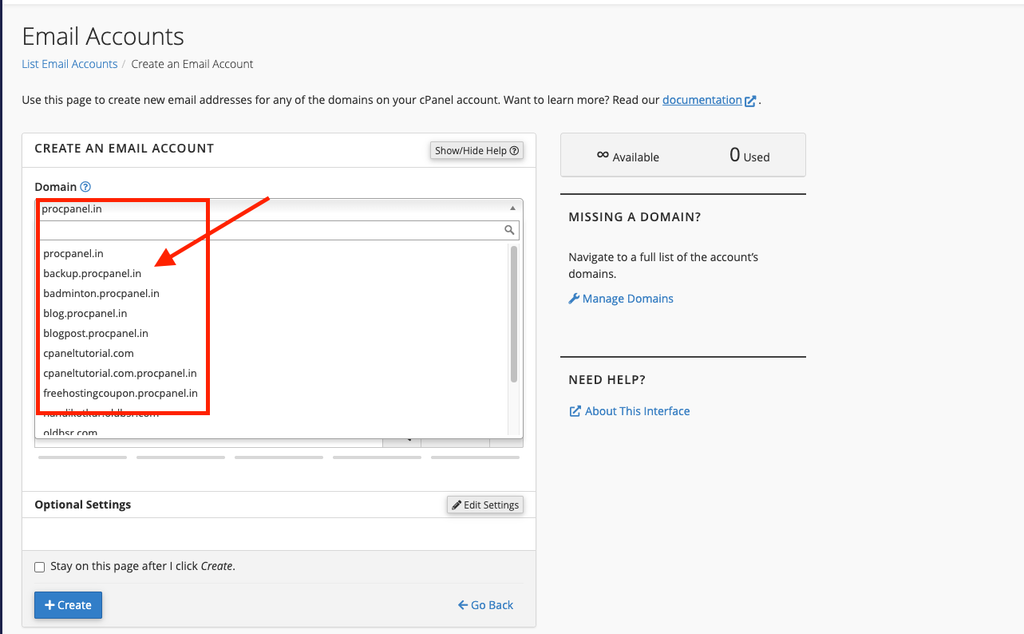
If multiple domains are available, select the appropriate domain.
Password
Enter a strong password twice, or use the Password Generator. cPanel shows a strength meter and may refuse passwords that are too weak.
Directory
- Enter the directory that the FTP user should be allowed to access.
- For example: public_html
- If you want the FTP account to access only a specific website folder, you can use:
- public_html/example.com
Be careful here: cPanel often fills this field automatically with something like public_html/admin, based on the username. If you leave it unchanged, the FTP user will be locked inside a new, empty folder instead of your website folder.
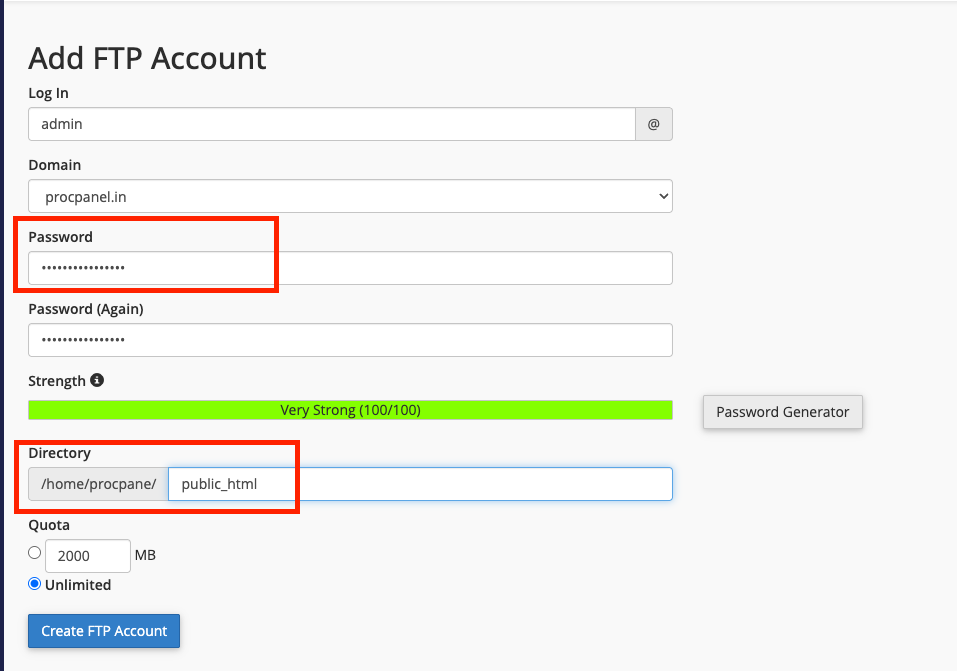
Quota
Choose Unlimited, or set a limit in megabytes if you want to restrict how much this FTP user can upload. The account can never use more than your hosting plan’s total disk space.
Step 3: Click Create FTP Account
- After entering all the required details, click Create FTP Account.
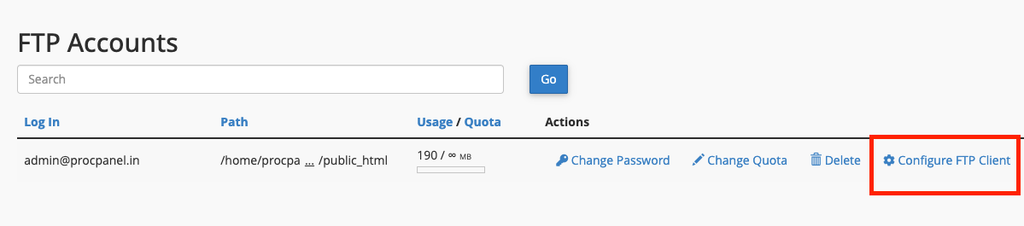
Your new FTP account will be created and will appear in the FTP Accounts list further down the page.
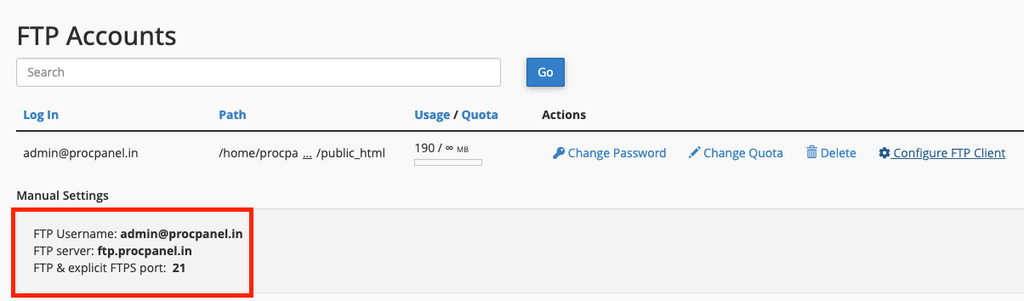
Step 4: Connect to the FTP Account Using FileZilla
Open FileZilla and fill in the Quickconnect bar at the top, or add a new site under File → Site Manager. In most cases you can use ftp.yourdomain.com or yourdomain.com as the host. You can also click Configure FTP Client next to the account in cPanel to see the exact settings for your server.
If ftp.yourdomain.com also doesn’t connect, use the server hostname shown in your cPanel hosting details. You can usually find the server information under cPanel → Server Information.
So I recommend testing in this order:
- FTP Username: admin@yourdomain.com
- FTP server: Server IP address
- Port: 21
- Password: Your FTP account password
Once connected, the right-hand pane shows the files on the server and the left-hand pane shows your computer. Drag files from left to right to upload them, or from right to left to download them.
Common Problems and How to Fix Them
530 Login Authentication Failed
Make sure you are using the full FTP username, including the domain (for example admin@yourdomain.com), not just admin. If it still fails, reset the password from the FTP Accounts list using Change Password and try again.
Connection Timed Out
Your hosting firewall may have blocked your IP after several failed attempts, or your network may be blocking port 21. Try a different network or mobile hotspot, and contact your host if you suspect an IP block.
Directory Listing Fails After Connecting
If FileZilla logs in but cannot list files, switch to passive mode under Edit → Settings → Connection → FTP → Passive (Settings may be under the FileZilla menu on macOS). Passive mode works better behind most home routers and firewalls.
Unknown Certificate Warning
With explicit FTP over TLS, FileZilla may show a certificate warning if the certificate is issued for the server hostname rather than your domain. Check that the hostname matches your hosting server, then accept it. Using the server hostname as the FTP host usually avoids this warning.
Uploaded Files Do Not Appear on the Website
The FTP account is probably pointing to the wrong directory. Check the account’s directory in cPanel and make sure you upload into the document root of your website, usually public_html.
Tips and Best Practices
- Prefer FTP over TLS (FTPS) or SFTP when available, so your password is not sent in plain text.
- Give each person their own FTP account and limit it to the folder they actually need.
- Delete FTP accounts that are no longer in use.
- Do not save FTP passwords on shared or public computers.
- Keep a local backup before overwriting files on the server.
Frequently Asked Questions
What is the difference between FTP and File Manager?
File Manager works inside your browser and is handy for small edits. FTP with a client like FileZilla is better for uploading or downloading many files or large folders at once.
Can I use my cPanel username for FTP?
Yes. The main cPanel account can usually log in over FTP with full access to your home directory. Creating separate FTP accounts is safer when you share access with others.
Which port should I use?
Standard FTP and explicit FTPS use port 21. SFTP, if your host allows SSH access, normally uses port 22 or a custom port provided by your host.
How do I remove an FTP account?
In cPanel → FTP Accounts, find the account in the list and click Delete. Deleting the account does not remove the files it uploaded.
Conclusion
Creating an FTP account in cPanel only takes a minute: choose a username, set a strong password, point it to the correct directory, and connect with FileZilla. Restrict each account to the folder it needs and use encrypted connections where possible to keep your website files safe.