How to Run a Different PHP Version on a Subdomain or Addon Domain
If you are hosting multiple websites under the same cPanel account, you may sometimes need to use a different PHP version for a specific subdomain or addon domain.
A common example is an older script that only works on PHP 7.4 running on a subdomain, while your main WordPress site runs on PHP 8.2. On many servers the PHP version chosen in Select PHP Version applies to the whole account, so you need a way to override it for one folder only.
You can configure a different PHP version for a particular domain or directory by adding the appropriate AddHandler line to its .htaccess file.
Before You Start
- This method uses alt-php handlers, which are available on servers running CloudLinux with LiteSpeed or a compatible PHP handler. Handler names vary by host, so check with your hosting provider if you are unsure.
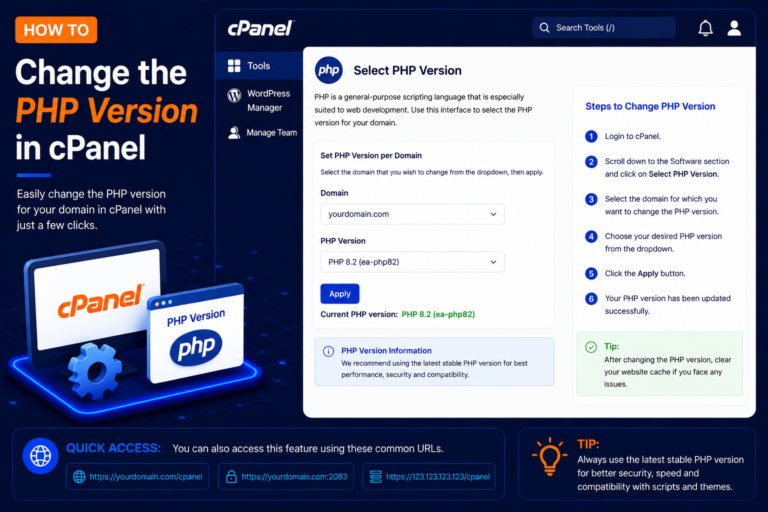
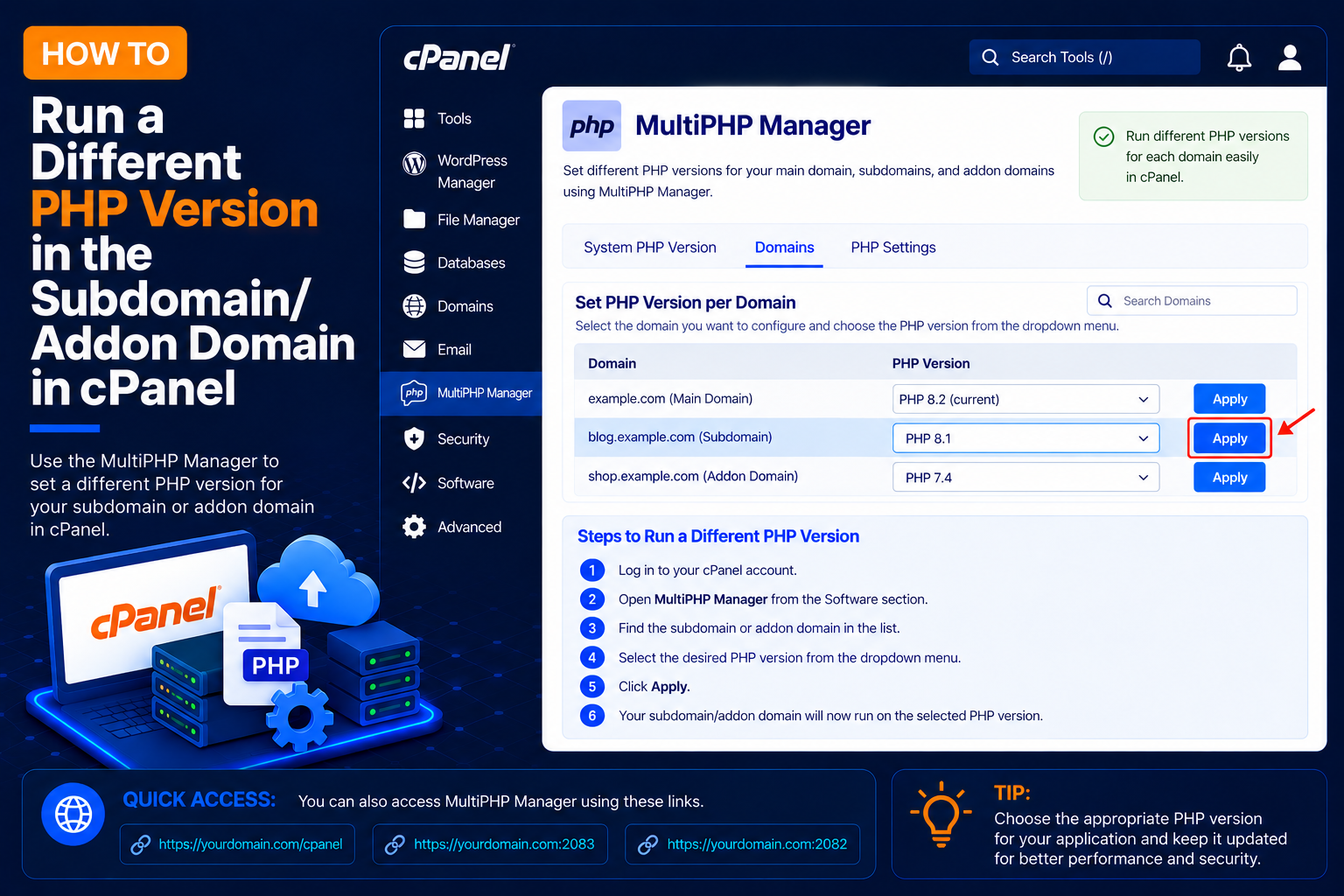
- If your cPanel shows a MultiPHP Manager icon, you can usually select a PHP version per domain from there without editing any files.
- Make sure the PHP version you want is installed on the server and supported by your application.
- Download a copy of the existing
.htaccessfile before editing it, so you can restore it if the site stops working.
How to Set a Different PHP Version Using .htaccess
Step 1: Log In to cPanel
- Log in to your cPanel account using your username and password.
Step 2: Open File Manager
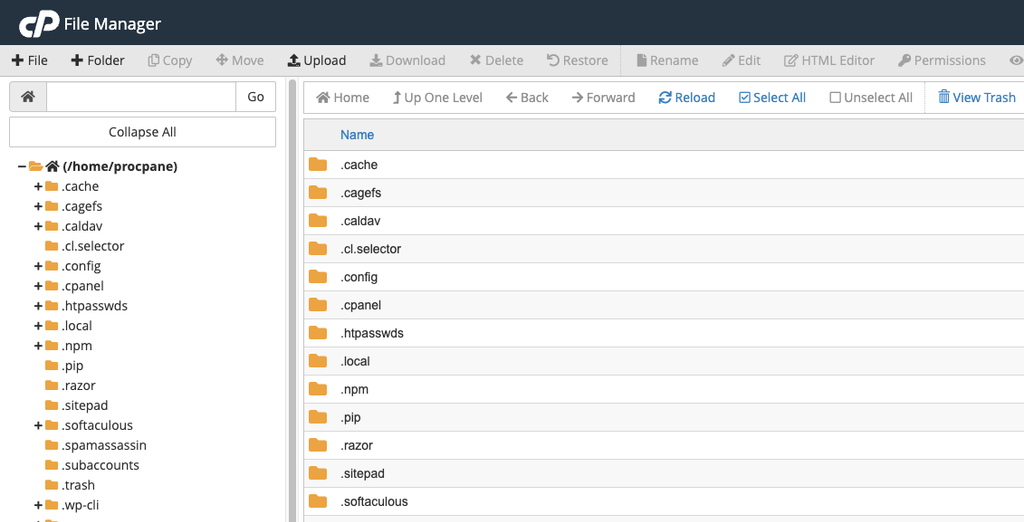
- Navigate to: Files → File Manager
- This will allow you to access and modify your website files.
Step 3: Open the Addon Domain or Subdomain Folder
- If you want to change the PHP version for an addon domain, navigate to its document root.
- For example:
public_html/youraddondomain.com
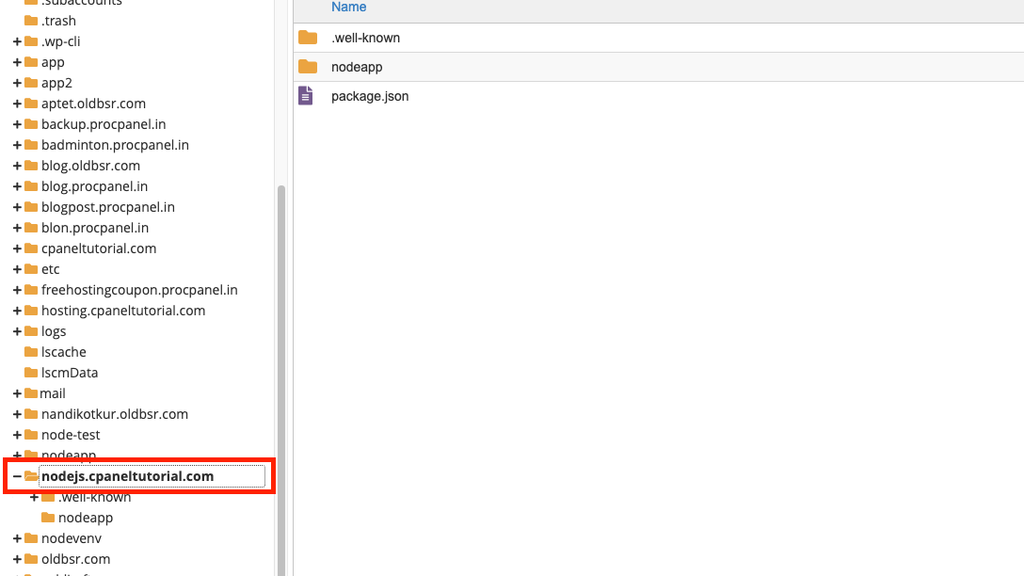
- For a subdomain, open the document root assigned to that subdomain.
- Make sure you are modifying the
.htaccessfile inside the correct website directory.
If you are not sure where the document root is, open cPanel → Domains. The document root for every subdomain and addon domain is listed next to its name.
Step 4: Enable Hidden Files
- The
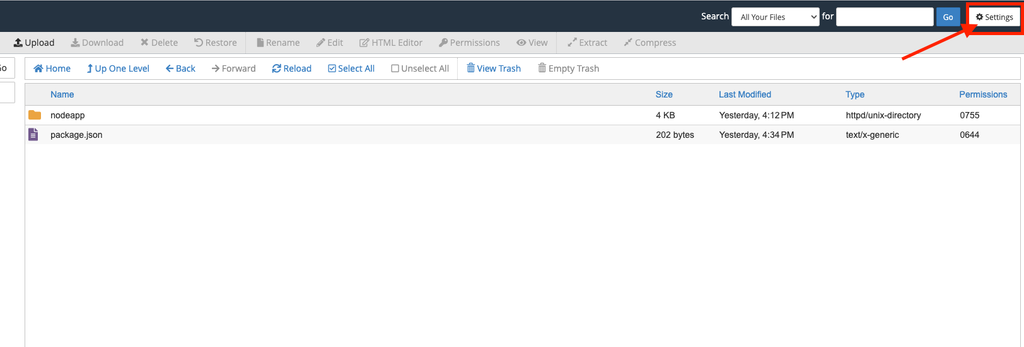
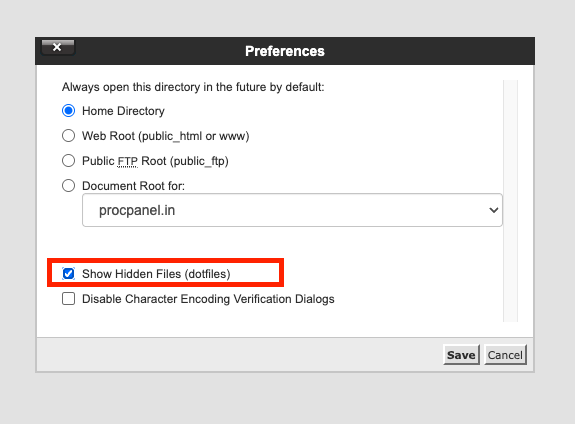
.htaccessfile is a hidden file and may not appear by default. - In File Manager, click Settings in the upper-right corner.
- Enable: Show Hidden Files (dotfiles)
- Then click Save.
- You should now be able to see the
.htaccessfile.
Step 5: Edit the .htaccess File
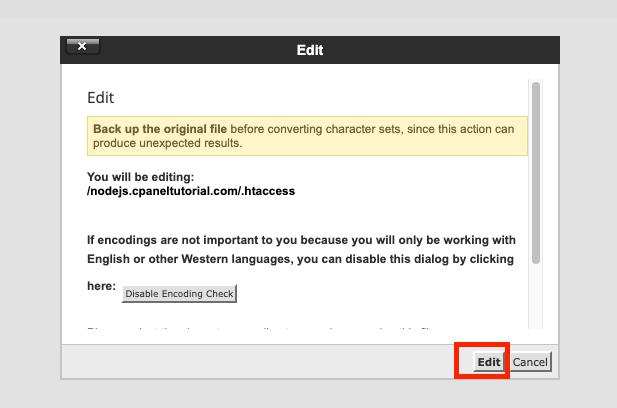
- Select the
.htaccessfile and click Edit from the File Manager toolbar. - If the
.htaccessfile does not exist, create a new file named.htaccess. - Make sure the file is created inside the document root of the required subdomain or addon domain.
Step 6: Add the Required PHP Handler
- Add the appropriate
AddHandlerline according to the PHP version you want to use.
For PHP 5.6
AddHandler application/x-httpd-alt-php56___lsphp .phpFor PHP 7.4
AddHandler application/x-httpd-alt-php74___lsphp .phpFor PHP 8.0
AddHandler application/x-httpd-alt-php80___lsphp .phpFor PHP 8.2
AddHandler application/x-httpd-alt-php82___lsphp .phpFor PHP 8.4
AddHandler application/x-httpd-alt-php84___lsphp .php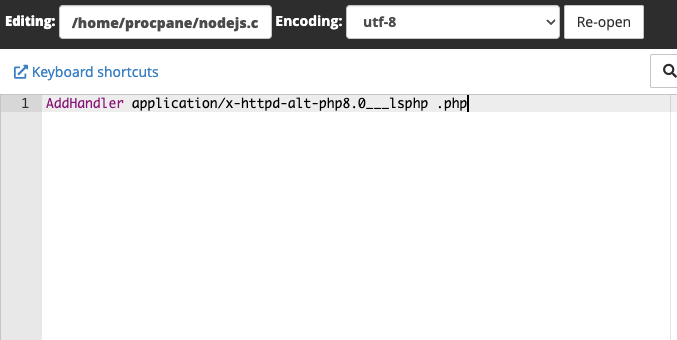
Add only one handler line. Place it near the top of the file, outside any existing # BEGIN WordPress block, then click Save Changes.
Step 7: Confirm the PHP Version
Create a temporary file named info.php in the same folder containing <?php phpinfo(); ?>, then open https://sub.yourdomain.com/info.php in your browser. The page header shows the active PHP version. Delete this file as soon as you have checked, because it reveals details about your server.
Common Problems and How to Fix Them
500 Internal Server Error
A typo in the handler line, or a handler name your server does not support, can cause a 500 error. Remove the line to restore the site, then check the exact handler name with your host.
Browser Downloads PHP Files Instead of Running Them
This means the server did not recognise the handler. Remove the line immediately and confirm which PHP handlers are available on your server.
PHP Version Does Not Change
Make sure you edited the .htaccess in the correct document root, not the main public_html folder. If your server uses PHP-FPM or a different web server configuration, .htaccess handlers may be ignored; use MultiPHP Manager or ask your host instead.
Missing Extensions After Switching
Each PHP version has its own set of extensions. If the site reports a missing extension such as mysqli or intl, the extension may need to be enabled for that version by your host or through the PHP Selector.
Tips and Best Practices
- Use the newest PHP version your application supports, since older versions no longer receive security updates.
- Treat older versions such as PHP 5.6 and 7.4 as a temporary solution while you update the application.
- Remember that a subfolder inherits the
.htaccessrules of its parent folder, so a handler inpublic_htmlcan affect subdomains stored inside it. - Test the website after every change, including forms and the admin area.
Frequently Asked Questions
Will this change affect my main domain?
No, as long as the handler is added to the subdomain or addon domain’s own document root. Only that folder and its subfolders are affected.
Can I use the same method for a folder inside my main website?
Yes. Placing the handler in a subfolder’s .htaccess changes the PHP version for that folder only.
How do I go back to the default PHP version?
Delete the AddHandler line from the .htaccess file and save it. The folder will return to the account’s default PHP version.
Conclusion
Running a different PHP version on a subdomain or addon domain is as simple as adding one handler line to the right .htaccess file. Use the correct document root, add a single supported handler, verify the version, and plan to move older applications to a supported PHP release.