How to Log In to cPanel Manually Using Your Domain
cPanel is one of the most popular web hosting control panels. It allows you to manage your website files, domains, email accounts, databases, SSL certificates, backups, and many other hosting features from a simple dashboard.
If you are new to web hosting, this guide will show you how to log in to cPanel step by step.
Most hosting companies give you more than one way to reach cPanel. Knowing all of them is useful: if one address does not work – for example because your domain is not pointing to the server yet or a network blocks a port – you can simply try another.
What Do You Need to Log In to cPanel?
Before logging in, make sure you have:
- Your domain name or server IP address
- Your cPanel username
- Your cPanel password
- Your cPanel login URL
Your hosting provider usually sends these details in your hosting account welcome email.
Note that your cPanel username is usually a short account name created by your host, not your email address. If you cannot find the welcome email, check your spam folder or look in the services section of your hosting provider’s client area, where the login details are often listed.
Method 1: Log In to cPanel Using Your Domain Name
The easiest way to access cPanel is through your domain.
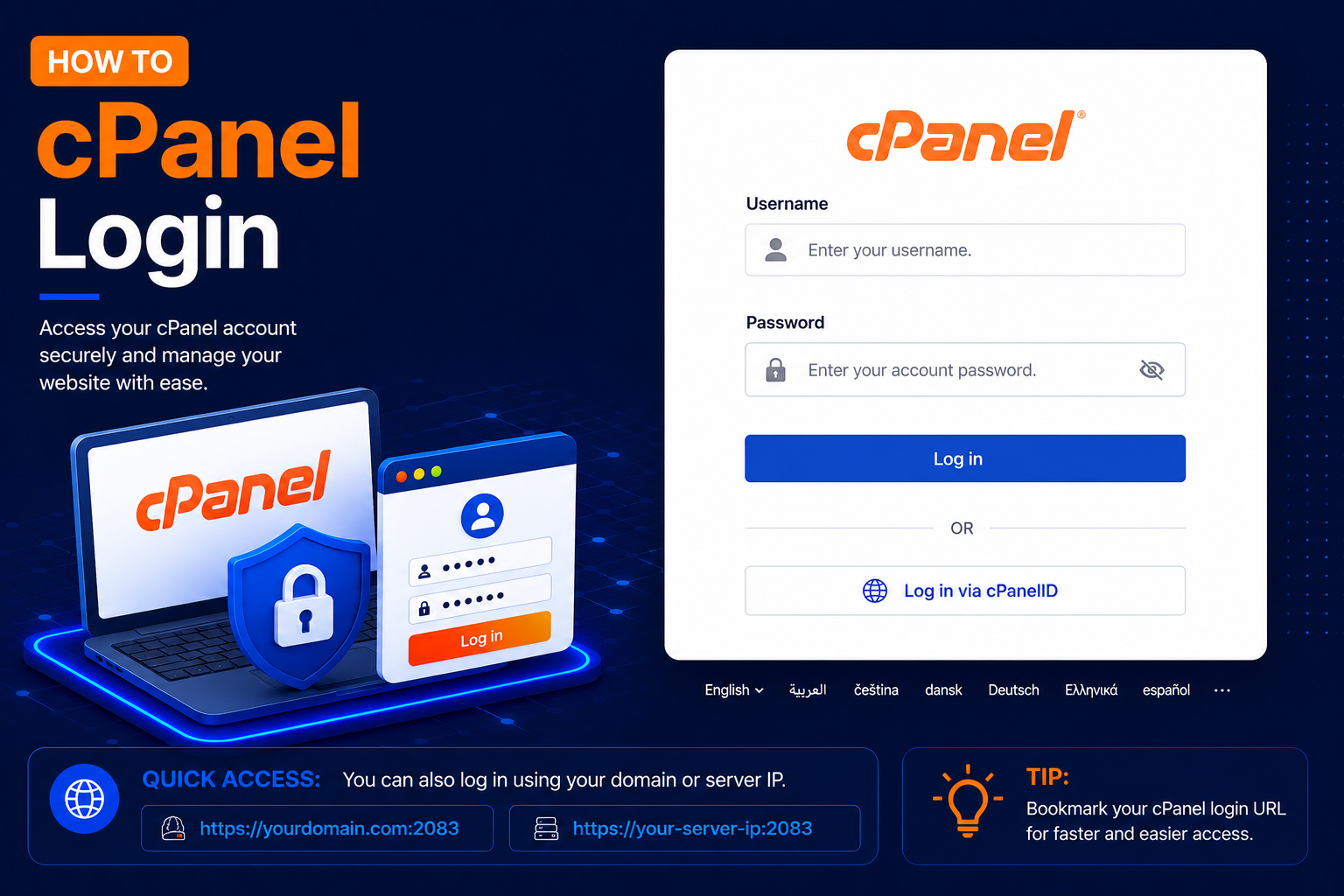
- Open your web browser and enter: https://yourdomain.com/cpanel
- Replace
yourdomain.comwith your actual domain name. - For example: https://yourdomain.com/cpanel
- You will be redirected to the cPanel login page.
- Enter your Username and Password, then click Log in.
Method 2: Log In to cPanel Using Port 2083
You can also access the secure cPanel login page using port 2083.
- Enter: https://yourdomain.com:2083
- Port 2083 is commonly used for secure HTTPS cPanel connections.
- Enter your cPanel username and password and click Log in.
Method 3: Log In to cPanel Using the Server IP Address
If your domain is not pointing to your hosting server yet, you may be able to access cPanel using the server IP address.
- Use: https://SERVER-IP:2083
- For example: https://192.0.2.10:2083
- Replace the example IP address with the IP address provided by your hosting company.
When you open cPanel by IP address, your browser may show a security warning because the SSL certificate is issued for the server’s hostname, not the IP. Only continue if you are sure the IP address came from your hosting provider. If your host gives you a server hostname (such as server123.examplehost.com), using https://hostname:2083 avoids this warning.
Method 4: Log In from Your Hosting Client Area
Many hosting providers offer a single sign-on button. Log in to your provider’s client area, open your hosting service and click Login to cPanel (the exact wording varies by host). This logs you in without typing the cPanel password, which is handy if you have forgotten it.
Common Problems and How to Fix Them
The login page does not open
If yourdomain.com/cpanel does not load, your domain may not be pointing to the hosting server yet. New domains and nameserver changes can take a few hours, sometimes up to 24–48 hours, to propagate. Use the server IP or hostname method in the meantime.
Port 2083 is blocked on your network
Some office, college or public Wi-Fi networks block non-standard ports such as 2083. Try https://yourdomain.com/cpanel or https://cpanel.yourdomain.com, which often work over the normal web port if your host has enabled them, or switch to mobile data.
“The login is invalid” message
Double-check that you are entering the cPanel username, not your email address or domain, and that Caps Lock is off. Copy-pasting the password from an email sometimes adds a hidden space at the end – type it manually if in doubt.
Locked out after several failed attempts
cPanel servers usually have brute-force protection (cPHulk) and a firewall that can temporarily block your IP address after repeated wrong passwords. Wait for the block to expire or contact your hosting support with your public IP address so they can unblock it.
Forgotten password
Use the Reset Password link on the login page if your host has enabled it, or change the password from your hosting client area. If neither option is available, contact your hosting support.
Tips for a Safe cPanel Login
- Always use the secure
https://address and port 2083, not the unencrypted port 2082. - Enable Two-Factor Authentication under the Security section of cPanel.
- Use a strong, unique password and store it in a password manager.
- Click Logout when you finish, especially on shared or public computers.
- Bookmark your login URL so you do not have to search for it each time.
Frequently Asked Questions
What is the difference between ports 2082 and 2083?
Port 2083 uses an encrypted HTTPS connection, while 2082 is the older, unencrypted HTTP port. Always prefer 2083 so your password is not sent in plain text.
Is the cPanel login the same as WHM or Webmail?
No. WHM is for resellers and server administrators and normally uses port 2087. Webmail is for individual email accounts and normally uses port 2096, with the email address and email password.
Can I log in to cPanel on my phone?
Yes. The same login URLs work in any modern mobile browser, and the cPanel interface adjusts to smaller screens.
Conclusion
Logging in to cPanel is simple once you know your login URL, username and password. Start with yourdomain.com/cpanel, use port 2083 or the server IP if the domain is not ready, and fall back to your hosting client area if you have lost your password. With two-factor authentication enabled, your hosting account will also be much safer.