
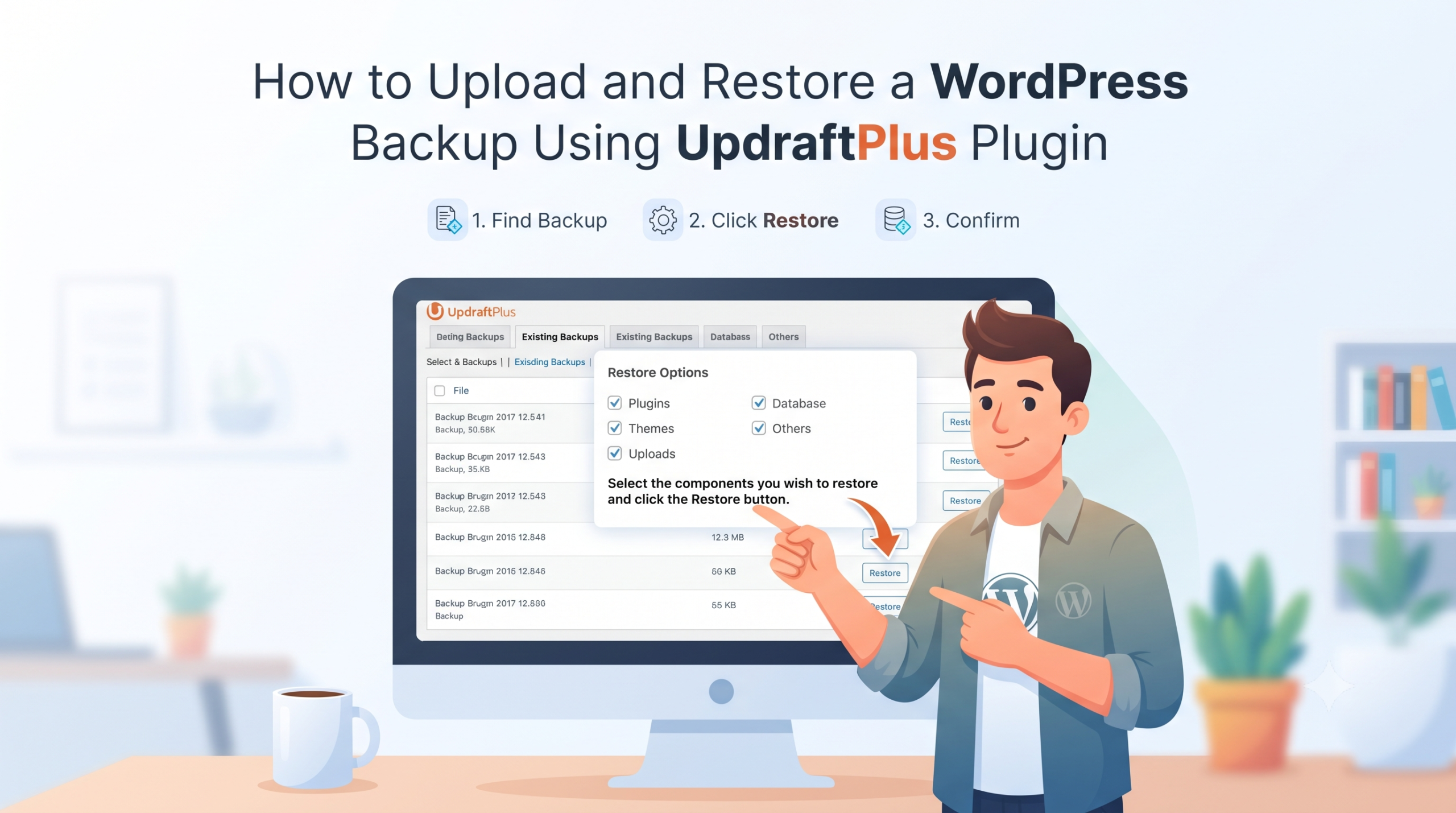
How to Upload a WordPress Backup Using UpdraftPlus Plugin
If you already have a WordPress backup created with UpdraftPlus, you can upload the backup files and restore your website directly from the WordPress dashboard.
This is useful when you have downloaded backups to your computer, when your site was hacked or broken by an update, or when you are moving a site to a fresh WordPress installation on new hosting. Instead of restoring files and the database manually through cPanel and phpMyAdmin, UpdraftPlus does the work for you.
In this guide, you will learn how to upload a WordPress backup using the UpdraftPlus plugin and restore your website files and database.
Before You Start
- Keep all backup files from the same backup set together. UpdraftPlus names them with the date, time and a unique code, for example backup_2026-09-25-0812_MySite_abc123-db.gz, -plugins.zip, -themes.zip, -uploads.zip and -others.zip. Large uploads may be split into extra parts such as -uploads2.zip.
- Do not rename the files. UpdraftPlus uses the file names to recognise the backup.
- Make sure you have a working WordPress installation on the target site and enough disk space for the backup and the restored files.
- Restoring the database replaces all current posts, pages, users and settings, so take a fresh backup of the current site first if it contains anything you need.
How to Upload and Restore an UpdraftPlus Backup
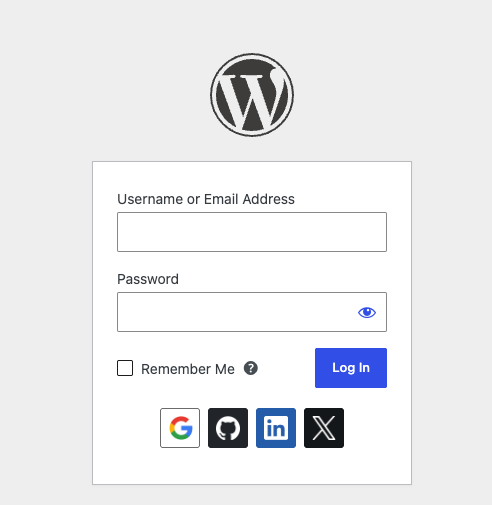
Step 1: Log In to Your WordPress Dashboard
- First, log in to your WordPress admin dashboard.
- Usually, you can access it using: https://yourdomain.com/wp-admin
- Enter your WordPress username and password and click Log In.
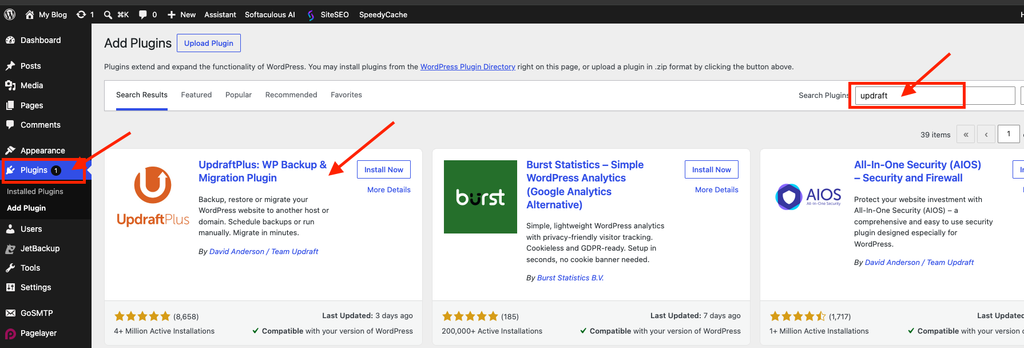
Step 2: Install and Activate UpdraftPlus
If UpdraftPlus is not already installed:
- Go to Plugins > Add New Plugin.
- Search for UpdraftPlus.
- Click Install Now.
- Click Activate.
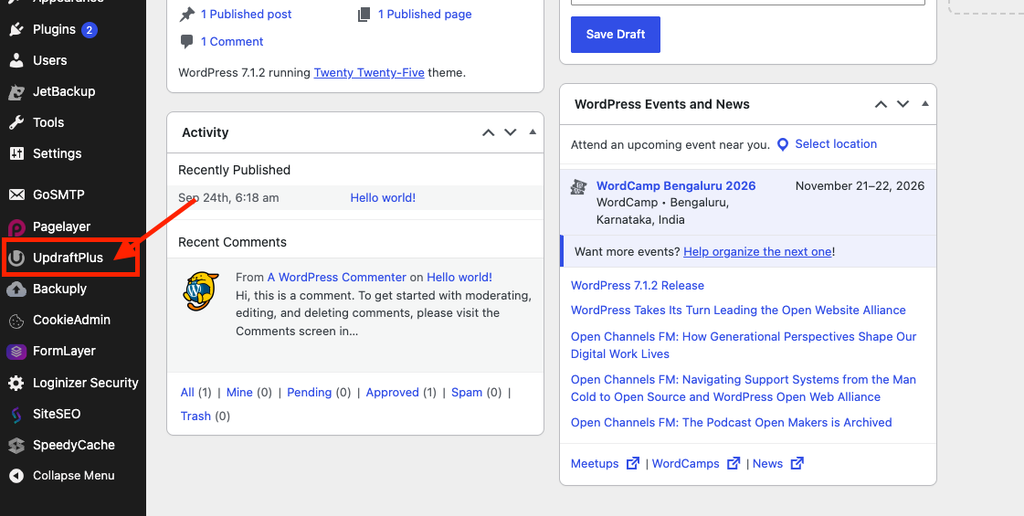
After activating the plugin, you can access the backup and restore options.
Step 3: Open UpdraftPlus Backup Settings
- From your WordPress dashboard, go to: Settings > UpdraftPlus Backups
- Depending on the plugin version, you may also see UpdraftPlus under a separate menu in your WordPress dashboard.
- The UpdraftPlus dashboard displays information about your existing backups, scheduled backups, and remote storage configuration.
Step 4: Open the Existing Backups Section
- Scroll down until you see the Existing Backups section.
- If there are already backups available on the server, they will appear here.
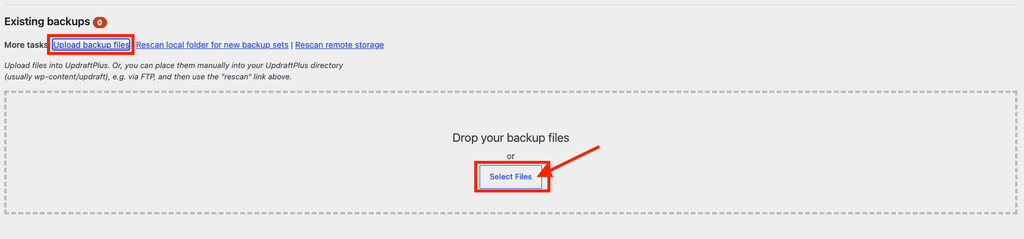
- To upload a backup from your computer, look for the Upload backup files option.

Step 5: Click Upload Backup Files
- Click the Upload backup files link or button.
- A file upload area will appear.
- You can now select the UpdraftPlus backup files stored on your computer.
Step 6: Upload All Backup Files
- Select your UpdraftPlus backup files.
- Depending on your backup, you may have files for:
- Database
- Plugins
- Themes
- Uploads
- Others
For a complete website restore, upload all available backup components.
Step 7: Check the Uploaded Backup
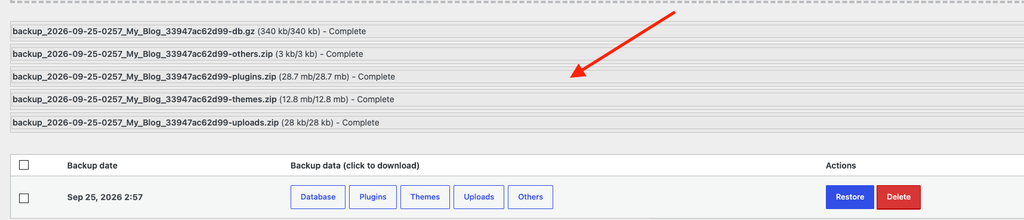
- After the upload is complete, UpdraftPlus should detect the backup automatically.
- The uploaded backup will appear under the Existing Backups section.
- You should see buttons such as:
- Restore
- Delete
- View Log

Step 8: Click Restore
- Click the Restore button next to the uploaded backup.
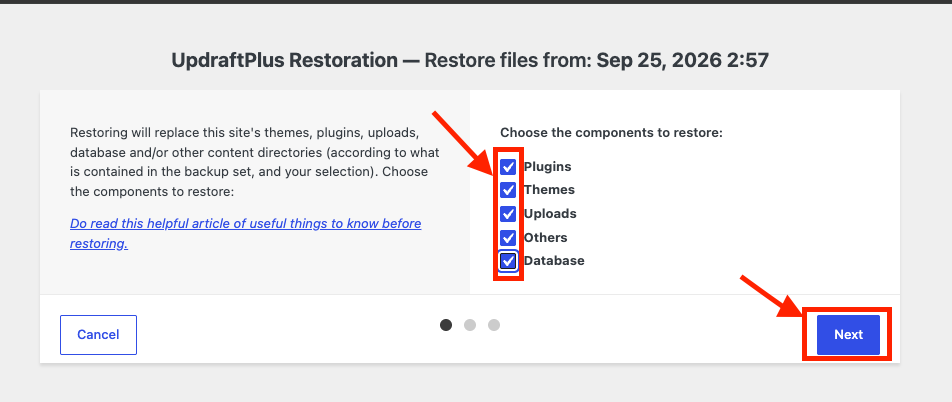
- UpdraftPlus will ask which components you want to restore.
- You may see options such as:
- Plugins
- Themes
- Uploads
- Others
- Database

Step 9: Select the Backup Components
- For a complete website restoration, select all available components.
- Choose:
- Plugins
- Themes
- Uploads
- Others
- Database
Then click Next.
Step 10: Start the Restore Process
- After UpdraftPlus verifies the backup files, click Restore.
- The restoration process will begin.
- Do not close or refresh the browser during the restore process.
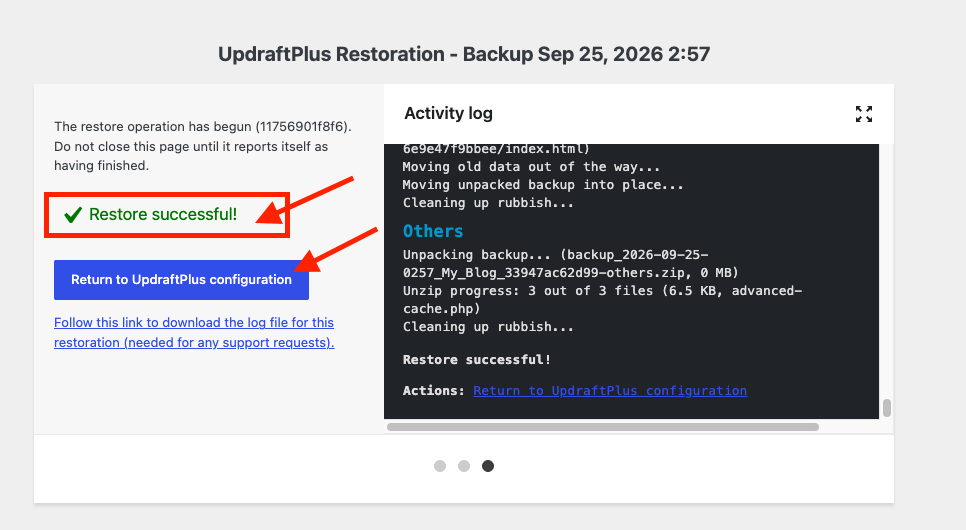
Note: The restore time depends on the size of your website and backup files.
When the restore finishes, UpdraftPlus shows a completion message. If you restored the database, you may be logged out; log in again with the username and password from the backed-up site, because the user accounts were restored too. Then visit the front end of your website, check a few pages and images, and go to Settings → Permalinks and click Save Changes once to refresh your permalink rules.
Common Problems and How to Fix Them
The upload fails or stops part-way
UpdraftPlus uploads files in chunks, but very large files can still fail on slow connections or hosts with strict limits. As an alternative, upload the backup files with FileZilla or cPanel File Manager into the wp-content/updraft folder, then click Rescan local folder for new backup sets in the Existing Backups section.
The uploaded backup does not appear in the list
Check that the file names were not changed (browsers sometimes add “(1)” to repeated downloads) and that all parts of the same backup set share the same date code. Then click Rescan local folder.
The restore stops with a timeout or memory error
Try restoring one component at a time, starting with the database. Your host may also be able to increase the PHP memory_limit or max_execution_time through MultiPHP INI Editor in cPanel.
The site has the wrong URL after restoring on a new domain
Restoring a backup to a different domain also needs the old URLs to be replaced in the database. UpdraftPlus offers this through its Migrator add-on; check the current plugin documentation for what your version includes.
Tips and Best Practices
- Keep at least one recent backup copy off the server, such as on your computer or in cloud storage.
- Test your backups occasionally by restoring them on a staging site.
- Delete old backup sets from the server after a successful restore to save disk space.
- Update WordPress, plugins and themes after restoring an older backup.
- Write down the admin login of the backed-up site and keep it in a safe place.
Frequently Asked Questions
Can I restore only the database or only the uploads?
Yes. In Step 9, tick only the components you need. For example, choose only Uploads to recover deleted images.
Do I need UpdraftPlus Premium to upload and restore backups?
No. The free version can upload and restore backups created by UpdraftPlus. Some features, such as migrating to a different URL, may need paid add-ons.
Can I restore a backup created by another plugin?
UpdraftPlus is designed for its own backup format. For backups made by other tools, use that tool or restore the files and database manually through cPanel.
Conclusion
Uploading and restoring an UpdraftPlus backup is simple: install the plugin, upload every file of the backup set, click Restore, choose the components and let the process finish without closing the browser. Afterwards, log in with the restored credentials, test your site and refresh permalinks.