
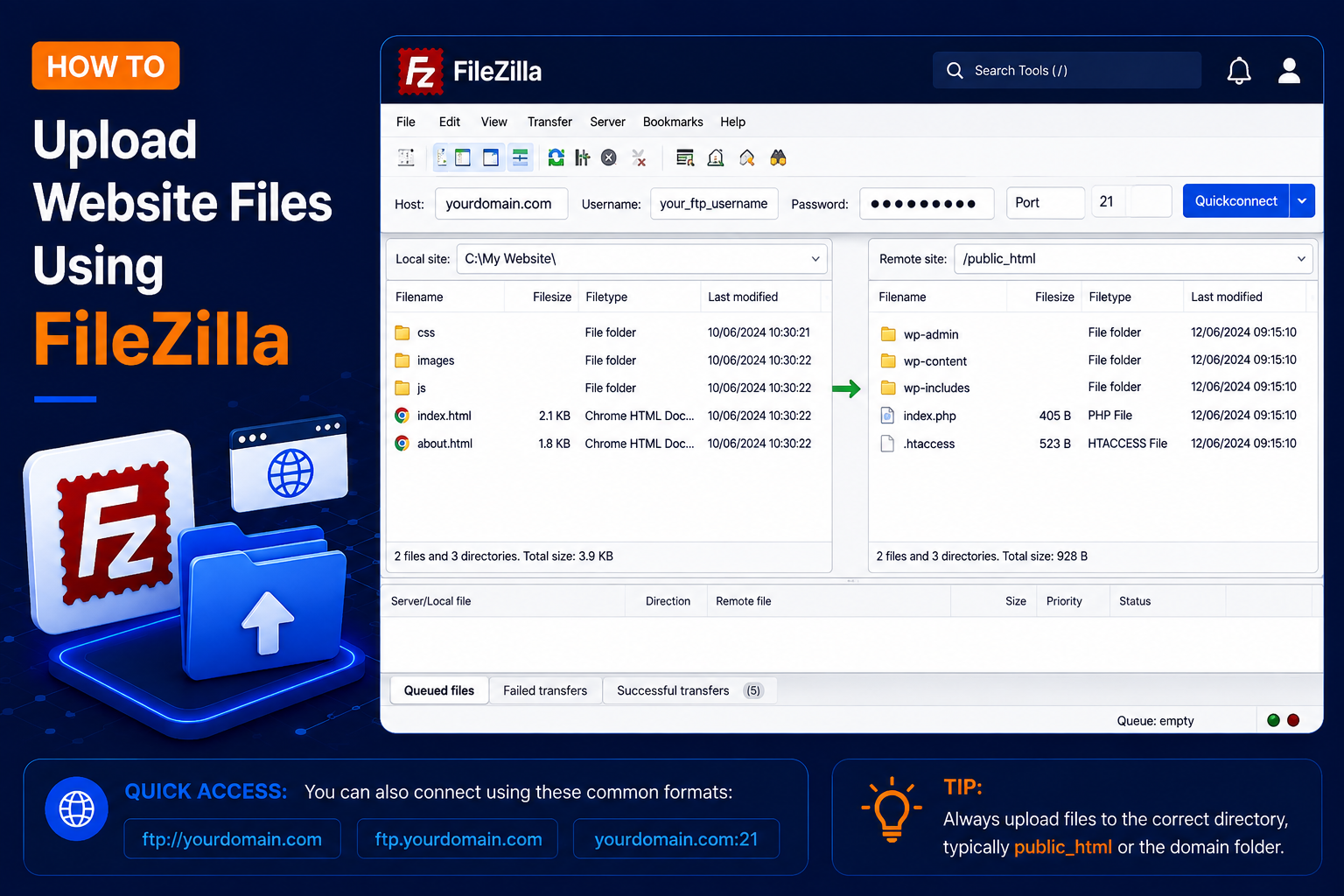
How to Upload Website Files Using FileZilla
FileZilla is a popular FTP client that allows you to upload and download website files between your computer and web hosting server.
cPanel’s File Manager is fine for editing a few files, but when you need to upload a complete website, hundreds of images or a large theme folder, an FTP client is faster and more reliable. FileZilla is free, available for Windows, macOS and Linux, and can resume interrupted transfers, which is useful on slower or unstable internet connections.
In this tutorial, you’ll learn how to upload website files using FileZilla step by step.
What Do You Need?
Before starting, make sure you have:
- FileZilla Client installed on your computer
- FTP hostname or server IP address
- FTP username
- FTP password
- FTP port number
- Website files ready on your computer
You can usually find your FTP details in cPanel → FTP Accounts.
If you don’t know how to create cPanel FTP login details, please follow this guide to create them:
How to Create an FTP Account in cPanel
How to Upload Files with FileZilla
Step 1: Download and Open FileZilla Client
- Install FileZilla Client on your computer and open it.
- Make sure you install FileZilla Client, not FileZilla Server.
- Download it only from the official FileZilla project website and read each installer screen carefully, so you do not accept optional bundled offers by mistake.
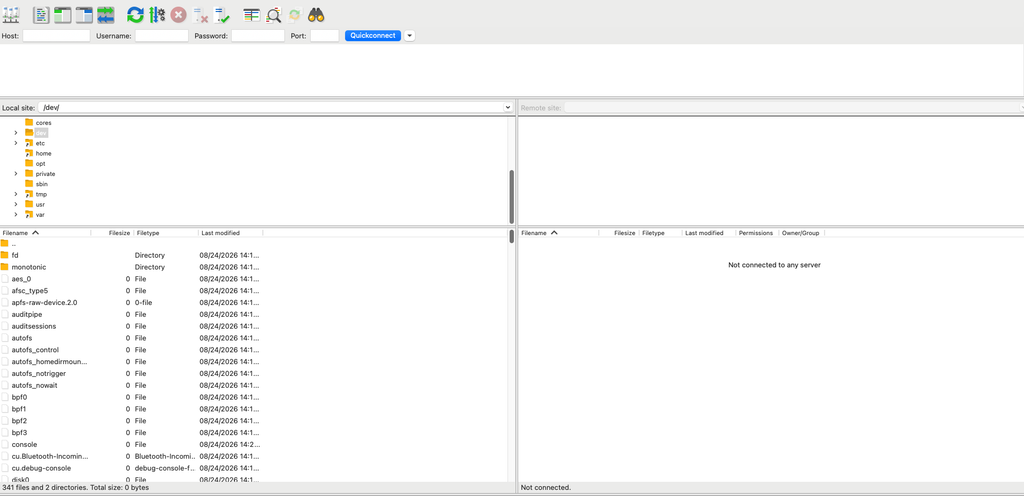
Step 2: Get Your FTP Login Details
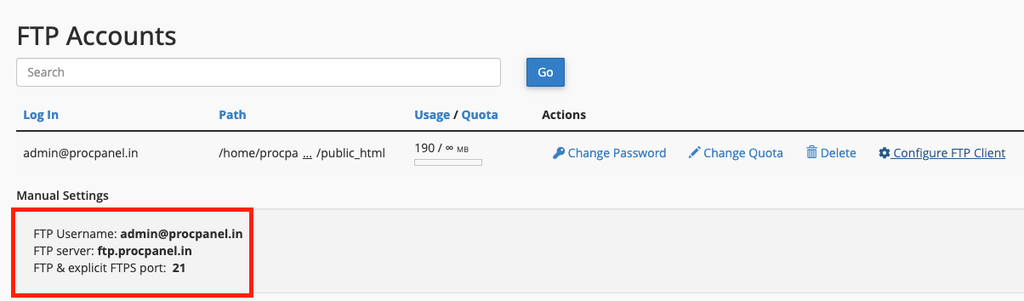
You need the correct FTP credentials before connecting FileZilla to your hosting account. Your details will normally look like:
- Host: ftp.yourdomain.com or your server hostname/IP address
- Username: ftpuser@yourdomain.com
- Password: Your FTP account password
- Port: 21 for standard FTP
Note: If ftp.yourdomain.com doesn’t work, try the server hostname provided by your hosting company. You may also be able to use the server IP address.
Step 3: Enter FTP Details in FileZilla
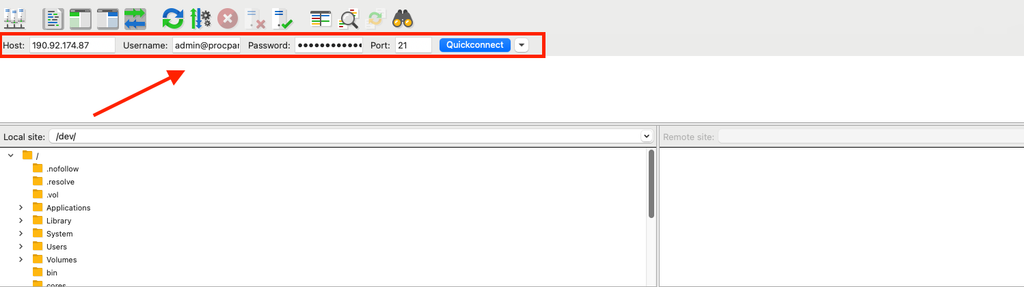
At the top of FileZilla, you will see the Quickconnect bar with the fields Host | Username | Password | Port. Fill them in like this and click Quickconnect:
- Host: ftp.yourdomain.com
- Username: ftpuser@yourdomain.com
- Password: Your FTP Password
- Port: 21
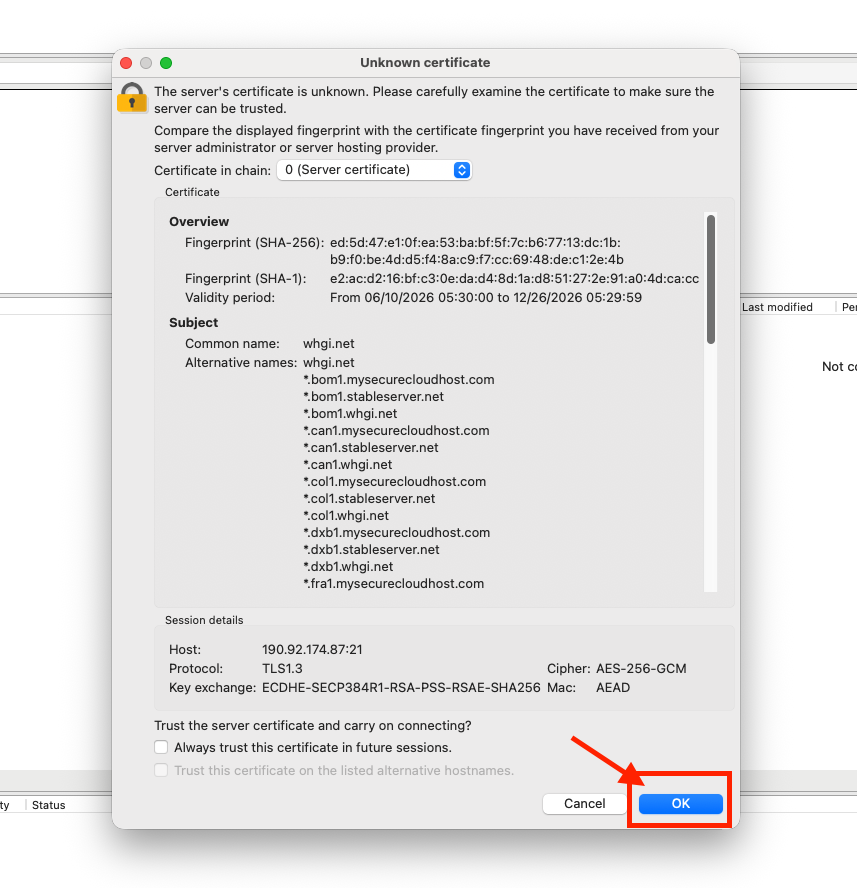
- When connecting securely for the first time, FileZilla may display a certificate verification window.
- Carefully verify that the certificate and server details are expected for your hosting account.
- If everything is correct, continue with the connection.
If you connect to the same site often, use File → Site Manager instead of Quickconnect. There you can save the host, username and port, and set Encryption to Use explicit FTP over TLS if available (or Require explicit FTP over TLS if your host supports it), so your password is not sent in plain text.
Step 4: Check the Connection Status
- If your FTP details are correct, FileZilla will connect to your hosting server.
- You may see a message similar to: Directory listing successful
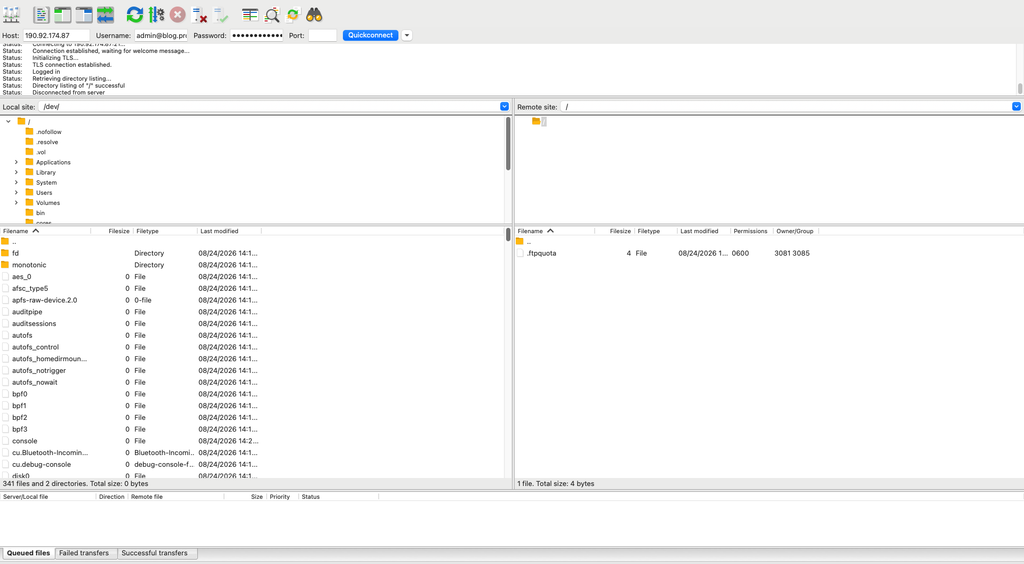
The FileZilla interface is divided into two important sections:
- Local site – Files stored on your computer.
- Remote site – Files stored on your hosting server.
Step 5: Open Your Website Directory
On the Remote site side, open the folder that serves your website (the document root):
- For the primary domain, this is commonly: public_html
- For an addon domain, the document root may be different. For example: public_html/example.com
- Make sure you upload files to the correct directory.
Note: if your FTP account was created with its own directory, FileZilla opens directly inside that folder and you may not see public_html at all. You can check each domain’s document root in cPanel under Domains.
Step 6: Find Website Files on Your Computer
- On the Local site side, navigate to the folder containing your website files.
- For example, your website may contain: index.html
index.php
css
images - Select the files and folders you want to upload.
Step 7: Upload Website Files
- Select your website files on the Local site side.
- You can upload them in either of these ways: Right-click → Upload or drag and drop them from the Local site to the Remote site.
- FileZilla will begin transferring the files to your hosting server.
Upload the contents of your website folder, not the folder itself. Your index.html or index.php must sit directly inside the document root, otherwise visitors will see a directory listing or a default page instead of your homepage.
Step 8: Wait for the Upload to Complete
- At the bottom of FileZilla, you can monitor the file transfers.
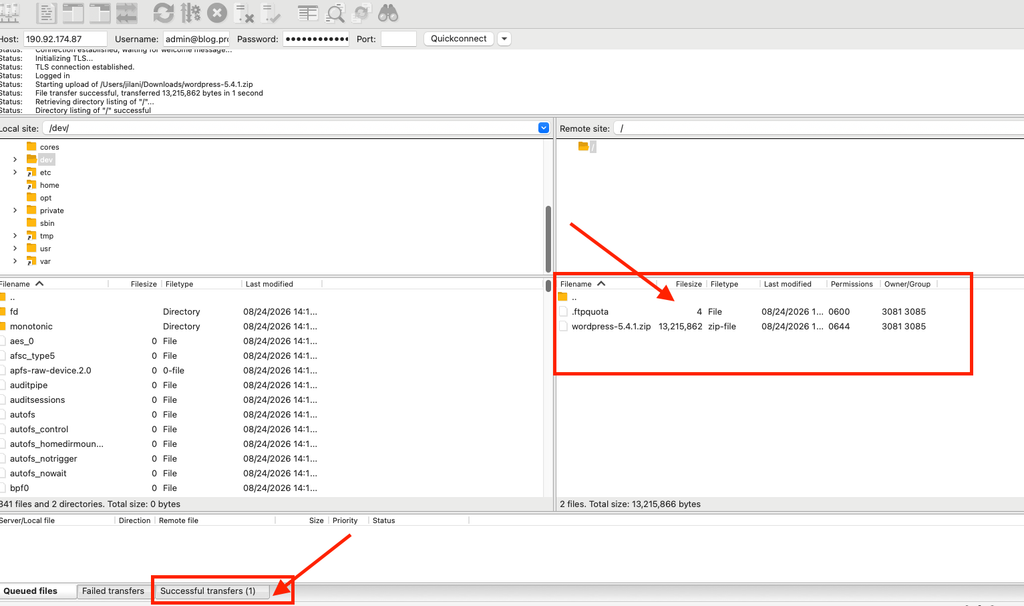
You will normally see sections such as:
- Queued files – Files waiting to transfer
- Failed transfers – Files that failed to upload
- Successful transfers – Files transferred successfully
Wait until all required files have finished uploading. If anything appears under Failed transfers, right-click those items and choose Reset and requeue all (wording may vary slightly by version), then process the queue again. Finally, open your domain in a browser and press Ctrl+F5 to check the uploaded site.
Common Problems and How to Fix Them
530 Login authentication failed
The username or password is wrong. In cPanel, FTP usernames usually include the domain, for example ftpuser@yourdomain.com. Copy the exact username from FTP Accounts, or reset the password there and try again.
Connection timed out or could not connect to server
Check the hostname and port. If ftp.yourdomain.com is not resolving yet (common with a new domain or recent DNS change), use the server hostname or IP address from your hosting welcome email. Some office or public networks block port 21, so test from another connection if needed. Repeated failed logins can also cause your IP to be blocked by the server firewall; your host can unblock it.
Failed to retrieve directory listing
This is usually a passive mode or firewall issue. In Edit → Settings → Connection → FTP (on macOS: FileZilla → Settings), make sure the transfer mode is set to Passive, then reconnect.
421 Too many connections
Many hosts limit simultaneous FTP connections per user or IP. Reduce Maximum simultaneous transfers under Settings → Transfers to 2 or 3.
Files uploaded but the website still shows the old page
You may have uploaded to the wrong folder, left an old index.html next to a new index.php, or your browser is showing a cached copy. Check the document root and remove the unused index file.
Tips and Best Practices
- Use FTP over TLS (FTPS) or SFTP whenever your host supports it; plain FTP sends your password unencrypted.
- For very large sites with thousands of small files, upload a single ZIP file and extract it with cPanel File Manager. It is usually much faster.
- Typical permissions on cPanel servers are 644 for files and 755 for folders. Avoid setting 777.
- Before overwriting live files, download a copy or take a backup so you can restore them if needed.
- Create a separate FTP account for each developer and delete it when the work is finished.
Frequently Asked Questions
Can I use my cPanel username and password in FileZilla?
On most cPanel servers, yes: the main cPanel account can log in via FTP with full access to the home directory. For daily work it is safer to create a separate FTP account limited to the folder you need.
What is the difference between FTP, FTPS and SFTP?
FTP is unencrypted. FTPS is FTP secured with TLS, normally on port 21. SFTP runs over SSH, usually on port 22, and only works if your host has enabled SSH access for your account.
Conclusion
With your FTP details from cPanel, FileZilla makes it easy to move website files between your computer and the server. Connect securely, upload the contents of your site into the correct document root, watch the transfer queue for failures, and check your website in the browser once the upload is complete.